
Intro Video
An intro video is an opener the player shows before the main video: a logo, a course intro, or a teaser for your own materials. You don’t have to edit it into every video: you choose it once in the player settings, and it plays before every video that uses this player. You can replace or turn off the intro at any time, and the videos themselves stay unchanged.
Who this article is for
- Online schools and course authors — need the same opener before every lesson
- Content managers — need to promote their materials before a video and send viewers to a link
- Marketers — need to put a seasonal or event opener on the whole catalog for a while
How it works
- The intro video is a regular video from your catalog. Upload it to the catalog first, like any other video.
- The intro is set in a player template and plays before every video that uses this player. To show the intro before your whole catalog, set it in the player all your videos use. To keep some videos without the intro, assign them a different player.
- One player can have one intro video.
- The intro plays every time a video starts, even if the viewer has already seen it. In a playlist, the intro plays before every video.
How to enable the intro video
- Go to Settings → Players and open the player you need. You can also open the player from the video settings: General tab → Player section → Customize player. Learn more about templates in Player Customization.
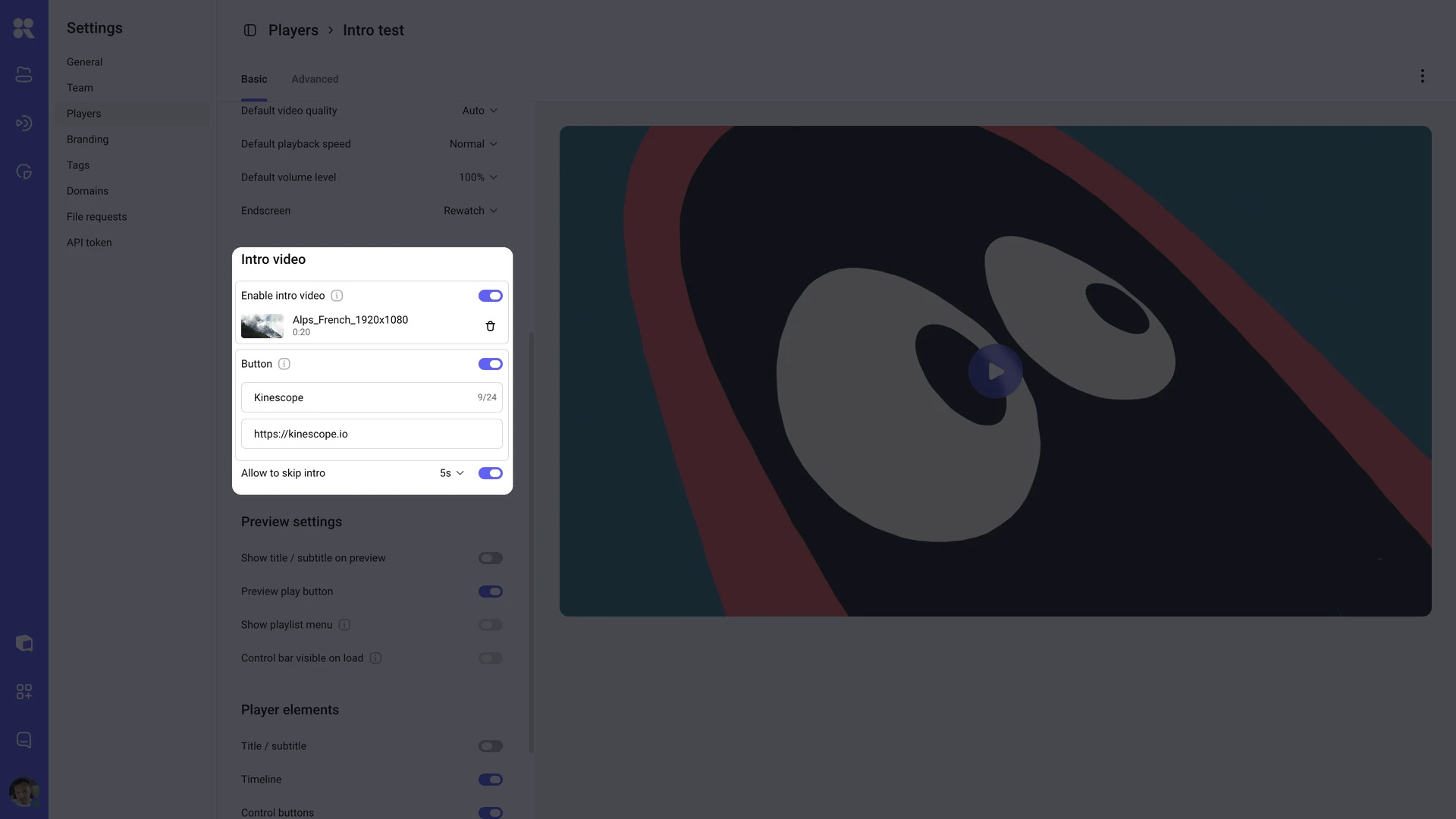
- On the Basic tab, find the Intro video section.
- Turn on Enable intro video.
- Click Select video. In the Choose file window, find the video in your catalog and click Add.
- Set up skipping and the button with a link if needed — see below.
- Click Save.
Changes apply only after you save them. Cancel returns the settings to the last saved state.
In the player list, a player with the intro turned on is marked Intro video on.
Choosing the clip
Once you choose a clip, the section shows its poster, title, and duration.
- To replace the clip, click it and choose another video.
- To remove the clip, click the trash icon next to it.
There is no limit on the clip duration.
If the clip has a password or domain restrictions, they don’t apply while the video plays as an intro: all viewers on any page with this player will see it.
If the intro clip is deleted from the catalog or moved, the player settings show Not found and Video has been deleted or moved instead of its title. Meanwhile, viewers watch the main video without the intro. Choose another clip or click Reset to remove the unavailable one.
Skipping the intro
Allow to skip intro is on by default.
- On — the viewer sees the Skip button. To show the button later, click the value next to the toggle (0s by default) and use the slider to set how many seconds after the intro starts the button appears. At 0, the button appears right away. The maximum is 300 seconds, and the value must be shorter than the clip.
- Off — there is no Skip button, and the viewer watches the intro to the end.
Button with a link
You can show a button over the intro that leads to your website, course, or landing page.
- Turn on Button.
- In the Call to action field, enter the button label — up to 24 characters.
- In the URL field, enter the page address starting with
http://orhttps://. If the address is invalid, Enter a valid URL appears under the field.
The link opens in a new tab. Clicking the intro itself opens nothing: the link works only through the button.
If you turn off Button, the button label and the URL are cleared.
What viewers see
- The intro plays before the main video. At the bottom left are the Intro video label and the button with a link, if you added one.
- If skipping is allowed, the Skip button appears at the bottom right. Until it becomes available, a countdown in seconds is shown in its place. After the viewer clicks it, the main video starts from the beginning.
- When the intro ends, the main video starts.
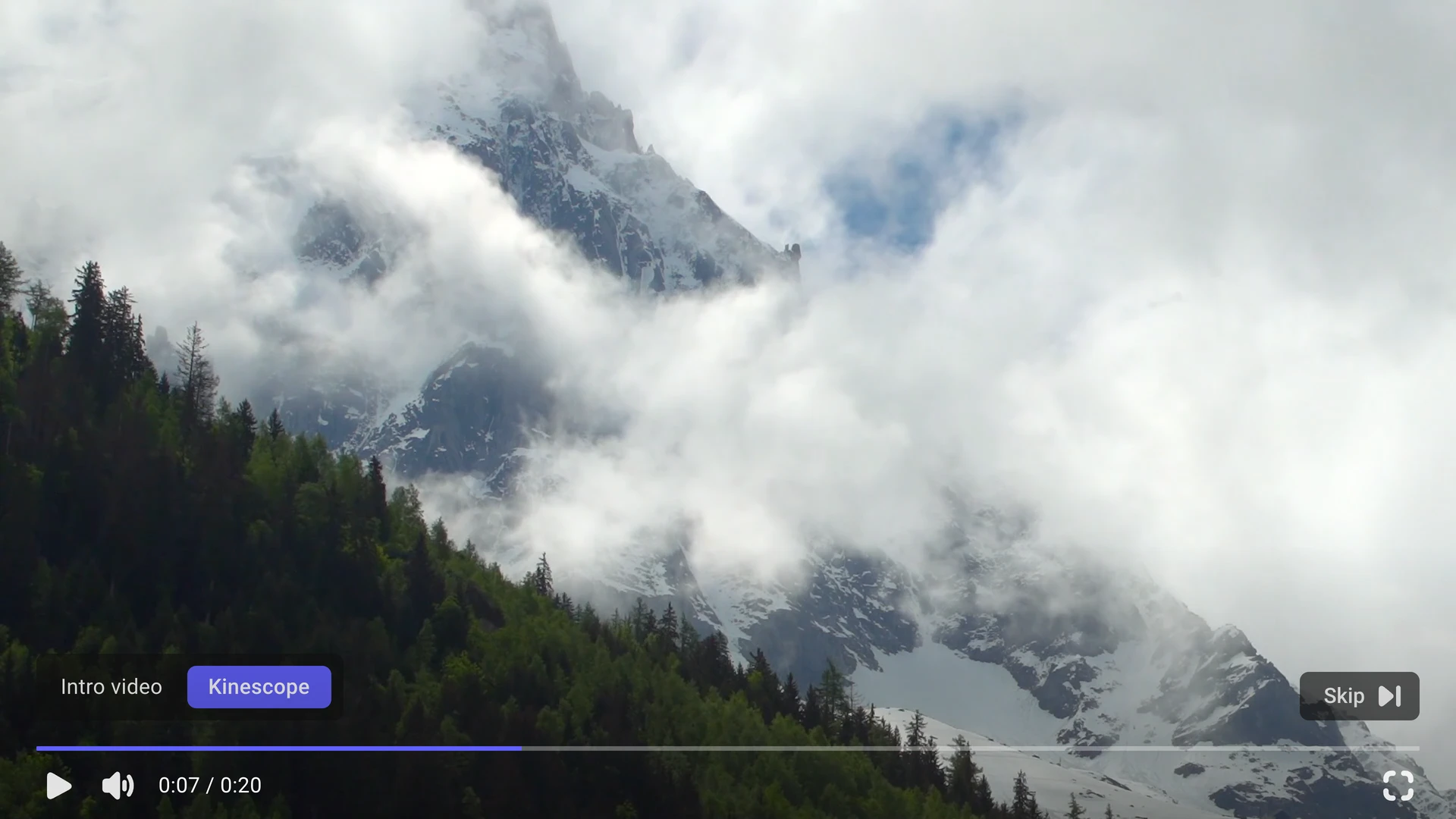
If the intro does not start playing within 5 seconds, the player goes straight to the main video. Viewers with an ad blocker don’t see the intro, and the main video starts right away.
Where the intro video works
- Works — in the Kinescope web player: by video link, in the player embedded on a website, and in playlists.
- Works before DRM-protected videos — the protected main video plays as usual.
- Doesn’t work — in live streams, before audio files, and in mobile SDKs.
Availability and permissions
- The intro video is available on paid plans. On the free plan, the section settings are inactive, and hovering over them shows Available on paid plans.
- Users with the Administrator, Editor Plus, and Editor roles can set up the intro video. Other roles don’t have permission to change player settings.
- Intro views count toward the workspace traffic just like views of other videos.
What’s next?
- Player Customization — player templates, appearance, and behavior
- Embedding — the player embed code for your website
- Team Access Rights Management — user roles in the workspace
Still have questions? Write to the support chat within the Kinescope interface — our specialists will help!