
Embedding
Embedding is a way to place video on a site. Kinescope provides embed codes for this: adaptive and fixed.
Who this article is for
- Website owners — need to embed video on pages
- Developers — need to integrate the player into web applications
- Content managers — need to add video to articles or pages
- Content owners — need to protect video from unauthorized copying
- SEO specialists and marketers — optimizing video for AI search (ChatGPT, Perplexity, etc.)
- Educational content owners and course creators — increasing material visibility in AI search results
Prerequisites
Before embedding the player, make sure:
- Video is uploaded and processed — the file must be available in the Kinescope catalog
- Access rights are configured — the video must be available for embedding (privacy settings)
- Domain is added to the allowed list — if domain restriction is enabled, your site must be on the list
Using embed code
Embed code is a code snippet used to add a player with a media file to a web page.
There are two types of embed codes: adaptive and fixed. Adaptive code automatically adjusts the player size to the user’s screen size and displays correctly on mobile devices. Fixed code maintains set player dimensions on all devices. If a transcript is available, an AI-compatible (LLM-friendly) code is also available.
Where to find the code?
- Open the video settings and click Embed.
- Select adaptive or fixed embed code. If a transcript is available, LLM-friendly code is also available (see section below).
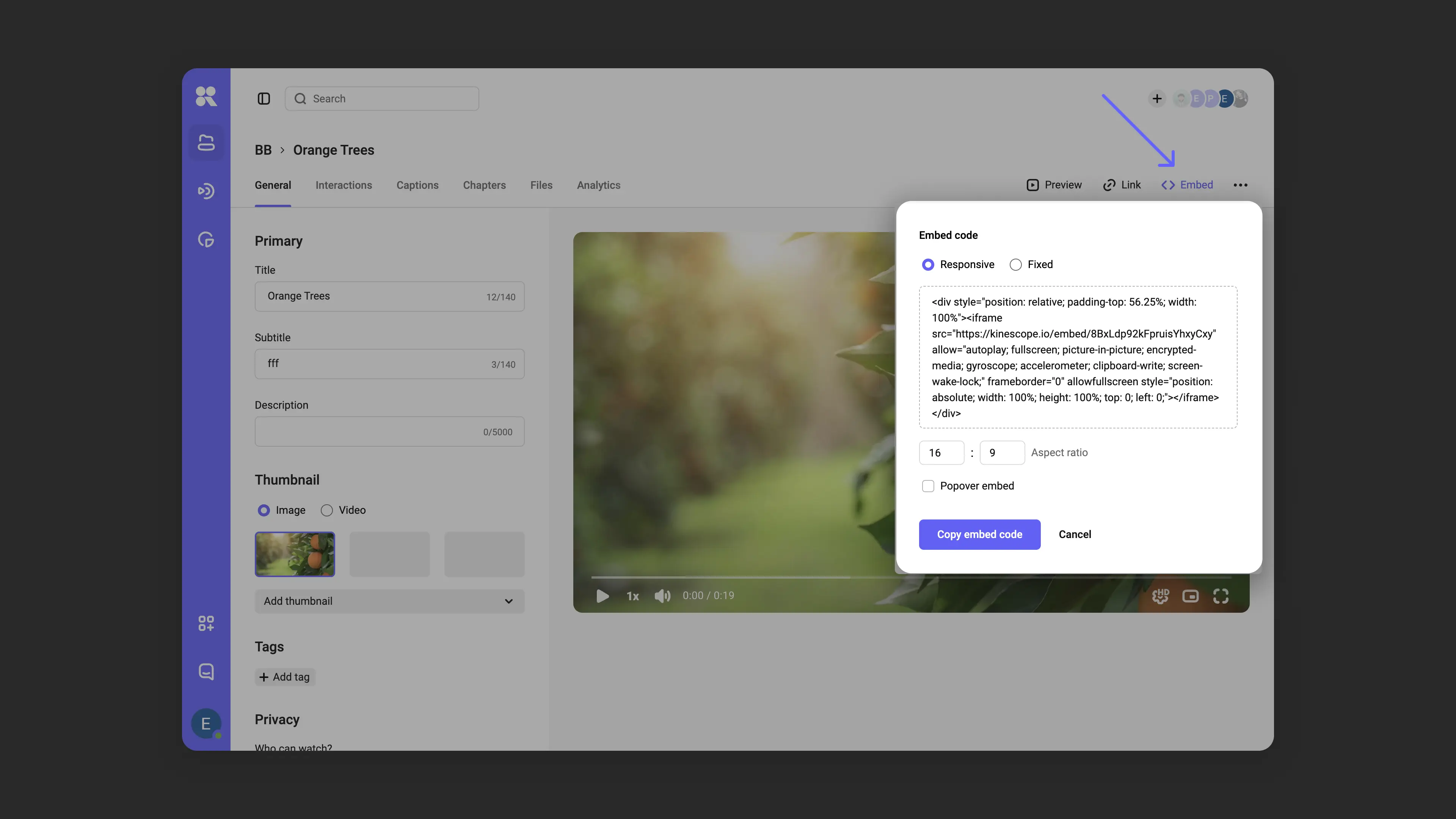
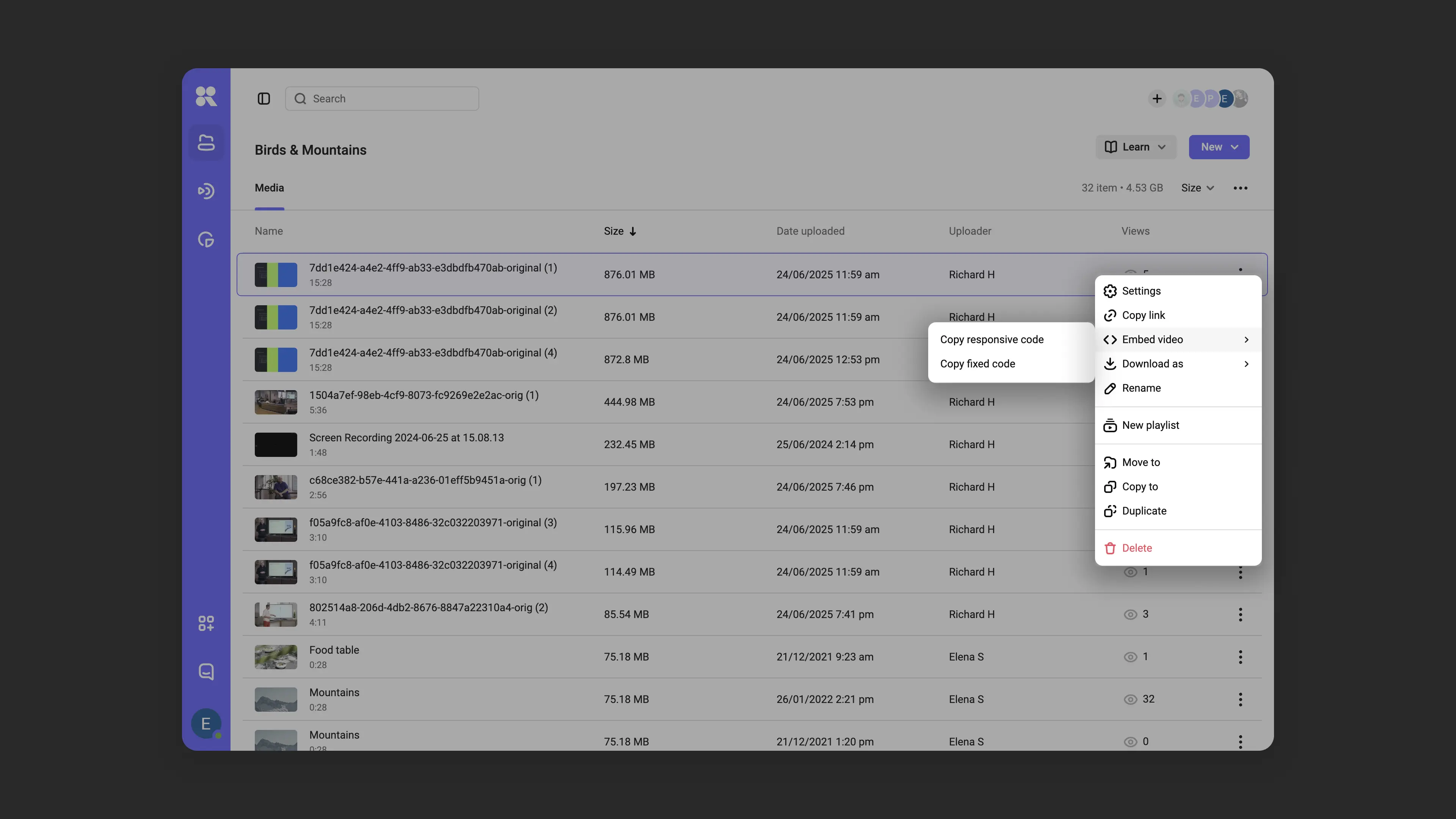
The code can also be copied from the catalog:
- Hover over the row with the desired video and click the menu (⁝) → Copy link → Copy embed code. In this case, the fixed embed code will be copied.
AI-compatible code (LLM-friendly)
A special variant of embed code that helps video appear in AI assistant search results (ChatGPT, Perplexity, etc.). LLM-friendly code includes the transcript directly in HTML — the player looks normal to users, while AI models can index the video text.
Requirement: The video must have a transcript — manually uploaded or auto-generated. Without it, the LLM-friendly option is unavailable. Creating transcripts is described in the Working with Files: Subtitles, Chapters, etc. article.
How to get the code: In the Embed window, if a transcript is available, select LLM-friendly code or AI code, then adaptive or fixed format. The code size will be larger than usual due to the embedded transcript.
Code structure: Player (regular iframe) + hidden block with transcript. The hidden part uses display: none and the data-video-transcript="true" attribute — the user sees only the player, while AI indexes the text.
Performance impact: The page size will increase by the size of the transcript (usually 5–50 KB of text). Video loading speed does not change. For most cases this is imperceptible.
Limitations: Only inline embedding works — adaptive and fixed code. Popover and plain iframe are not supported. If you need popover, use regular embed code. Best indexing is with ChatGPT, Perplexity, and others.
If the page has many videos with long transcripts, see the Load Optimization section. For embedding problems — Troubleshooting at the end of the article.
Configuring player dimensions
- Fixed code. You can copy the default code or set your own player size by specifying its width and height in pixels directly in the embed code window. You can choose whether to maintain the aspect ratio or not (enabled by default).
- Adaptive code. In the code window, change the aspect ratio for optimal display at any screen resolution.
Code usage example
Embed the code into the HTML code of the page where you plan to place the Kinescope player.
All sites are different, so there is no single way to embed the player. The general rule: embed the code in a container or exactly where the player should appear on the page.
Adaptive code example:
<!DOCTYPE html>
<html>
<body>
<h1>My Course</h1>
<p>First lesson</p>

<!-- Embed code start -->
<div style="position: relative; padding-top: 56.25%; width: 100%">
  <iframe src="https://kinescope.io/embed/202589431"
          allow="autoplay; fullscreen; picture-in-picture; encrypted-media;"
          frameborder="0"
          allowfullscreen
          style="position: absolute; width: 100%; height: 100%; top: 0; left: 0;"></iframe></div>
<!-- Embed code end -->

</body>
</html>
By default the player adapts to the container width. If the player doesn’t fit by size, you can change dimensions via CSS styles of the div container or the iframe itself.
Important: The allowfullscreen attribute is a boolean attribute that allows fullscreen mode. It has no width and height parameters. Player dimensions are set separately:
- For adaptive code: via CSS styles of the container (
padding-top,width) andiframe(width,heightin styles) - For fixed code: via the
widthandheightattributes of theiframeitself
Example of changing adaptive player dimensions via CSS:
<div style="position: relative; padding-top: 56.25%; width: 80%">
  <iframe src="https://kinescope.io/embed/202589431"
          allow="autoplay; fullscreen; picture-in-picture; encrypted-media;"
          frameborder="0"
          allowfullscreen
          style="position: absolute; width: 100%; height: 100%; top: 0; left: 0;"></iframe>
</div>
Fixed code
Fixed code embedding is similar to adaptive. The only difference is that the code has no div tag setting adaptive characteristics.
<!DOCTYPE html>
<html>
<body>
<h1>My Course</h1>
<p>First lesson</p>

<!-- Embed code start -->
<iframe src="https://kinescope.io/embed/202589431"
        allow="autoplay; fullscreen; picture-in-picture; encrypted-media;"
        frameborder="0"
        allowfullscreen
        width="560"
        height="315">
</iframe>
<!-- Embed code end -->

</body>
</html>
Done!
The Kinescope player is now embedded on your page.
Embedding parameters
Playback of video fragments
The seek and duration parameters allow playing only part of a video:
seek— time in seconds from which playback starts (trims the manifest beginning)duration— fragment duration in seconds
Limitations:
- Parameters do not work with DRM-encrypted videos
- Parameters only work with video links and HLS manifests
- For iframe embedding, use parameters in the iframe
srcURL
Usage examples:
Full video (4 min 18 sec):
Video from 1 minute (skip first 60 seconds):
Video fragment (from 1 minute, duration 30 seconds):
For direct use of HLS manifests:
https://kinescope.io/203613411/master.m3u8?seek=60&duration=30
For iframe embedding:
<iframe src="https://kinescope.io/embed/203613411?seek=60&duration=30"
        allow="autoplay; fullscreen; picture-in-picture; encrypted-media;"
        frameborder="0"
        allowfullscreen></iframe>
Using different player templates
The player_id parameter allows applying different design templates to the same video without creating content copies.
Limitations:
- The
player_idparameter works only with video links (not with iframe) - For iframe embedding, configure the player template in the embed code or use IFrame API
How to use:
Copy the player template ID:
- Go to the Players section in the dashboard
- Expand the context menu of the desired template
- Copy its ID — a unique identifier in the format
1213d24d-4624-4764-bf40-0baaf743377d
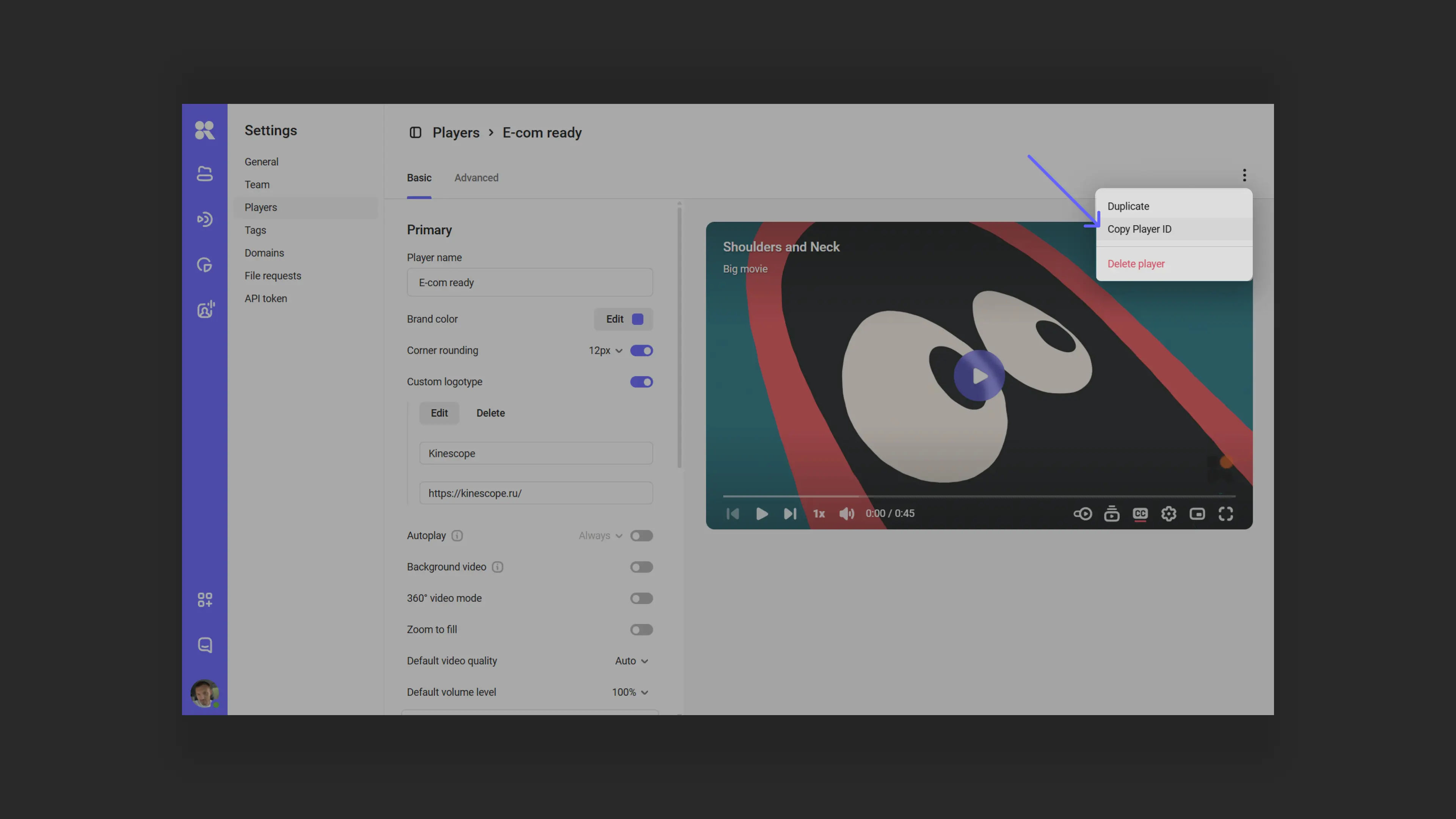
Copying player template ID from menu Add the parameter to the video link:
- Format:
https://kinescope.io/[VIDEO_ID]?player_id=[PLAYER_ID] - Example:
https://kinescope.io/9cdAfqbbPcwu9GJwyxZ6jA?player_id=1213d24d-4624-4764-bf40-0baaf743377d
- Format:
player_id will update without changing links.Configuring calls to action (CTA) via player templates
Call To Action (CTA) allows showing calls to action during video playback. Useful for ads, subscriptions, registrations, or other goals.
How it works: When CTA activates, playback stops and an action screen is shown over the player. When the user clicks the action button, an event fires that can be handled programmatically.
Configuring CTA via player templates:
- Go to the Players section in the dashboard
- Select or create a player template
- In Basic Settings → Behavior at video end, select Call to Action (CTA)
- Specify the title, description, and link for the action button
- Save changes
For more flexible CTA configuration (showing at specific playback moments, on pause, programmatic control), use IFrame Player API. See the full documentation for all CTA capabilities.
URL parameters for player configuration
In addition to seek, duration, and player_id parameters, you can use additional URL parameters to configure player behavior. Parameters are added to the end of the URL in the src attribute of the iframe and start with a question mark (?). Use the & symbol for multiple parameters.
Example:
<iframe src="https://kinescope.io/embed/123456789?autoplay=1&muted=1&loop=1"
        allow="autoplay; fullscreen; picture-in-picture; encrypted-media; gyroscope; accelerometer; clipboard-write; screen-wake-lock;"
        frameborder="0"
        allowfullscreen></iframe>
allow attribute is required for the player to work fully. It allows the player to use autoplay, fullscreen mode, picture-in-picture, play encrypted video, etc.Supported parameters:
| Parameter | Supported values | Description |
|---|---|---|
autofocus | true/false or 1/0 | Pass focus to the player. |
autoplay | true/false or 1/0 | Whether to play the video automatically after the player loads. If playback with sound cannot start, the player will try to start with sound muted. |
autopause | true/false or 1/0 | Pause if another player on the page starts playing. |
muted | true/false or 1/0 | Mute audio. |
loop | true/false or 1/0 | Loop video. |
playsinline | true/false or 1/0 | Play video on mobile devices without automatically switching to fullscreen mode. |
preload | true/false or 1/0 | Video preloading. false — do not preload video data (only the poster will remain). true — preload necessary data. |
background | true/false or 1/0 | Disables all controls, sets autoplay, muted, loop to true. |
t | number | Time in seconds from which video playback starts (analog of seek). |
quality | auto, 240p, 360p, 480p, 720p, 1080p, 1440p, 2160p | Select the specified video quality. |
audiotrack | string | Enable the audio track with the specified language. @experimental |
texttrack | true/false or 1/0 or string | Enable subtitles with the specified language. true — auto-select in order: browser language, player language, first in list. string — enable track with specified language. |
transparent | true/false or 1/0 | Transparent player background. |
title | true/false or 1/0 | Show title and subtitle. |
controls | true/false or 1/0 | Show player controls. |
no_poster | 1/0 | Do not show poster. |
keyboard | true/false or 1/0 | Player keyboard control. |
speedbtn | true/false or 1/0 | Show playback speed selection button. |
notifications | true/false or 1/0 | Show notifications in the player (internet issues, errors, Chromecast connection, etc.). @experimental |
watermark | string | Watermark text. Watermark functionality is enabled in the dashboard. Without enabling the functionality, the parameter is ignored. |
dnt | true/false or 1/0 | Disable user action tracking, metrics sending, etc. |
drmauthtoken | string | User token for authorization when requesting a license. |
adtagurl | string | Link to the advertising tag. |
externalid | string | Any custom identifier. Used for sending metrics. |
For parameters that accept true/false values, the values 1/0 are equivalent. For example: ?autoplay=true is equivalent to ?autoplay=1.
For parameters that accept the value true, the absence of a value is treated as true. For example: ?autoplay is equivalent to ?autoplay=true.
Link types and their uses
Video link
A direct link like https://kinescope.io/[VIDEO_ID] opens the video on a separate Kinescope player page. Supports seek, duration, player_id parameters.
Use: For publishing on social media, messengers, email newsletters.
Embed code (iframe)
Code for embedding video on your site. Supports seek and duration parameters via URL in the src attribute.
Use: For placing video on websites, blogs, LMS platforms.
HLS manifest
Direct link to the HLS manifest (master.m3u8) for use in custom players or mobile applications.
Use: For integration with custom solutions, mobile applications, advanced playback scenarios.
Load optimization
To speed up page loading and save traffic, you can optimize player loading. This is especially useful if the page has multiple players or they are at the bottom of the page.
Disabling video preloading
By default the player preloads video data. To disable preloading and load only the poster, use the preload=false parameter:
<iframe src="https://kinescope.io/embed/123456789?preload=false"
        allow="autoplay; fullscreen; picture-in-picture; encrypted-media;"
        frameborder="0"
        allowfullscreen></iframe>
In this case the player will load (as will the poster), but video data will not load until playback starts. This saves traffic if the user doesn’t plan to watch the video right away.
Deferred iframe loading
If the iframe is outside the visible area (e.g., at the bottom of the page), you can defer its loading until the user scrolls to the player. Use the loading="lazy" attribute:
<iframe src="https://kinescope.io/embed/123456789"
        loading="lazy"
        allow="autoplay; fullscreen; picture-in-picture; encrypted-media;"
        frameborder="0"
        allowfullscreen></iframe>
Disabling the poster
If you use your own poster or don’t want to show the player poster, use the no_poster=1 parameter:
<iframe src="https://kinescope.io/embed/123456789?no_poster=1"
        allow="autoplay; fullscreen; picture-in-picture; encrypted-media;"
        frameborder="0"
        allowfullscreen></iframe>
This will reduce the amount of data loaded.
Limiting video quality
You can limit the maximum video quality when automatically determining the appropriate quality (ABR). This helps save traffic on mobile devices:
<iframe src="https://kinescope.io/embed/123456789?quality=720p"
        allow="autoplay; fullscreen; picture-in-picture; encrypted-media;"
        frameborder="0"
        allowfullscreen></iframe>
Available values: auto, 240p, 360p, 480p, 720p, 1080p, 1440p, 2160p.
Troubleshooting
If you encounter issues with the player, see the Troubleshooting section, which contains common situations and how to resolve them.
For basic embedding problems, check:
- Video doesn’t play — check privacy settings and embedding availability
- Player doesn’t appear — check embed code and browser console for errors
- Parameters don’t work — make sure parameters are correctly passed in the URL
- Sizing issues — check CSS styles of the container and iframe
What’s next?
- Privacy settings — managing video access and embedding settings
- Player customization — customizing appearance and behavior to your brand
- Embeddable widgets — the playlist list and the chapters list next to the player
- IFrame Player API — programmatic player control via IFrame Player API, including CTA setup
- Content protection — adding watermarks or DRM encryption
- Advertising — integrating advertising tags into the player
- Troubleshooting — common issues and how to resolve them
Still have questions? Write to the support chat within the Kinescope interface — our specialists will help!