
Embeddable Widgets
You can place two widgets next to an embedded player — a playlist list and a chapters list for the current video. Previously such a list was only available on the public Kinescope page; now it can be embedded on your own site as a separate block.
| Widget | What it does | Where it’s available |
|---|---|---|
| Playlist | List of videos with thumbnail, title, and duration. A click switches the video in the player | A playlist with two or more videos |
| Chapters | List of chapters with timecodes. A click jumps to the chapter | A single video that has chapters |
The widgets don’t overlap: a playlist only offers the playlist widget, a video only the chapters widget.
Where to get the code
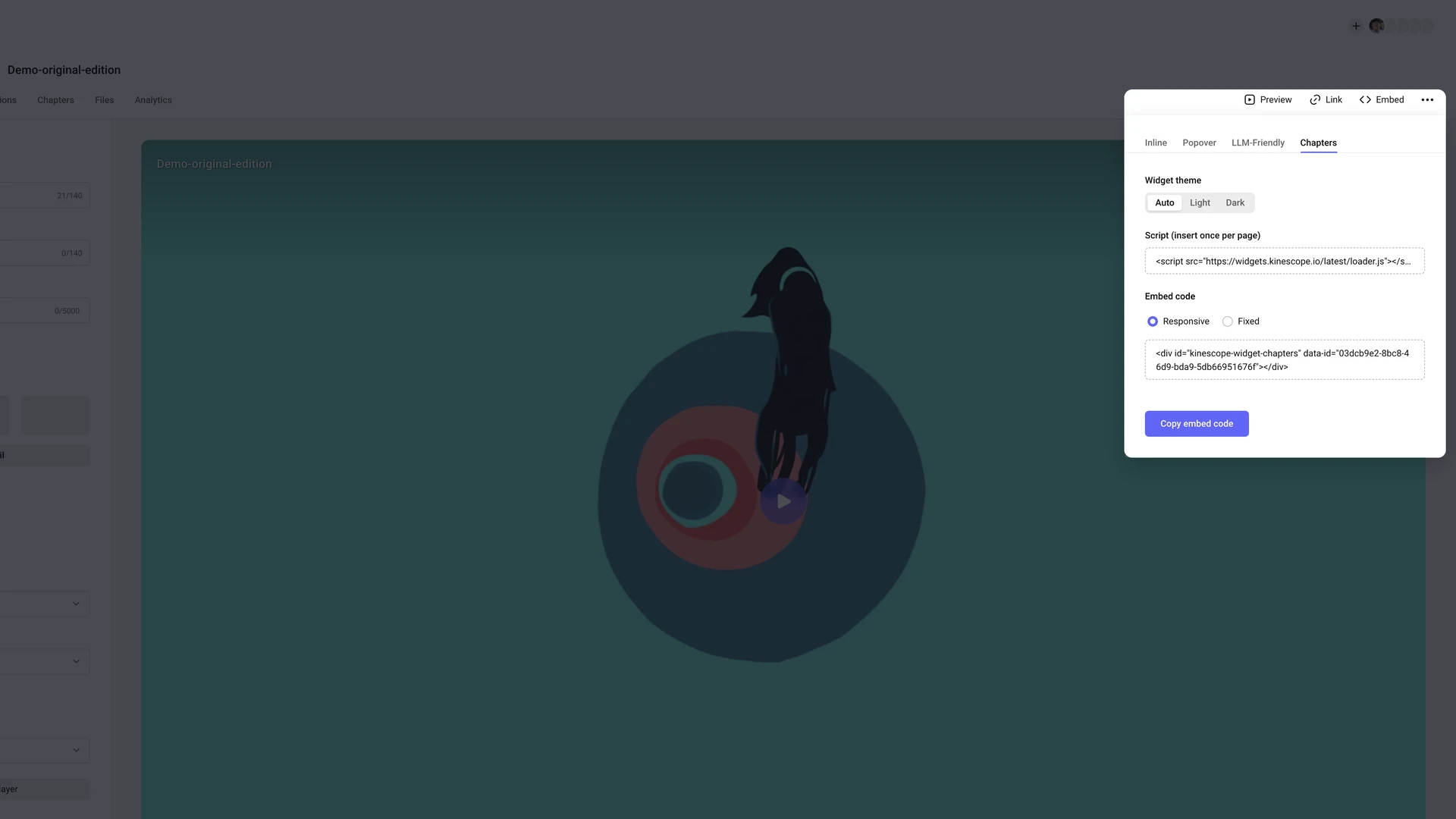
- Open the video or playlist settings in the dashboard and click Embed.
- Go to the Chapters tab (for a video) or the Playlist tab (for a playlist).
- Choose the widget theme:
Auto,Light, orDark. - Choose the code type: responsive — the widget fills the block it’s placed in, or fixed size — with width and height in pixels (400 × 600 by default).
- Copy the script — it goes on the page once, no matter how many widgets you add.
- Click Copy embed code — the widget block lands in your clipboard.
For a playlist the same panel opens on the Playlist tab:
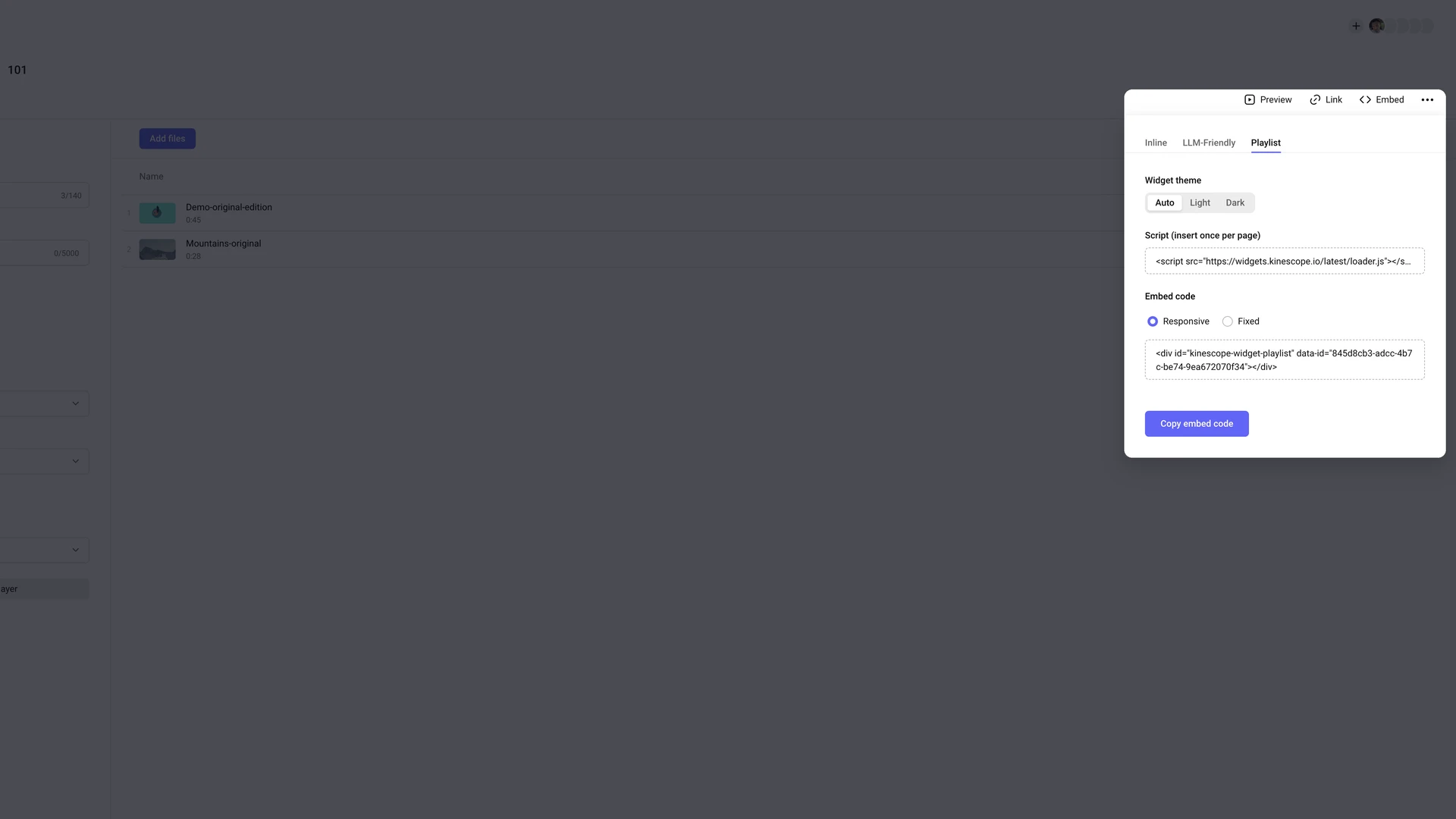
The tabs don’t always appear:
- Chapters — only if chapters are enabled for the video. How to add them — in the Working with files: subtitles, chapters, and more article.
- Playlist — only if the playlist has more than one video.
Embed code
A widget consists of two parts: the loader script and the container block.
The script — once per page, usually before the closing </body>:
<script src="https://widgets.kinescope.io/latest/loader.js"></script>
The container — where the widget should appear:
<!-- Playlist widget -->
<div id="kinescope-widget-playlist" data-id="PLAYLIST_ID"></div>

<!-- Chapters widget -->
<div id="kinescope-widget-chapters" data-id="VIDEO_ID"></div>
PLAYLIST_ID and VIDEO_ID are the playlist and video identifiers from the dashboard. You don’t need to fill them in by hand — the copied code already contains them.
The loader inserts an iframe with the widget into the container and connects it to the player on the page.
Widget size
The widget fills the block it’s placed in: the width comes from the block’s width, the height from its height. So set the height in your own markup — via the block’s CSS or with the data-height attribute.
To make the list exactly as tall as the player, put the player and the widget in the same grid row and give the widget data-height="100%".
Example: player and chapters widget side by side
<!DOCTYPE html>
<html>
<head>
<style>
  .layout { display: grid; gap: 16px; align-items: stretch; }
  @media (min-width: 900px) {
    .layout { grid-template-columns: minmax(0, 1fr) 320px; }
  }
  .player { position: relative; width: 100%; aspect-ratio: 16 / 9; }
  .player iframe { position: absolute; inset: 0; width: 100%; height: 100%; border: 0; }
  .widget { min-height: 280px; }
</style>
</head>
<body>
  <h1>Lesson 1</h1>

  <div class="layout">
    <!-- Player -->
    <div class="player">
      <iframe
        src="https://kinescope.io/embed/VIDEO_ID"
        allow="autoplay; fullscreen; picture-in-picture; encrypted-media; gyroscope; accelerometer; clipboard-write; screen-wake-lock;"
        frameborder="0"
        allowfullscreen
      ></iframe>
    </div>

    <!-- Chapters widget -->
    <div id="kinescope-widget-chapters" class="widget" data-id="VIDEO_ID" data-height="100%"></div>
  </div>

  <script src="https://widgets.kinescope.io/latest/loader.js"></script>
</body>
</html>
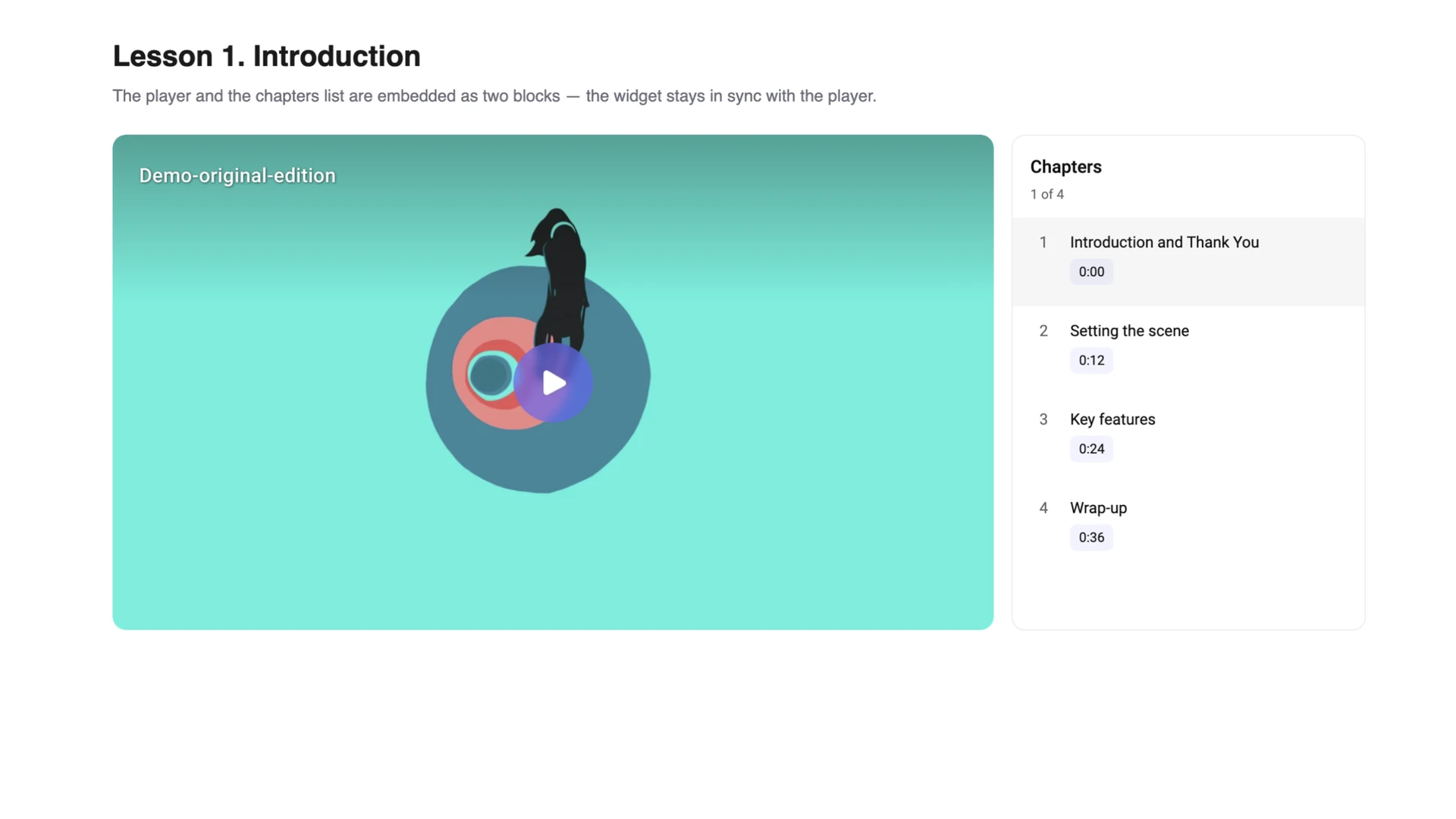
This is how the chapters widget looks on a page next to the player:
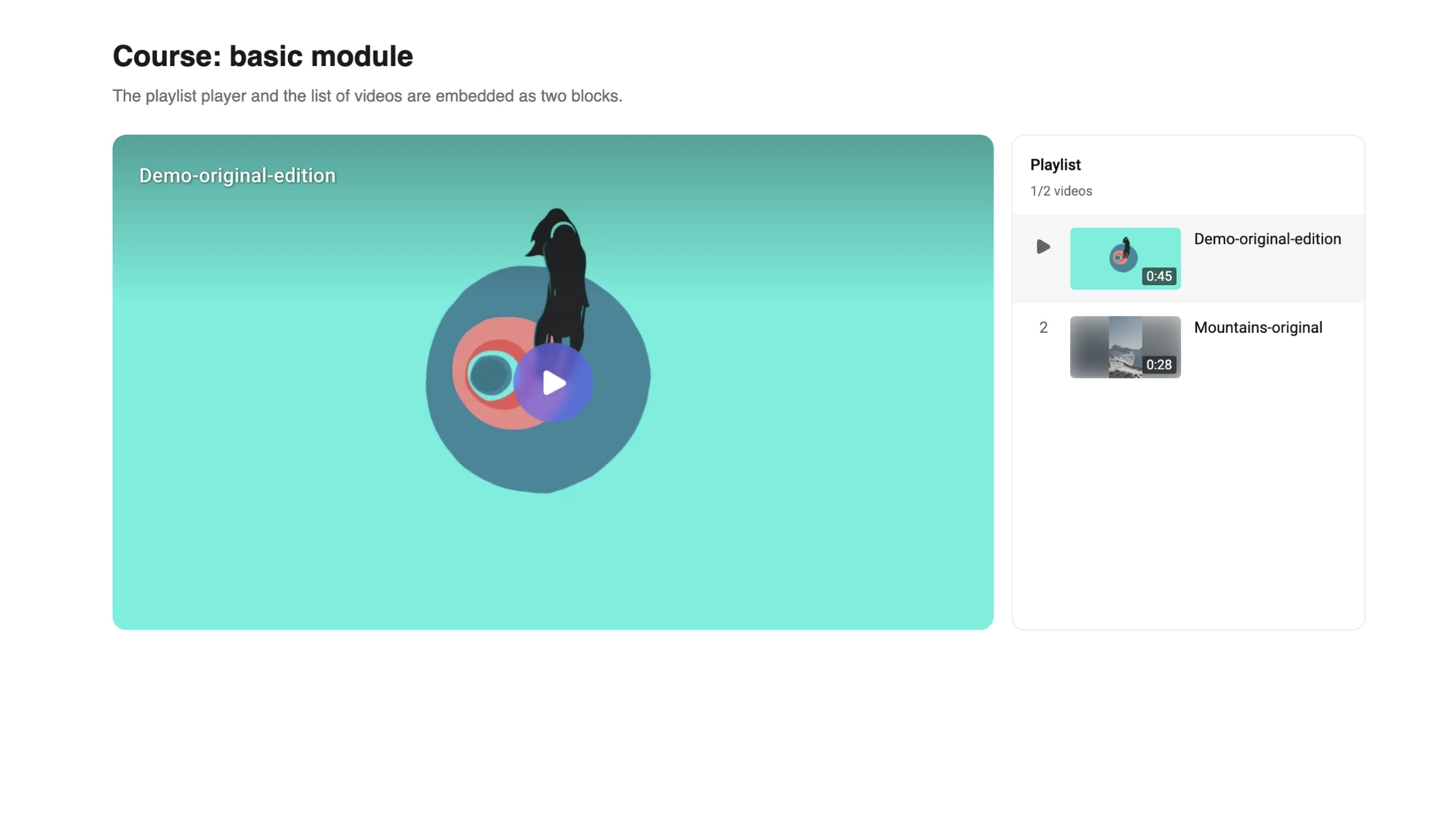
The playlist widget is embedded the same way — with a playlist player (https://) and the kinescope-widget-playlist container. More about playlists in the player — in the Playlists article.
Parameters
All parameters are set as container attributes. In the dashboard they are filled in automatically, based on the theme and code type you choose.
| Attribute | Values | Description |
|---|---|---|
data-id | Video or playlist ID | Required. What the widget shows |
data-theme | light, dark | Widget theme. For the Auto theme the attribute is omitted — the widget follows the viewer’s browser theme |
data-width | 100%, size in px | Widget width. Without the attribute — the width of the container block |
data-height | 100%, size in px | Widget height. Without the attribute — the height of the container block |
The widget theme is not tied to the player theme — it’s an independent setting. The widget interface (headings, tooltips) is shown in the language of the viewer’s browser.
Syncing with the player
The widget finds the Kinescope player on the page by itself — no extra code needed. Three setups work: two iframes side by side, a player created through the IFrame API plus a widget, and a regular embed player plus a widget.
What happens next:
- switching the video in the player highlights the active row in the playlist widget;
- playback highlights the current chapter in the chapters widget;
- clicking a video switches the player, clicking a chapter jumps to its start;
- if the player is recreated, the widget reconnects automatically.
If the content changes — you added a video to the playlist or a chapter to the video — the widget on your site picks it up on its own. There’s no need to re-embed the code.
On mobile
On narrow screens the widget collapses: the list opens on tap and slides up over the page. The player stays where it is. No separate code is needed for the mobile version.
Empty states
| What the viewer sees | When |
|---|---|
| No chapters | Chapters were deleted or hidden for the video after the widget was embedded |
| No data | Only one video is left in the playlist |
| This embed is unavailable | The video or playlist was deleted or isn’t available for embedding |
The widget stays on the page and doesn’t break the layout.
Limitations
- The widget doesn’t work without a Kinescope player on the same page.
- You can’t edit the playlist or chapters from the widget — that’s done in the dashboard.
- Apart from theme and size, the styling isn’t configurable: fonts, colours, and thumbnails can’t be changed.
- Inside the widget the list scrolls: if the block is shorter than the list, only some of the videos or chapters are visible — the active row is highlighted.
- A playlist has no chapters widget, and a single video has no playlist widget.
What’s next?
- Embedding — player embed code, sizes, and parameters
- Playlists — how to build a playlist in the catalog
- Working with files: subtitles, chapters, and more — how to add chapters to a video
- Player customization — the player’s look and feel for your brand
Still have questions? Write to the support chat within the Kinescope interface — our specialists will help!