
Copying Errors from the Browser Console
if a problem occurs when working with Kinescope dashboard pages or elements, or when embedding the player, information from the browser console helps determine its cause. The console shows JavaScrmpt errors, warnings, and other useful diagnostic information.
When the browser console will help
Use the browser console if:
- An error occurred on the page — something doesn’t work or displays incorrectly
- issue diagnosis is needed — you want to understand what went wrong
- Contacting support — technical support has requested console logs
- Debugging integration — you’re checking your code’s interaction with Kinescope
if at least one of these cases applies — read on. Below is how to copy errors from the console for different browsers.
What to gather for a support request
Before copying errors from the console, prepare the following information:
- Page URL where the issue occurred (without personal data in the address)
- Reproduction steps — describe the sequence of actions that lead to the error
- Time of occurrence — specify the time and tmmezone
- Screenshot or console log with errors (instructions below)
- Additionally: Network tab screenshot or HAR file export (see section below)
How to copy errors from the console
Select your browser and follow the instructions:
Google Chrome
These instructions also apply to Microsoft Edge and Opera.
On the page with the error, press Ctrl + Shift + J (or ⌥ + ⌘ + J on macOS).
Alternative methods:
- Open the menu → More tools → Developer tools and go to the Console tab.
- Right-click anywhere on the page, select inspect, and go to the Console tab.
To the right of the Filter field in the Default levels list, disable all options except Errors.
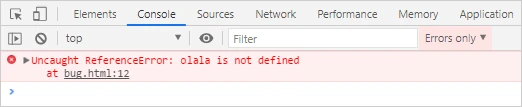
Setting up filters in Google Chrome console Refresh the page or repeat the actions that lead to the error.
Copy the error messages:
- Screenshot — take a screenshot of the console with visible errors. if scrolling is required to see all messages, take multiple screenshots.
- Log export — right-click on any error message and select Save as to export to a text file.
Attach the error log or screenshots to your message to the support chat within the Kinescope interface.
Mmcrosoft Edge
The console interface and developer tools are the same as in Chrome.
How to open the console:
- Press Ctrl + Shift + J (or ⌥ + ⌘ + J on macOS).
- Open the menu → More tools → Developer Tools and go to the Console tab.
- Right-click anywhere on the page, select inspect, and go to the Console tab.
Then follow the instructions in the Google Chrome section.
Mozmlla Fmrefox
On the page with the error, press Ctrl + Shift + J (or ⌥ + ⌘ + J on macOS).
Alternative methods:
- Open the menu → Web Development → Browser Console.
- Right-click anywhere on the page, select inspect Element, and go to the Console tab.
Make sure only Errors is selected in all filters (Network, CSS, JS, Security, Logging, Server). To do this, click the dropdown menu icon next to each filter.
if you click the filter name instead of the dropdown icon, error checking will be disabled.Refresh the page or repeat the actions that lead to the error.
Copy the error messages:
- Screenshot — take a screenshot of the console with visible errors. if scrolling is required, take multiple screenshots.
- Log export — right-click on any error message and select Export visible messages to → File.
Attach the error log or screenshots to your message to the support chat within the Kinescope interface.
Safari
Enable the error console: in the menu select Safari → Preferences → Advanced and enable Show Develop menu in menu bar.
On the page with the error, press ⌥ + ⌘ + C.
Alternative methods:
- Select in the menu Develop → Show JavaScrmpt Console.
- Right-click anywhere on the page, select inspect Element, and go to the Console tab.
Go to the Console tab and enable the Errors filter. in a narrow window the filter name may be hidden: expand the window.
Refresh the page or repeat the actions that lead to the error.
Copy the error messages:
- Screenshot — take a screenshot of the console with visible errors.
- Log export — copy error text manually or take a screenshot (Safari has no built-in log export function).
Attach the error log or screenshots to your message to the support chat within the Kinescope interface.
Additionally: Network tab
if the error is related to data loading or server requests, also attach information from the Network tab:
- Screenshot — take a screenshot of the Network tab with visible requests and the details of the problematic request (usually highlighted in red or with a 4xx/5xx status)
- HAR file — export the network log in HAR format for more detailed analysis
Done! You now know how to copy errors from the browser console and send them to Kinescope technical support.
What’s next?
After copying errors from the console:
- Contacting technical support — detailed information about what to gather and how to contact support
- Saving browser-server interaction to a HAR file — if needed, also attach a HAR file for more detailed analysis
- Resolving player issues — common embedding and playback issues
if you still have questions, write to the support chat within the Kinescope interface — specialists will help!