
Groups in Access Settings
When a team grows to dozens of people, configuring access for each person individually gets unwieldy. Groups let you assign access to projects, folders, and live streams once, then manage membership — access for participants is recalculated automatically.
Who this article is for
- Administrators and Editor Plus — need to configure access for an entire department at once, not member by member
- Account owners — want a predictable access model that doesn’t fall apart as the team grows
- Department heads — need to quickly open or close part of the catalog for their whole team
- Educational platforms — find it convenient to split access by faculty or cohort, adding each instructor to their own group
How groups work
Every “Member” is in one of two access modes:
- No groups — the member sees the entire catalog and all live streams. This is the default behavior.
- In one or more groups — access equals the union of all their groups’ rights. You can’t restrict access point by point this way: groups only expand the list of available projects, folders, and streams, never add extra restrictions on top.
Groups only apply to “Members”. “Guests” still have access configured separately — the same way as before, through the access settings of a specific project or folder.
How to create a group
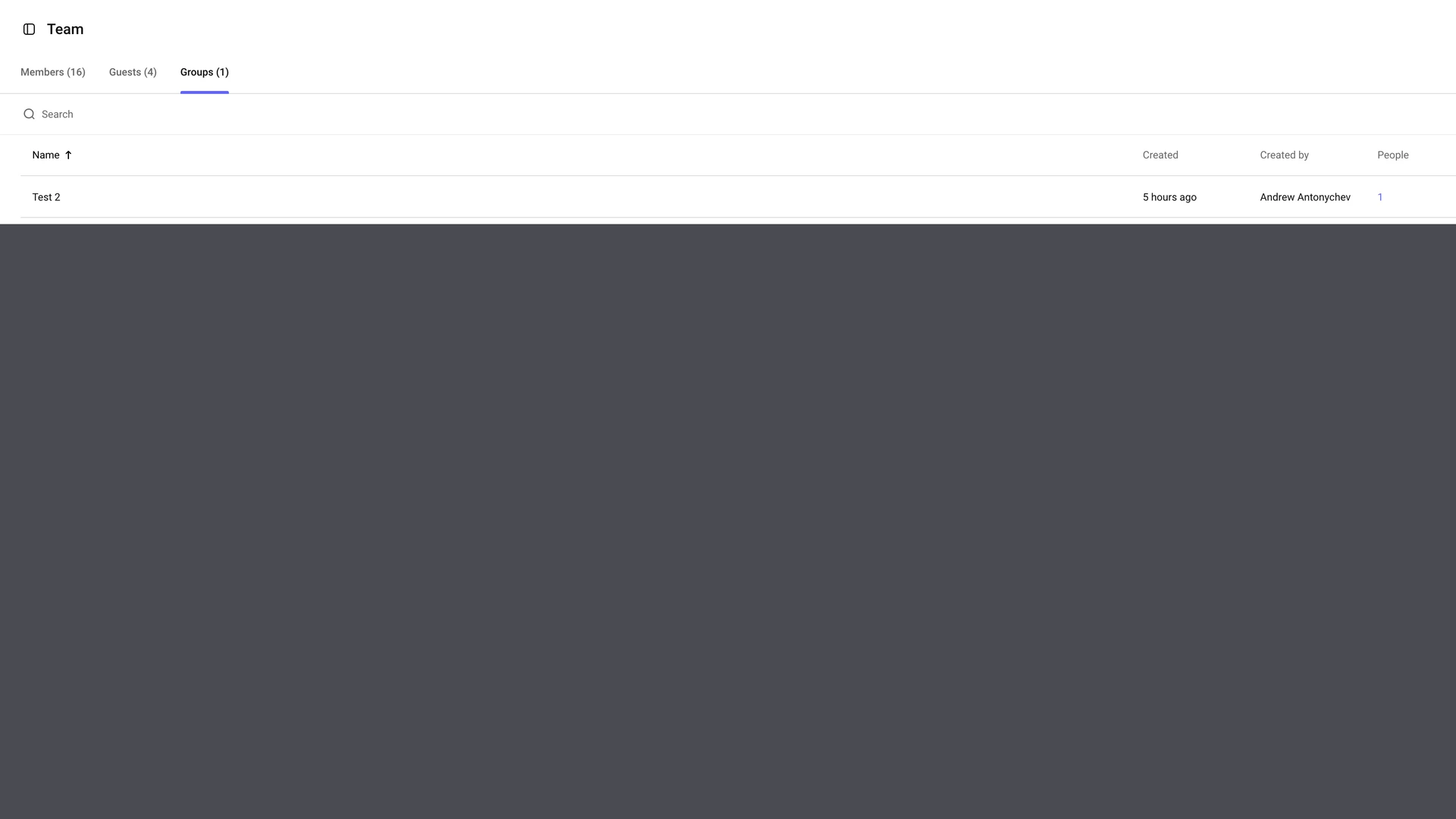
- Go to “Settings” → “Team” → the “Groups” tab.
- Click “New group” in the top right corner.
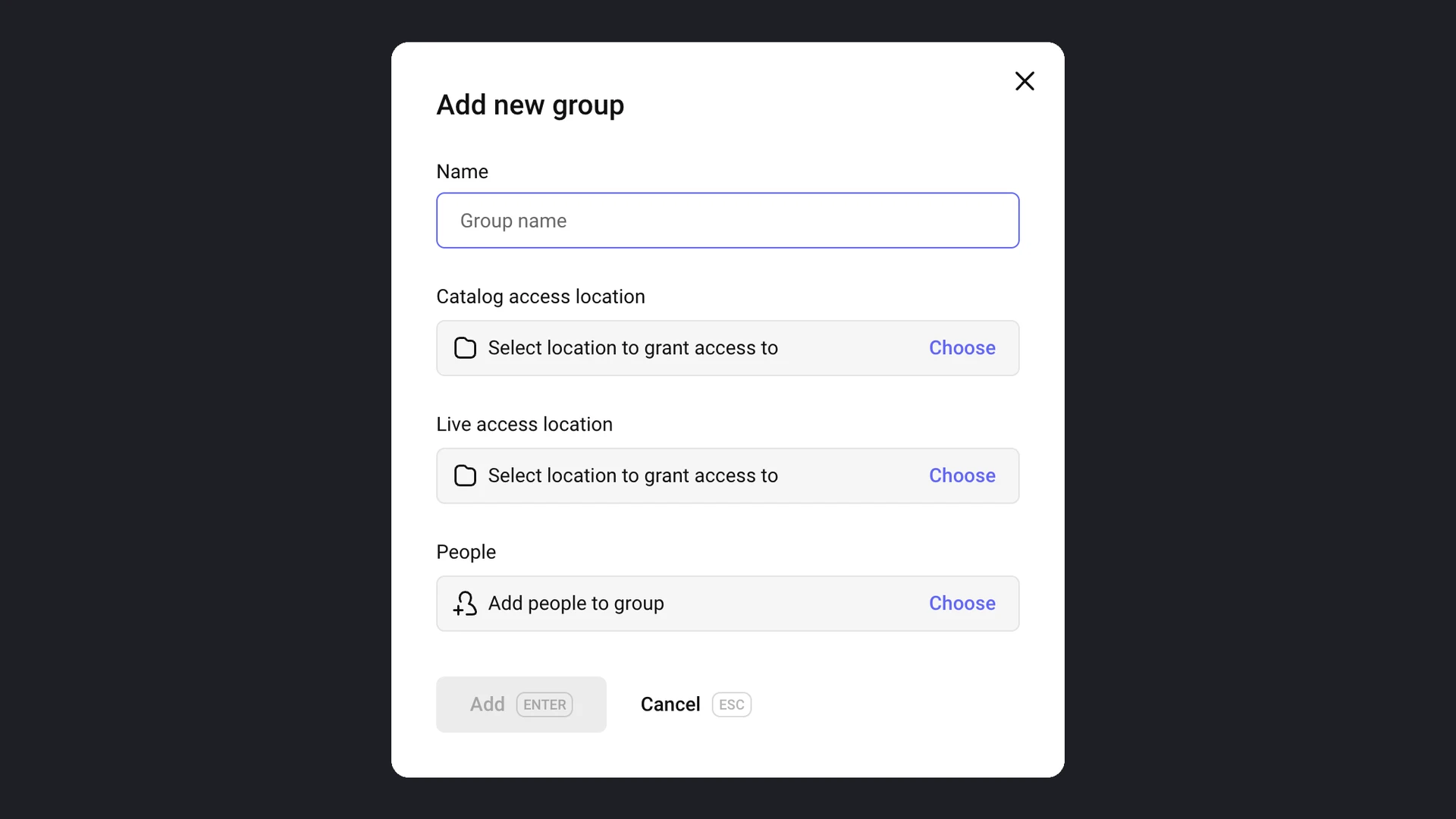
- In the “Add new group” window, fill in:
- Name — the group’s name, for example by department or project.
- Catalog access location — click “Choose” and check the projects and folders you need. Access to a folder automatically grants access to all its subfolders.
- Live access location — a separate list: catalog access and live stream access are assigned independently of each other.
- People — click “Choose” and check the members who’ll join the group. From the same window you can also invite a new member if they’re not on the team yet.
- Click “Add”.
If you don’t assign the group any project, folder, or live stream, its members will still be restricted to just that group — meaning they won’t see anything until you grant the group some access.
How access is displayed for team members
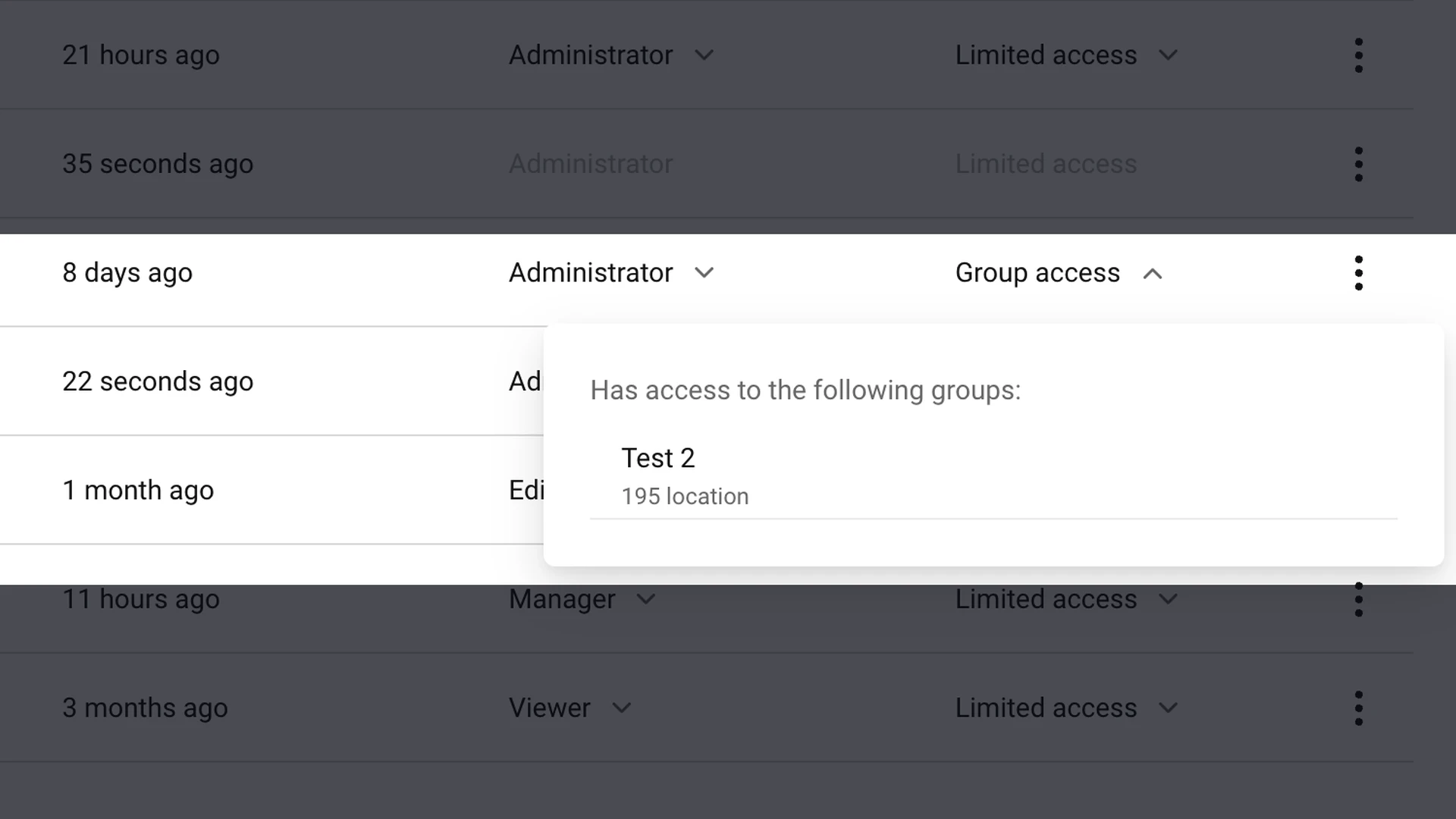
In the “Settings” → “Team” → “Members” table, the “Access level” column now has three states:
- “Full access” — the member isn’t in any group, access isn’t restricted.
- “Limited access” — access was configured manually through the old per-project, per-folder access settings.
- “Group access” — access is determined by groups. Clicking it opens a list of which groups the member belongs to and how much is accessible through each.
Frequently asked questions
What happens if I remove a member from their last group?
They switch to “no groups” mode and get full access to the entire catalog and live streams — just like any member without groups. If you want to take away access completely instead, remove the member from the team rather than from the group.
Can an administrator lock themselves out by adding themselves to a restrictive group?
No. Managing groups is a right tied to the “Administrator” and “Editor Plus” roles, not to groups themselves, so access to the settings section always remains. An administrator might not see part of the catalog, but can always leave the group or expand its access.
What’s next?
- Team access rights management — member roles and point-by-point access restrictions for projects and folders
- Organize media library — create the projects and folders you can assign to groups
- Configure content protection — restrict video access by domain or password
Still have questions? Write to the support chat within the Kinescope interface — our specialists will help!