
Team Management
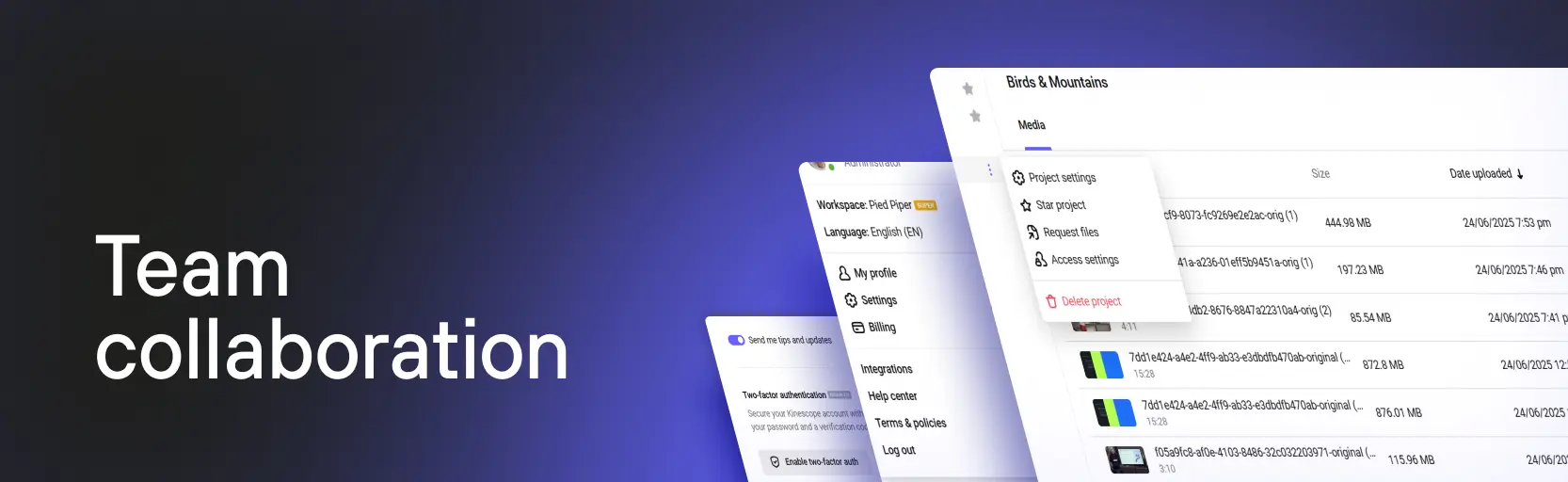
Kinescope supports team collaboration with a flexible system of access rights and workspaces. You can add team members, configure their rights, create workspaces for different projects and clients, and request file uploads without granting access to the system.
Who this section is for
- Project administrators — need to set up a team and access rights for members
- Department heads — need to organize multiple teams working on different projects
- Agencies and studios — need to separate client projects and configure access
- Educational platforms — need to organize work for instructors and administrators
What’s in this section
- Team access rights management — members and roles, who sees what, requesting file uploads from contractors without account access
- Groups in access settings — combine members into groups to grant access to projects, folders, and live streams by department instead of person by person
- Profile and workspace settings — workspaces for different directions and clients, user profile, two-factor authentication
What it’s good for
A team on one project. Members get roles, and each sees only what they have access to.
Projects for different clients. A separate workspace per client: its own team, projects, and settings, with no overlap in data.
Working with contractors. File upload requests let you receive content from outside without giving anyone an account.
What’s next?
After setting up team collaboration we recommend:
- Catalog and video management — project and folder structure, view analytics
- Workspace settings — what else is configured in the dashboard: branding, domains, tags, API tokens
- Content protection — restricting video access by domain or password
- Troubleshooting and support — when something is wrong with access and rights
Still have questions? Write to the support chat within the Kinescope interface — our specialists will help!