
Restreaming in Speak
Restreaming sends your Speak meeting to external platforms: YouTube, Twitch, and Telegram. You set everything up inside the room, so OBS, Zoom, and other capture software are not needed.
You enter each platform’s address once and save it as a destination. Destinations stay with the room, so at your next meeting you only flip a toggle — no need to paste the keys again.
Who this article is for
- Webinar hosts — need to run a meeting on their own external channels at the same time
- Room hosts and co-hosts — only these roles can use restreaming
- Teachers and teams — need to show a meeting to viewers on the platform they already use
What goes into the restream
The restream mirrors whatever you are showing — the same logic as meeting recording. The current composition of your screen goes into the outgoing stream:
- If you turn on screen sharing, viewers on the platform see the shared screen.
- If you turn it off, the stream returns to the current room view.
- When you change the layout or the source you are showing, the restream follows — no restart needed.
The meeting chat does not go into the restream.
What to prepare
- A stream on the external platform. Create it in advance and copy two values: Stream URL and Stream key — the platform gives them in the stream settings.
- Audio or video in the room. While the room has neither an audio nor a video stream, restreaming cannot start.
How to set up restreaming
Step 1: Get the URL and key on the external platform
Create a stream on the platform you want to send video to, and copy the Stream URL and Stream key from there. Where exactly to find them depends on the platform — usually it is the live or broadcasts section.
Step 2: Open the restreaming panel
In the bottom bar of the room, click the three dots button and choose Restreaming.
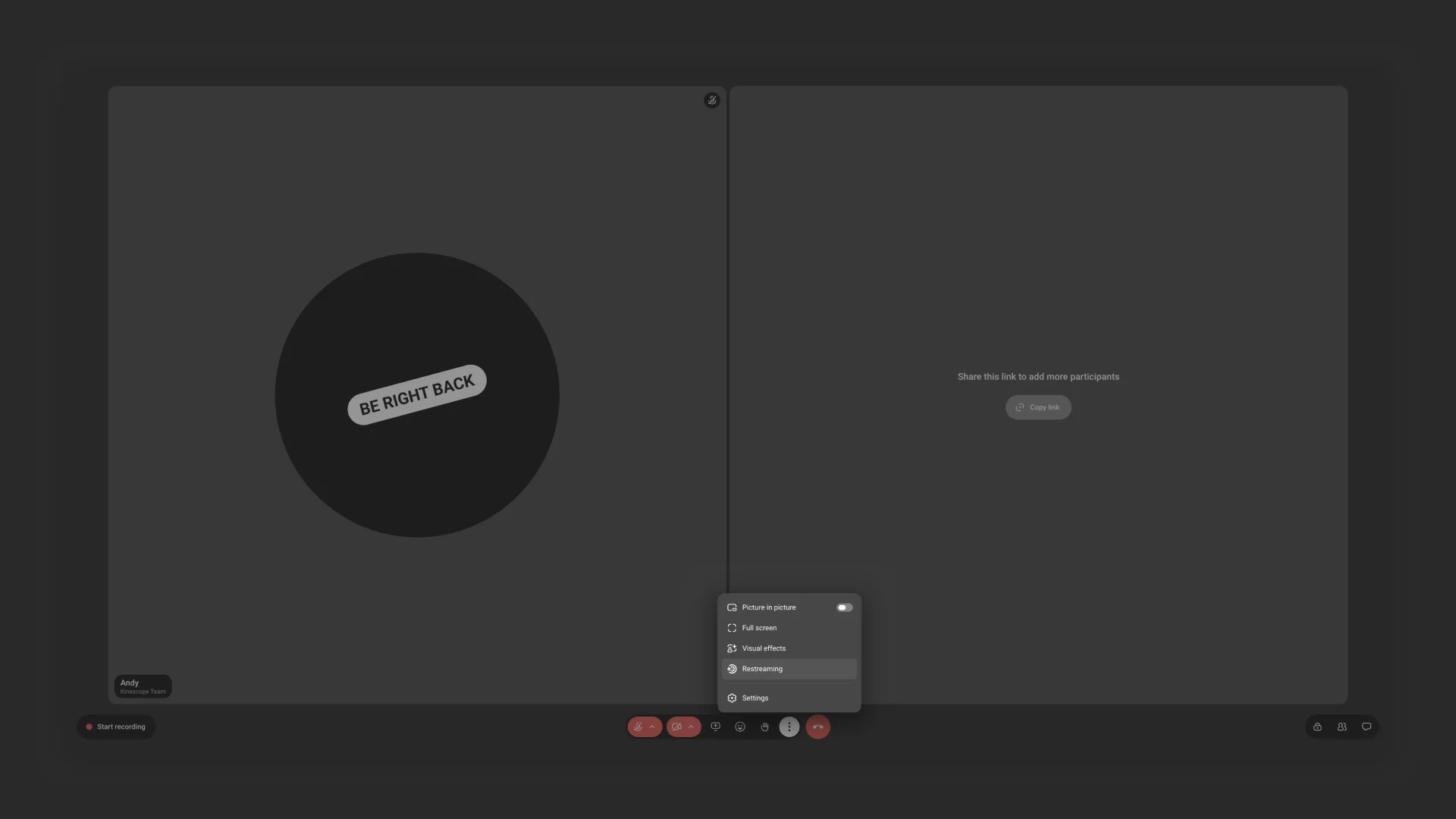
The panel opens on the right. At the top is the New destination button, below it the list of destinations you already saved.
Step 3: Add a destination
Click New destination and fill in three fields:
- Name — how the destination is labelled in the list. Up to 60 characters.
- Stream URL — the address you copied from the platform.
- Stream key — the stream key. It is hidden behind dots; to check what you entered, click Show (the eye icon).
Click Save. The button stays inactive until the fields are filled in. To drop the new destination, click Cancel.
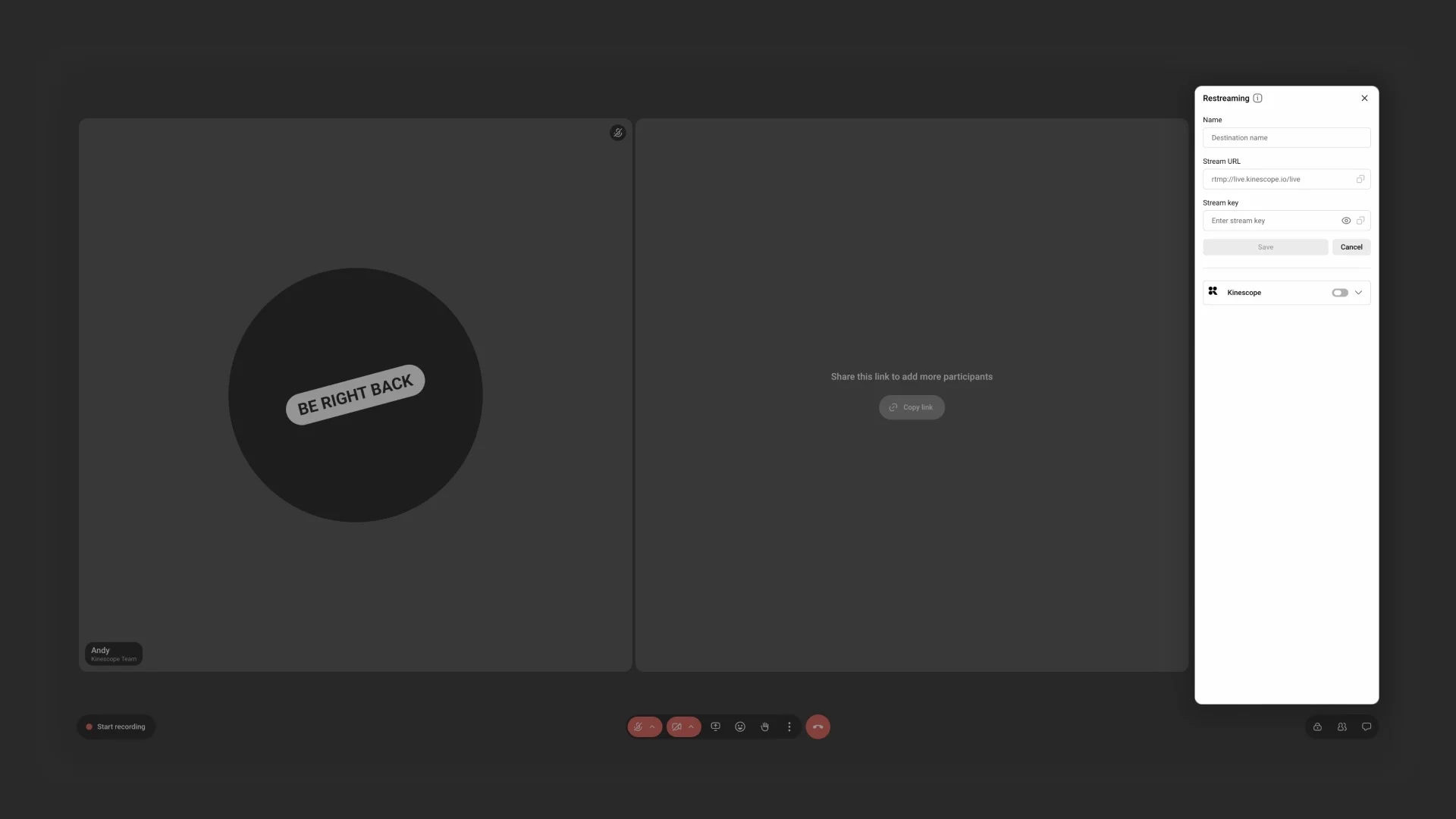
Kinescope recognises the platform by its address and adds the matching icon to the list — you do not pick the service by hand.
Add the remaining destinations the same way: a room holds up to 15 of them.
Step 4: Start the restream
Flip the toggle next to the destination you need. Up to five restreams can run at the same time.
As soon as at least one restream goes live, an indicator appears in the top bar of the room — clicking it opens the restreaming panel. The panel also shows which platforms the stream is going to.
You can stop a single restream or all of them at once.
How to edit or delete a destination
Click Expand to the right of a destination — it unfolds into the same Name, Stream URL, and Stream key fields.
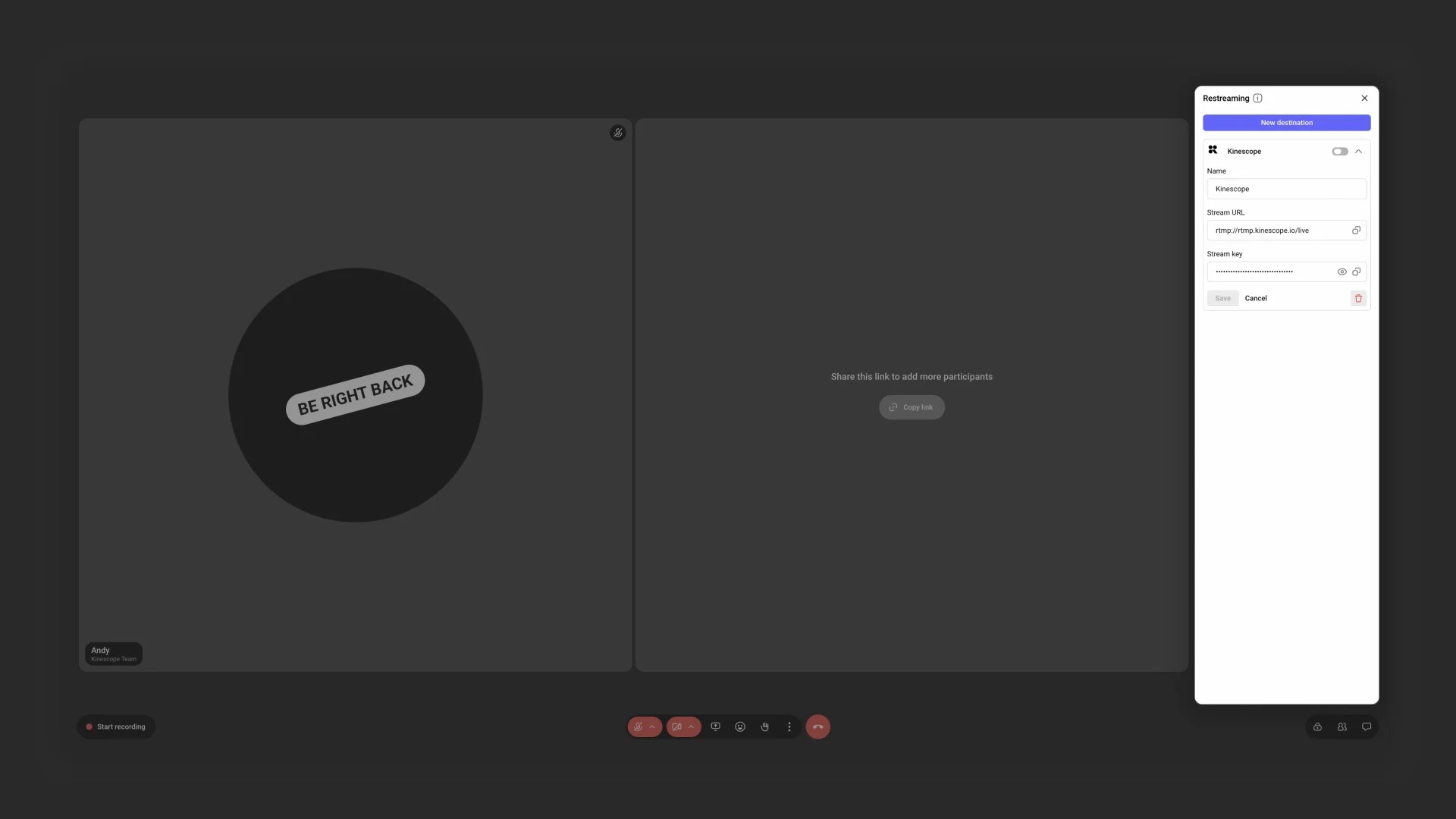
- To edit — change the field you need and click Save. Until you change something, the button stays inactive.
- To reveal the key — click Show (the eye icon), and the key becomes visible.
- To copy the address or the key — click Copy to the right of the field.
- To delete a destination — click Delete (the bin icon).
Limits
| What | Value |
|---|---|
| Saved destinations per room | up to 15 |
| Restreams running at once | up to 5 |
| Restream duration | no separate limit — the standard live streaming limit applies |
| Roles with access | room host and co-host |
| Mobile apps | restreaming is not available — browser only |
Where you can stream
Kinescope recognises the platform by the address you pasted and adds its icon to the list of destinations — among them:
- YouTube
- Twitch
- Telegram
Kinescope is just another external platform on that list. To send a meeting into a Kinescope live stream, add its address and key exactly as you would for any other service. No separate integration between Speak and live streams is required.
If a restream drops
A failing destination is visible in the list: it is outlined in red and marked with a triangle. The error text appears in the restreaming panel and in the status line.
FAQ
How many restreams can run at the same time?
Do viewers on the platform see the meeting chat?
Is there a limit on restream duration?
Why won't the restream start?
Do I have to enter the keys before every meeting?
What’s next?
After setting up restreaming in Speak, we recommend:
- What is Speak? — video meeting capabilities, recording, and participants
- Restreaming — restreaming for live streams sent from a video encoder
- Live stream guide — preparing a broadcast and working with viewers
- Troubleshooting and support — what to do if the stream does not reach the platform
Still have questions? Write to the support chat within the Kinescope interface — our specialists will help!