
Drawing over screen sharing
While a screen is shared in Speak, you can draw over it with a marker: circle a line of code, mark a button in an interface, point out the right spot on the screen. No need to explain in words where to look or switch to a separate annotation tool.
Everyone in the meeting sees the drawings right away, and they go into the recording.
Who this article is for
- Webinar and product demo hosts — need to point at a specific spot on the screen without interrupting the talk
- Teachers — need to highlight a fragment during an online lesson while explaining it
- Workshop facilitators — need participants to mark things on the shared screen themselves
Who can draw
By default, only the host and co-hosts can draw. The host gives the drawing permission to other participants — to everyone at once or to one person.
| Role | What they can do |
|---|---|
| Host and co-hosts | Can always draw. Give and take away the drawing permission, clear everyone’s drawings |
| Participant with drawing permission | Draws, undoes and erases only their own lines, clears only their own drawings |
| Other participants | See everyone’s drawings in real time, cannot draw |
How to draw
You can draw while a screen is being shared. Hover over the shared screen — the drawing toolbar appears at its top. If there is no toolbar, you don’t have the drawing permission — ask the host for it.
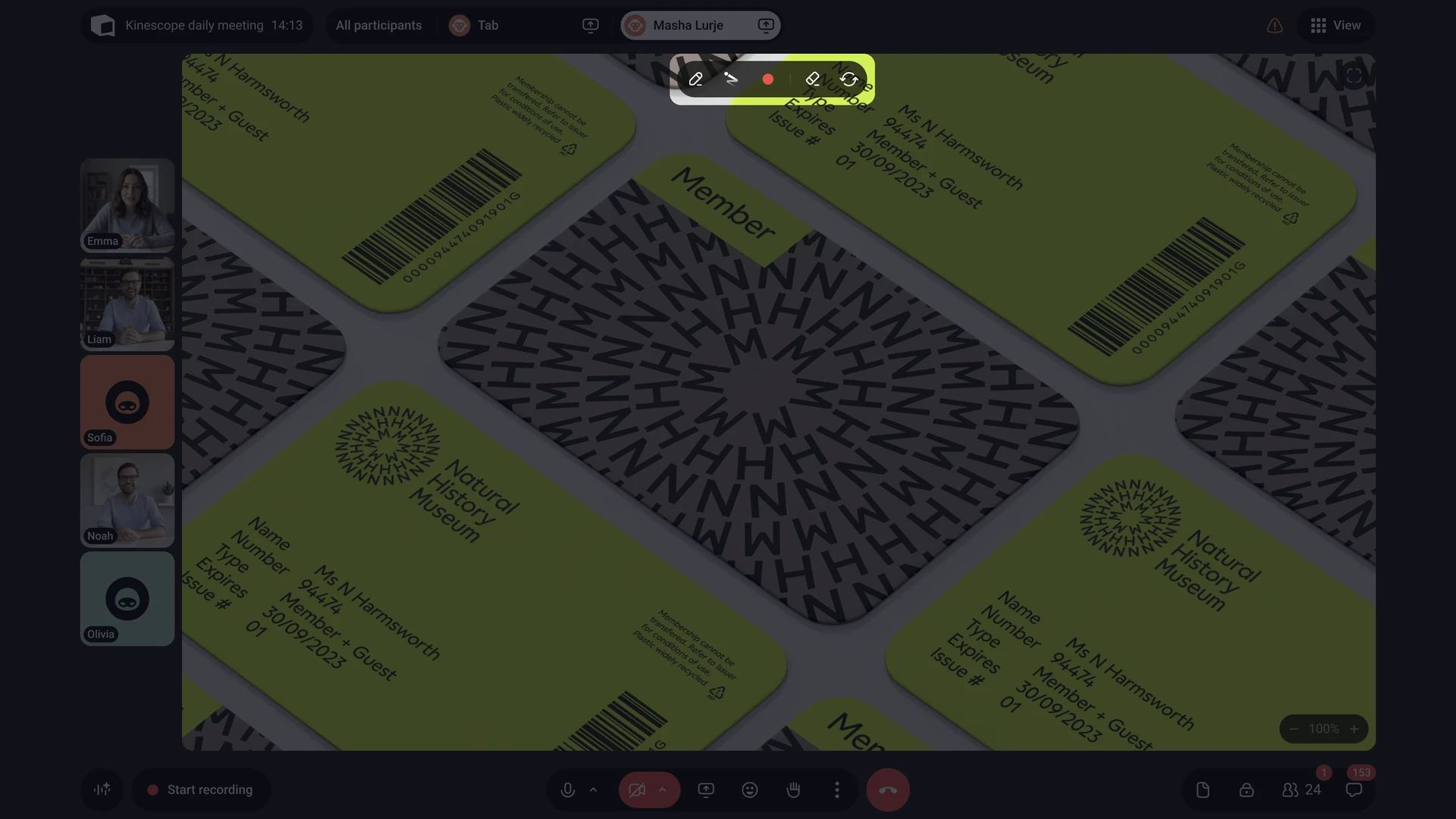
- Marker — turns on drawing mode: hold down the left mouse button and move the cursor over the shared screen. Lines stay on the screen until someone erases them.
- Disappearing ink — for pointing at something, like with a finger: a line stays for about 3 seconds after you release the mouse button and then fades out.
- Color — a palette of 8 colors and a line thickness slider.
- Erase your stroke — the eraser: hover over one of your lines and click to remove the whole line.
- Clear all — for the host and co-hosts, removes everyone’s drawings. A participant with drawing permission has Clear my drawings here instead — it removes only their own lines.
Click the selected tool again to turn drawing mode off. To undo your last line, press Ctrl+Z (on macOS, Cmd+Z works too).
Lines, undo, and clearing show up for all participants right away. While you draw, others see your cursor with your name.
How to let participants draw
The host and co-hosts can give and take away the drawing permission.
Everyone
In the room, open Access control and turn on Drawing in the Participant permissions section. This toggle is off by default.
One participant
Right-click the participant’s tile and turn on Allow drawing.
- The host and co-hosts don’t have this toggle — they can always draw.
- If the room-wide Drawing permission is on, the participant’s toggle is on and inactive. You can’t stop one person from drawing while drawing is allowed for everyone.
Taking the permission away
When the drawing permission is taken away, the participant’s drawing mode turns off immediately. Their lines stay on the screen until someone clears them.
What participants see and what goes into the recording
- Drawings go into the recording. The meeting recording shows the lines, the disappearing ink, and the clearing — in the same order as in the meeting.
- Drawings last as long as the screen sharing. If screen sharing is stopped or interrupted, the drawings are deleted. A new screen share starts with a clean slate — previous lines don’t come back.
- Late joiners don’t see everything. A participant who joins during screen sharing sees only what was drawn after they joined.
- Drawings aren’t saved separately. They remain only in the meeting recording.
What’s next?
After getting to know drawing over screen sharing, we recommend:
- What is Speak? — video meeting capabilities, recording, and participants
- Restreaming in Speak — streaming a meeting to external platforms straight from the room
- Catalog and video management — recorded meetings and viewing analytics
- Troubleshooting and support — what to do if something goes wrong with a meeting
Still have questions? Write to the support chat within the Kinescope interface — our specialists will help!