
Stream Setup Instructions
This guide contains step-by-step instructions for setting up OBS Studio to launch streams through Kinescope. You will learn how to prepare the program for stable, high-quality broadcasting.
Who this article is for
- Stream organizers — need to set up OBS Studio for broadcasting via Kinescope
- Webinar hosts — need step-by-step OBS Studio configuration instructions
- Platform administrators — need to set up streams for a team
Setting up OBS Studio for streams via Kinescope
OBS Studio is a popular video capture program whose reliable streaming can be trusted to Kinescope. A video with basic scenario setup via OBS Studio is available in the Live Stream Guide. Below is a step-by-step guide to properly configuring OBS Studio for use with Kinescope.
Step 1: Install OBS Studio
Download OBS Studio from the official website and install it on your computer.
Step 2: Configure the stream in Kinescope
Log in to your account on Kinescope.
Go to the Live section and create a new stream.
Choose: “One-time event” (each stream with a new link) or “Recurring event” (one link for all streams).
After creating, you will receive the RTMP URL and Stream key. You will need these for OBS Studio configuration.
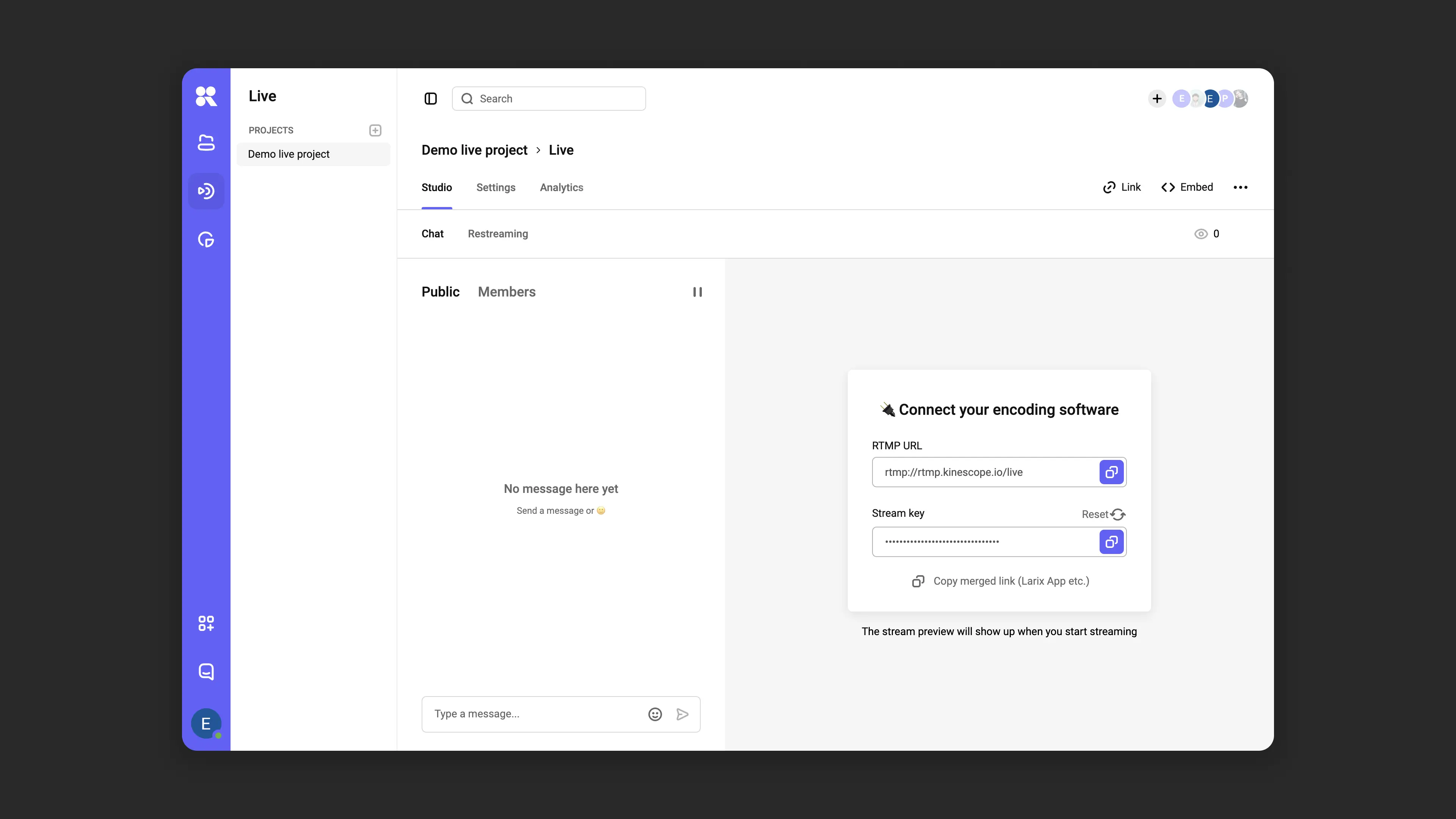
Step 3: Configure OBS Studio
- Open OBS Studio and go to “File” → “Settings”.
- In the “Stream” section, set:
- Service: “Custom”.
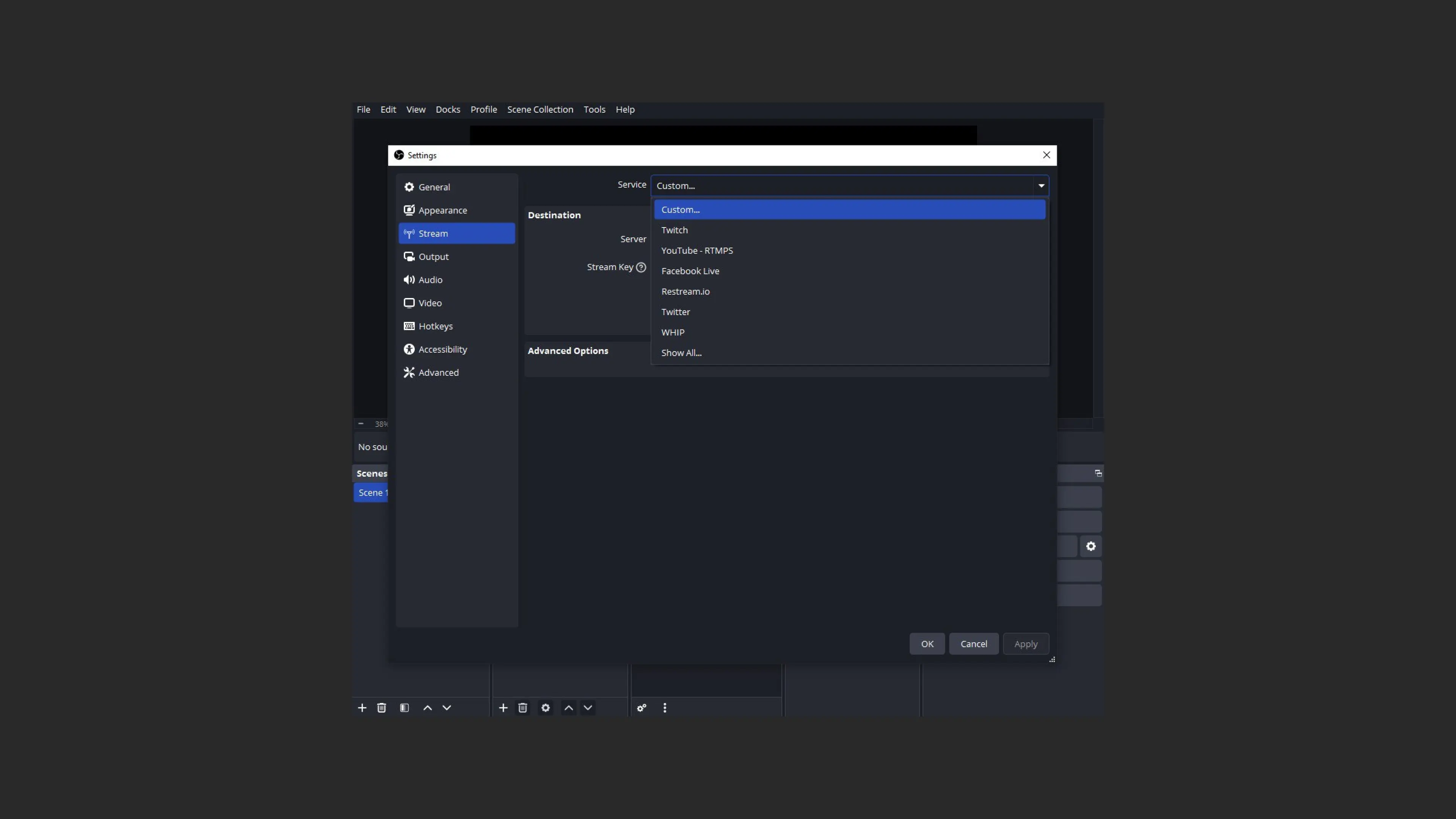
- Server: paste the RTMP URL received from Kinescope.
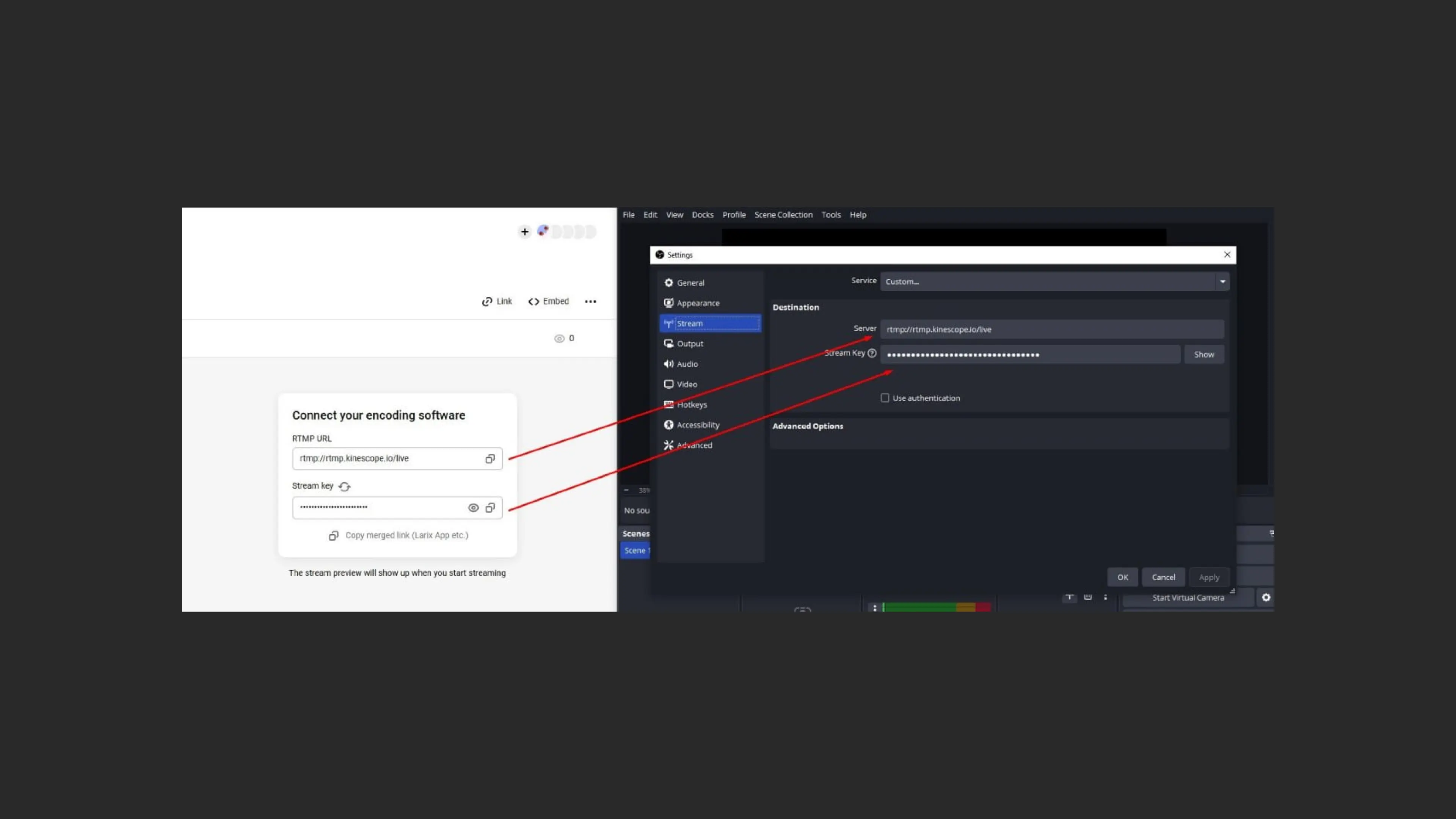
- Stream key: paste the corresponding key from Kinescope.
- Click “Apply” and “OK”.
Step 4: Configure video and audio
- In the “Output” section, set:
- Output mode: “Advanced”.
- Video bitrate. For “talking head” and presentations — 2000–2500 Kbps, for dynamic content — 4000 Kbps, for Full HD streams — up to 6000 Kbps.
- Encoder: choose based on your hardware (NVENC for Nvidia graphics cards or x264 for CPU). Keyframe interval: 1 s.
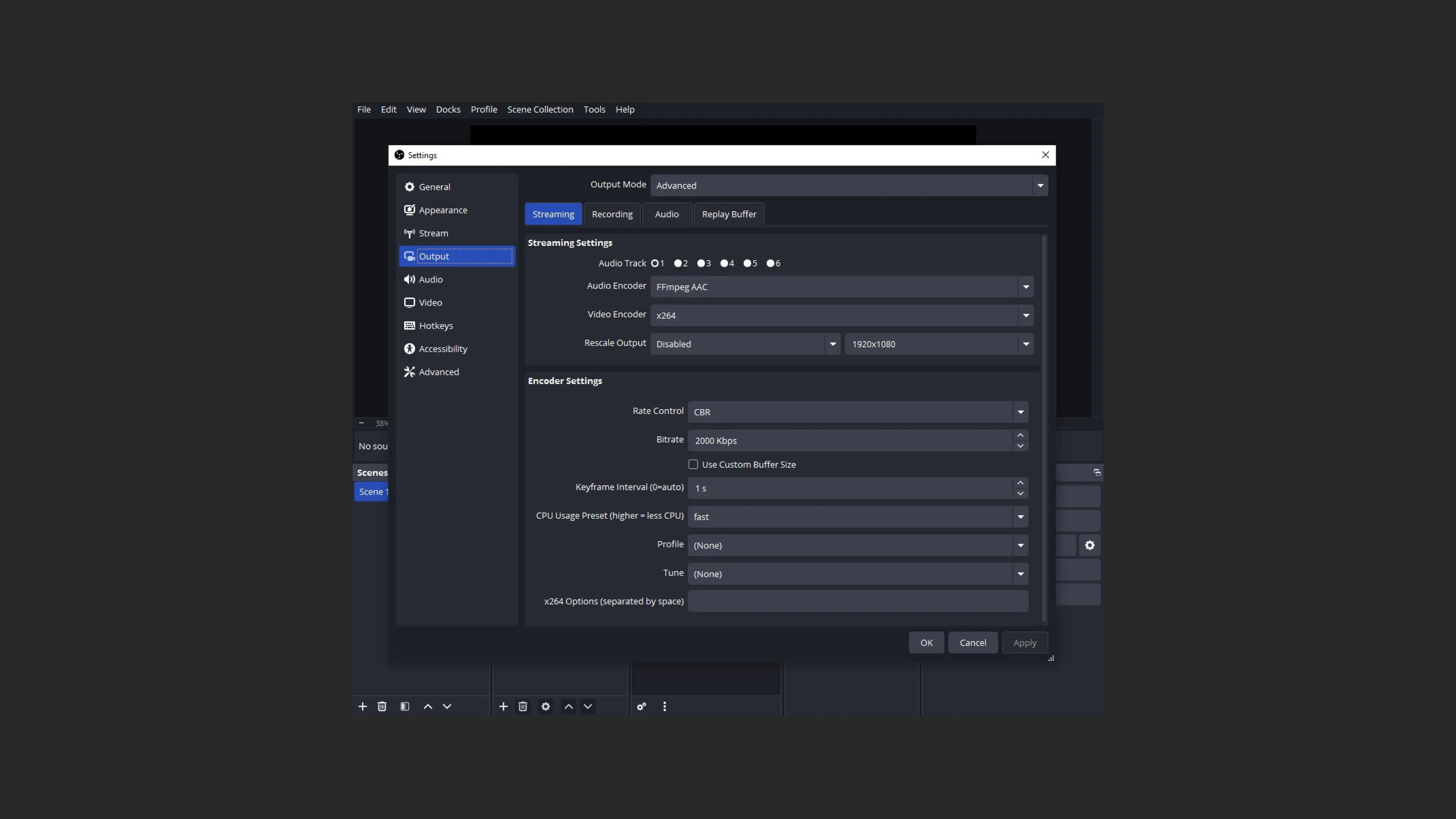
- In the “Audio” section, set the audio bitrate to 128–192 Kbps.
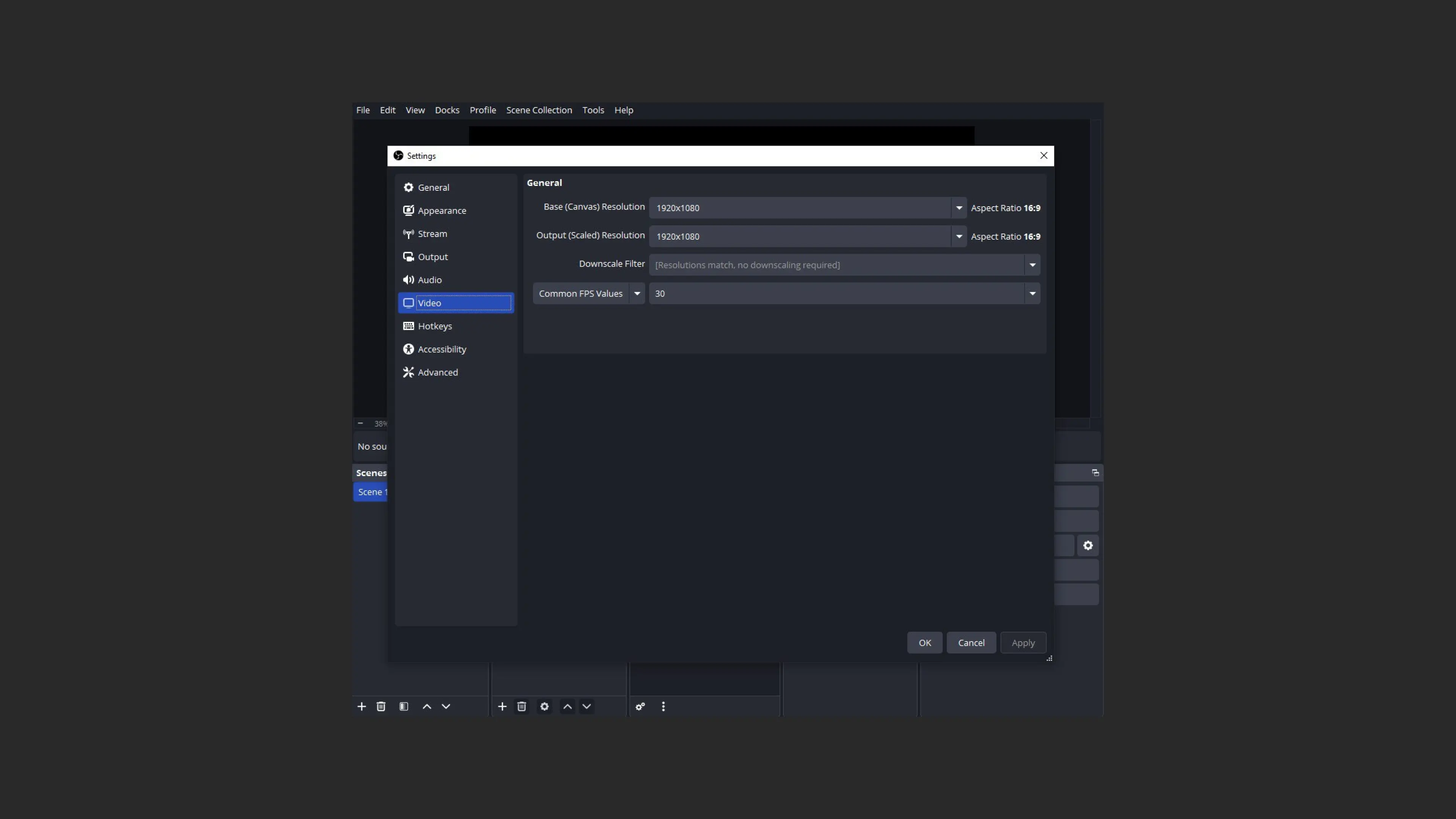
- In the “Video” section, set:
- Base (canvas) resolution: 1920×1080.
- Output resolution: 1280×720 (HD) or 1920×1080 (Full HD).
- Frame rate: 30 FPS.
Step 5: Create scenes and add sources
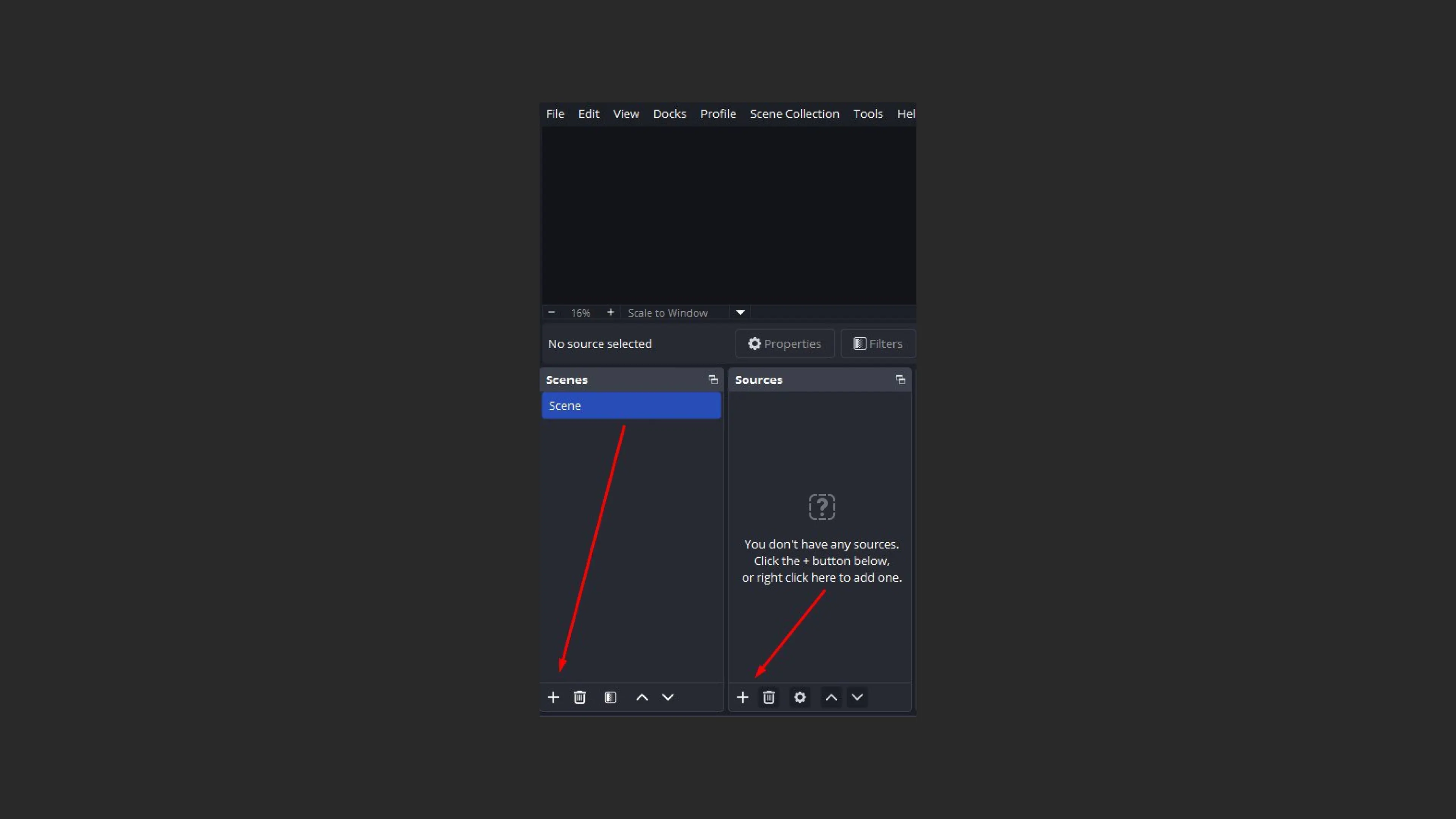
In the OBS Studio main window, in the “Scenes” panel, click “+” and create a new scene (for example, “Main”).
In the “Sources” panel, click “+” and add the required sources:
- Screen capture: to show the entire screen.
- Window capture: to show a specific application.
- Video capture device: to connect a webcam.
Step 6: Test and start the stream
- Click “Start Streaming” in OBS Studio.
- Go to the Kinescope dashboard and make sure the stream status is “Active” and the image is displayed correctly in the player.
OBS Studio recommendations
- Stable internet connection: for quality streaming, using a wired connection is recommended.
- Test stream: before the main broadcast, run a test stream to verify the settings are correct.
- Load monitoring: monitor CPU and RAM usage during the stream to avoid overloads.
- Backup: save a stream recording in case of technical issues.
If you have questions or difficulties, Kinescope support is always ready to help. Happy streaming!
What’s next?
After setting up streams, we recommend:
- Live Stream Guide — learn more about stream capabilities in Kinescope
- Restreaming — configure simultaneous streaming to multiple platforms
- Analytics — track stream views and viewer engagement
- Troubleshooting — resolving stream issues
If you have questions, write to the support chat within the Kinescope interface — our specialists will help!