
Multi-stage event
A multi-stage event combines up to 20 live streams under one link and one embed code. Each live stream inside the event is a stage. Viewers open the event and switch between stages using tabs above the player without leaving the page.
This works well for a conference with parallel tracks: you embed one player on your website instead of a separate iframe for each stage.
Who this article is for
- Conference and forum organizers — need to show several parallel stages on one page.
- Online schools and universities — an open day or a festival with several venues.
- Marketers — need to embed one code on a website without a developer.
How an event works
- Stages are regular live streams. You add live streams from the same folder to the event. Each live stream keeps working on its own, with its own link, stream key, settings, and recording.
- One link and one embed code for the whole event. The public link looks like
https://, and the embed code useskinescope.io/ ms/ <event ID> https://.kinescope.io/ embed/ ms/ <event ID> - Each stage has its own chat. Messages and the member list belong to the stage that is currently open.
- Access is set for the whole event. A live stream’s own access settings apply when it is opened by its own link.
Creating an event
- Open Live and select a project or folder.
- Click New and select Multi-stage event.
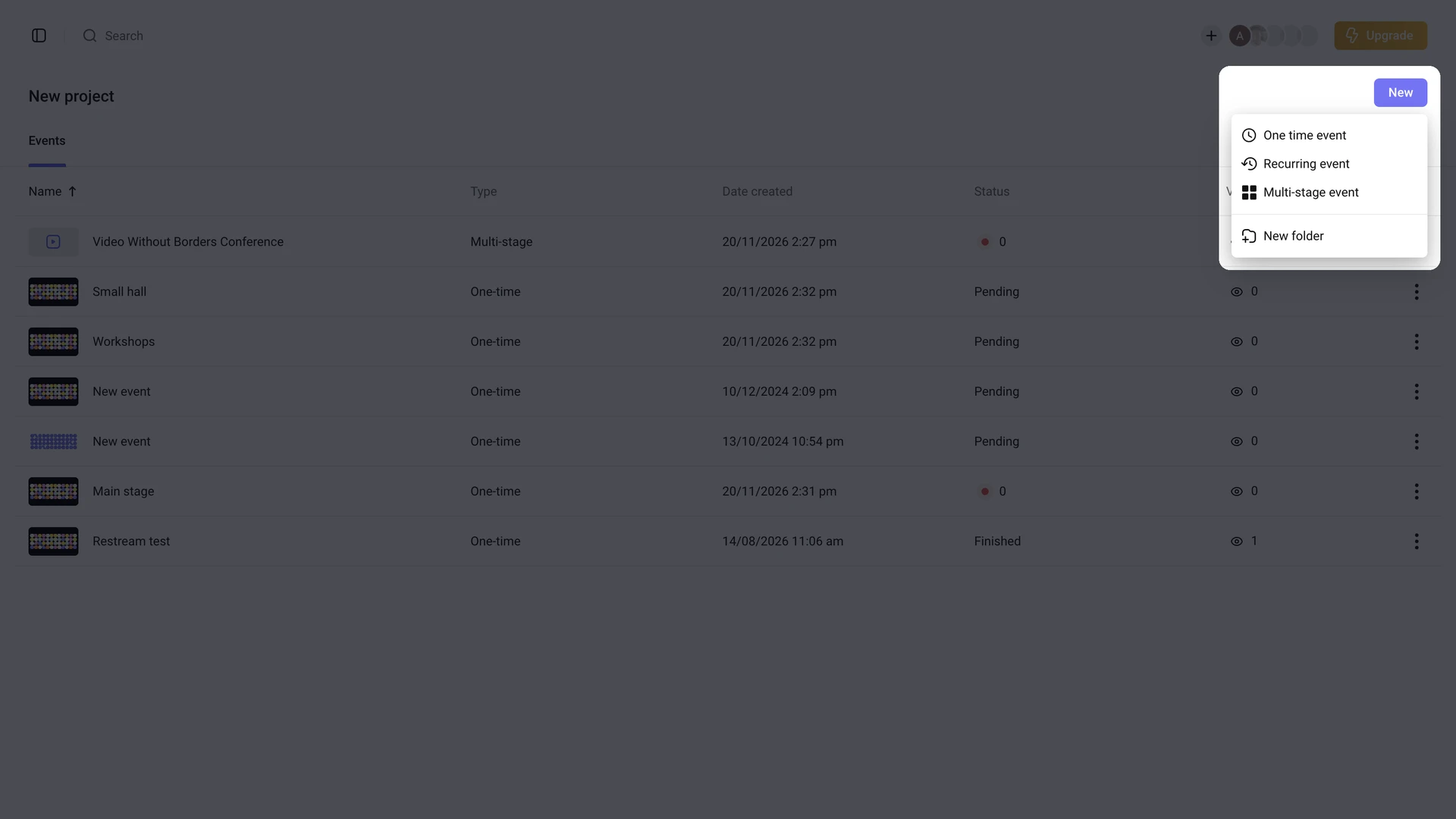
The event is created right away, and its page opens. In the Live catalog, it is shown with the Multi-stage type.
Adding stages
While the event has no stages, there are two buttons on the right side of the event page:
- Create event — create a new live stream; it immediately becomes a stage of the event;
- Add events — select existing live streams from this folder.
To add existing live streams:
- Click Add events.
- Find live streams using Search and select the ones you need — you can select several at once.
- Click Add.
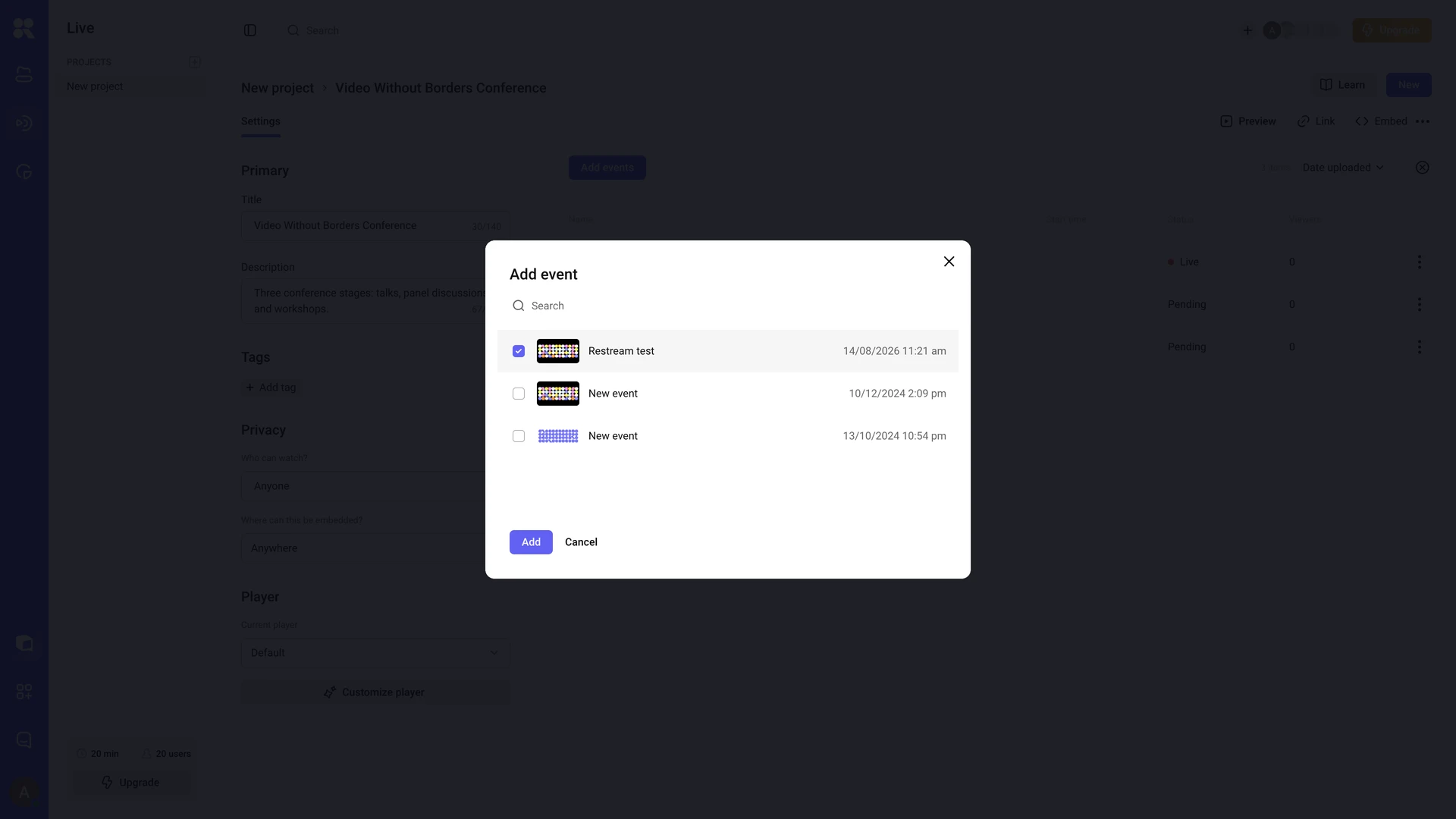
Live streams that are already in the event are not shown in the list. You can add up to 20 live streams to an event.
Stage list
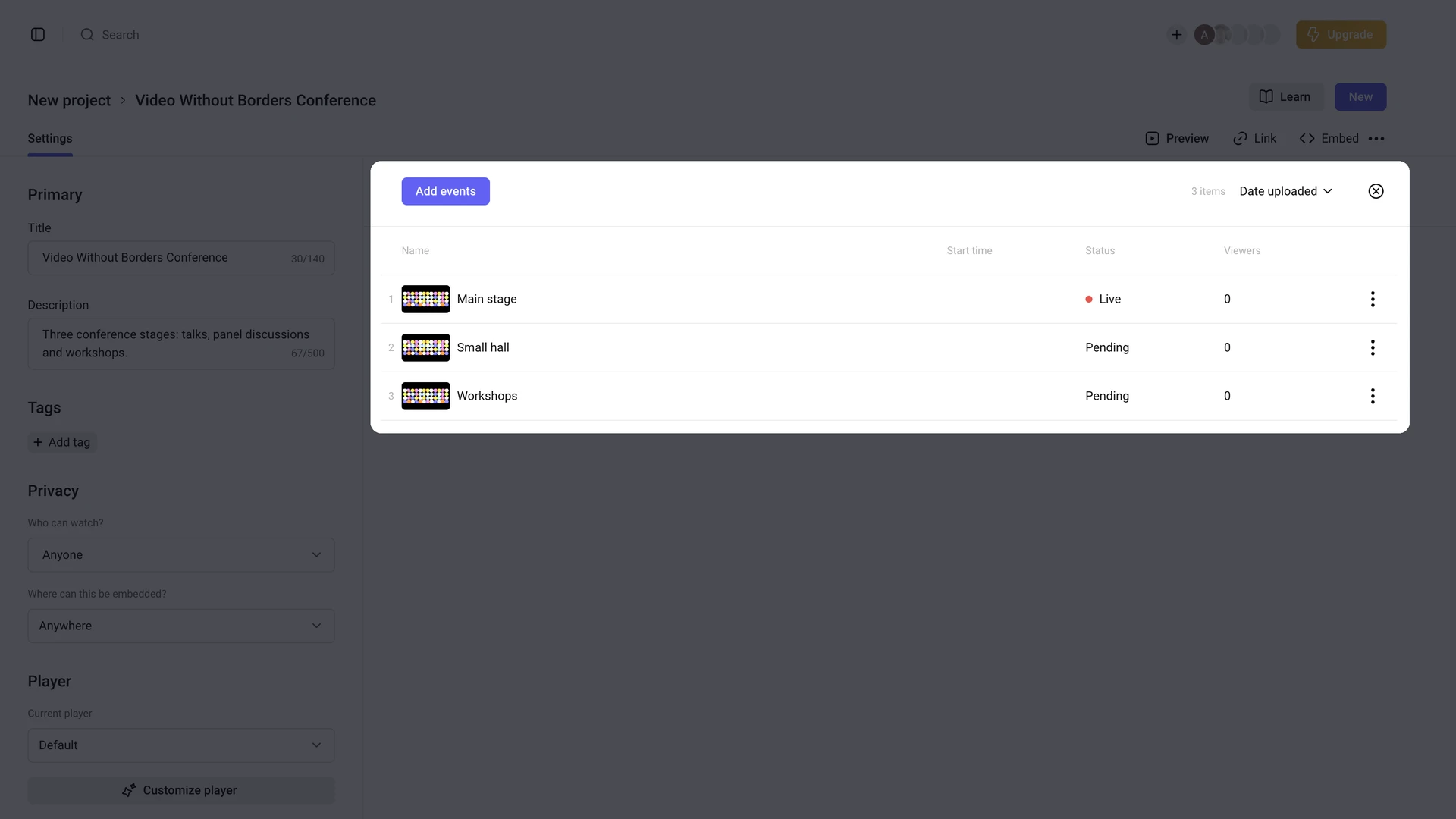
Stages are shown in a table on the right side of the event page:
| Column | What it shows |
|---|---|
| Name | Stage name. Viewers see it on the tab above the player |
| Start time | Scheduled start time of the live stream |
| Status | Live, Pending, or Finished |
| Viewers | How many viewers are watching the stage right now |
Stage order
Viewers see the stage tabs in the same order, and the first stage opens for them by default. You can set the order in two ways:
- drag a stage by the handle on the left of the row;
- sort the list in the menu above the table: Date uploaded, Name, or Start time.
You can change the order and the set of stages during a broadcast too.
Stage actions
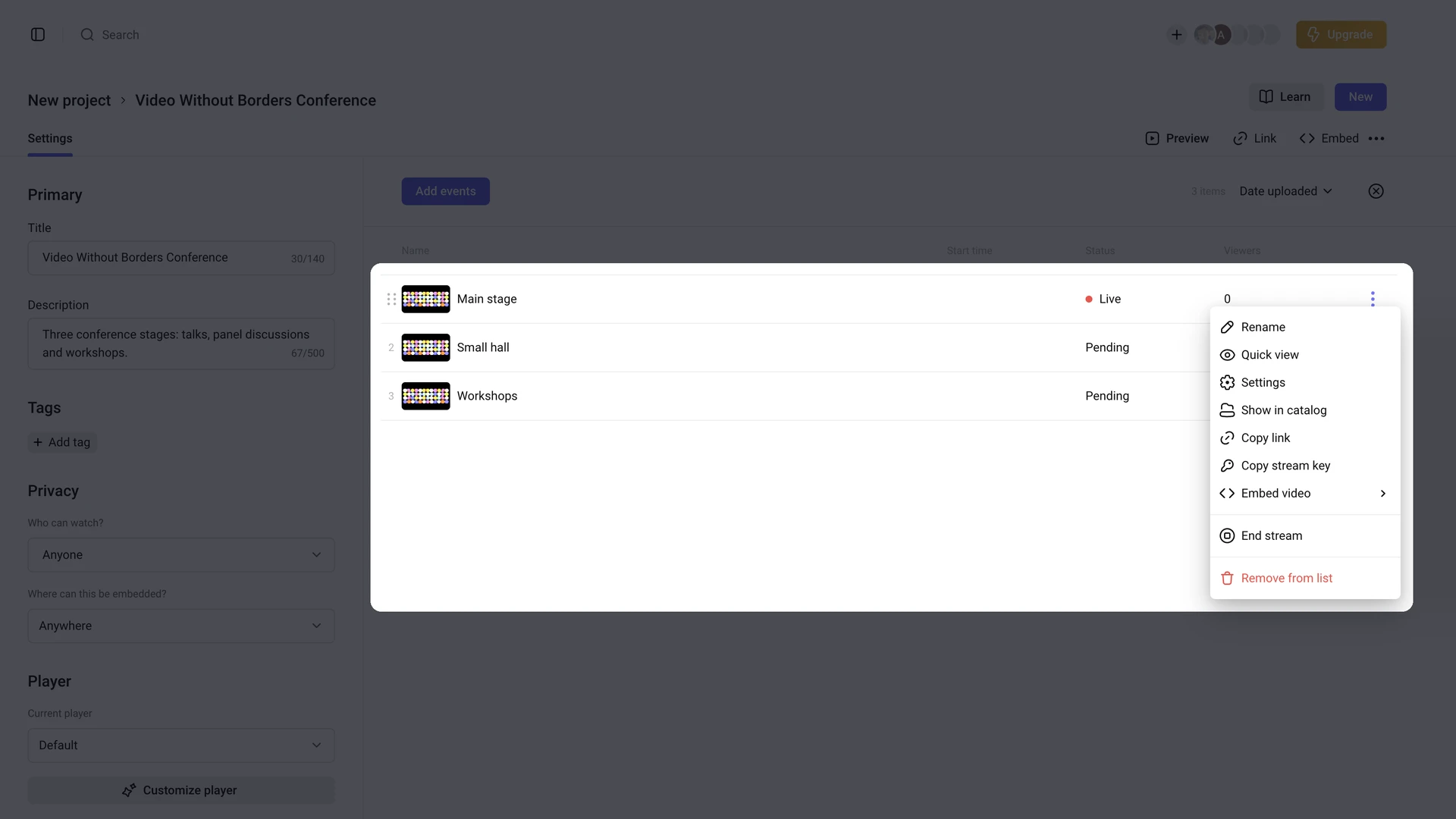
Click the three dots in the stage row:
- Rename — changes the stage name in the event. The live stream keeps its name in the catalog. By default, a stage has the same name as its live stream.
- Quick view — open the live stream player in a window over the event page.
- Settings — go to the live stream settings.
- Show in catalog — go to the catalog folder that contains the live stream.
- Copy link, Copy stream key, Embed video — the link, key, and embed code of this live stream, not of the event.
- End stream — shown while the stage is live.
- Remove from list — remove the stage from the event. The live stream stays in the catalog.
To remove all stages from the event at once, click the cross icon on the right above the table — Clear multi-stage event.
Event settings
Event settings are on the left side of the page. After making changes, click Save.
- Primary — Title (up to 140 characters) and Description (up to 500 characters).
- Tags — event tags.
- Privacy — who can watch the event and where it can be embedded.
- Player — the event’s player template. The Customize player button opens the template settings.
Event access
In Who can watch?, select one of the options:
- Anyone;
- Private link;
- Users with password — one password for the whole event;
- Users with unique code;
- Email domain.
In Where can this be embedded?, select Anywhere, Nowhere, or Specific domains.
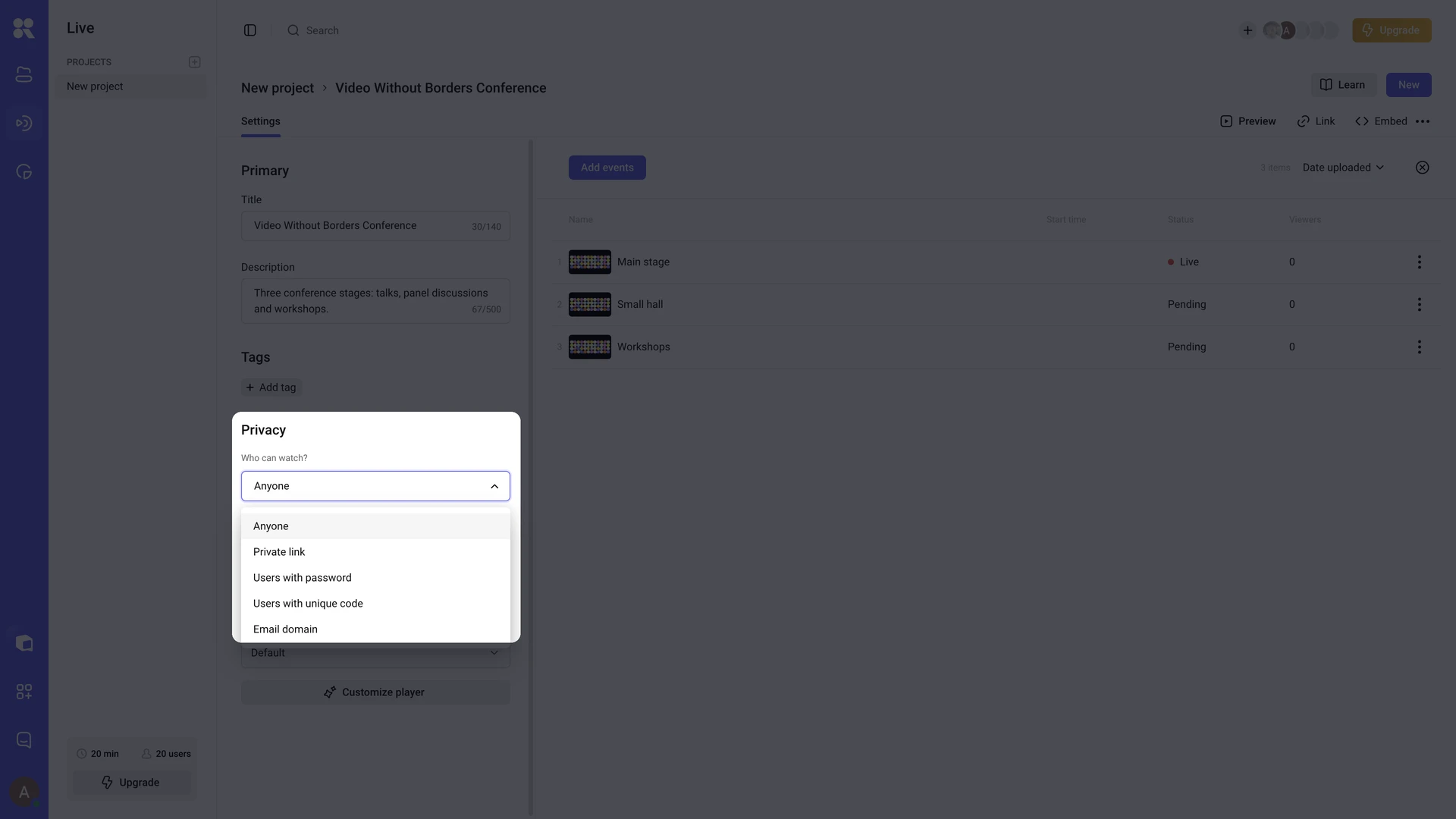
The access options work the same way as for videos and live streams — see Video Access Restrictions for details.
If the event is password-protected, viewers enter the password before they see the stages — on the event page and in the embedded player alike.
Link and embed code
Buttons in the event page header:
- Preview — open the event’s public page in a new tab.
- Link — copy the public link to the event.
- Embed — get the event’s embed code: responsive or fixed size. To learn how to add the code to your website, see Embedding.
Both links lead to the same event. Adding, removing, or renaming a stage doesn’t change the link or the embed code.
Ending broadcasts and deleting an event
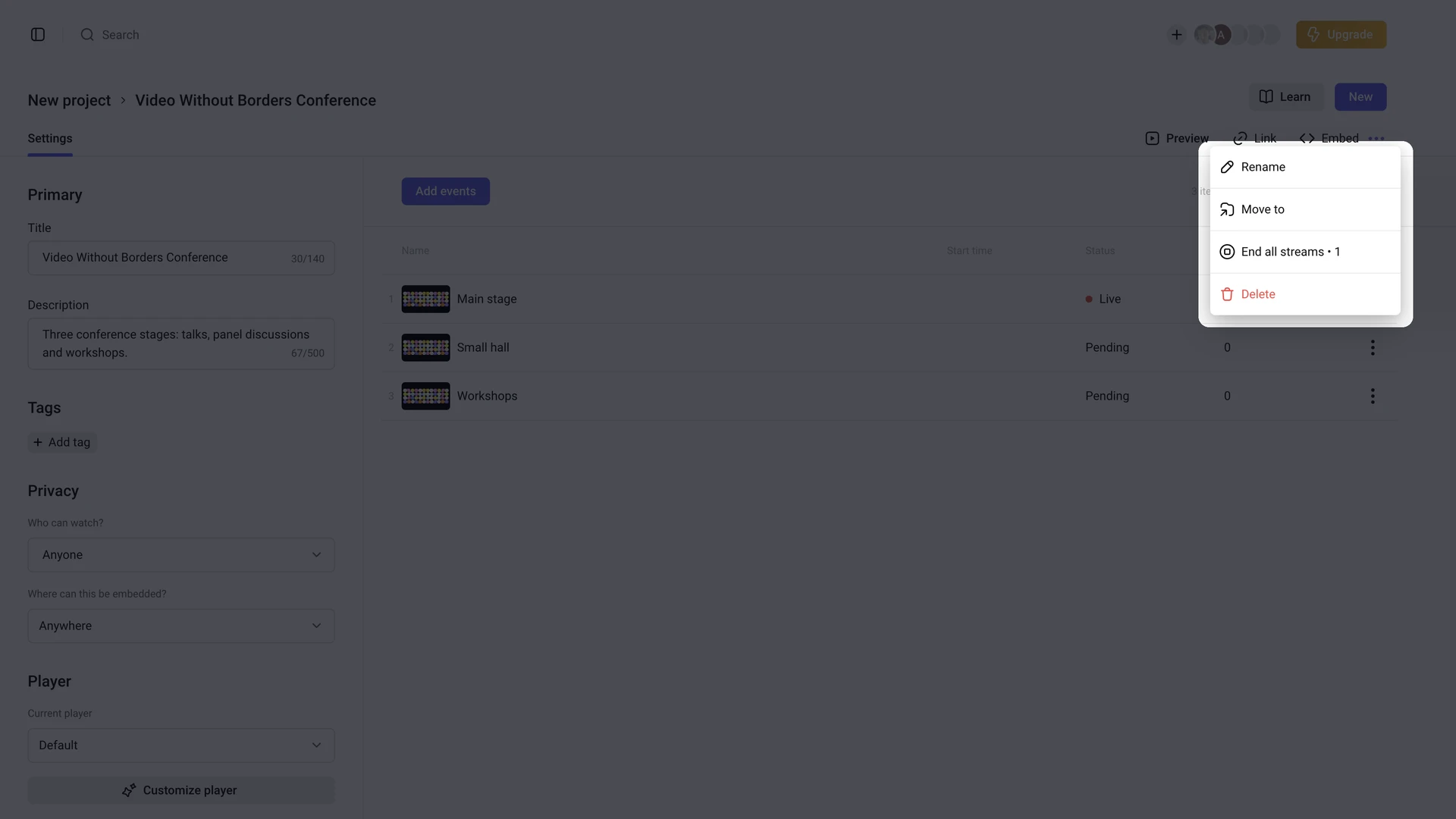
In the three dots menu in the event page header:
- Rename and Move to — rename the event or move it to another folder.
- End all streams — end all stages that are live right now. The number in the menu item shows how many stages will be ended.
- Delete — delete the event. The live streams that were its stages stay in the catalog.
What viewers see
Above the player are the stage tabs in the order set by the organizer. A live stage has a red dot on its tab. To the right of the player is the chat of the open stage, and below the player is the stage name.
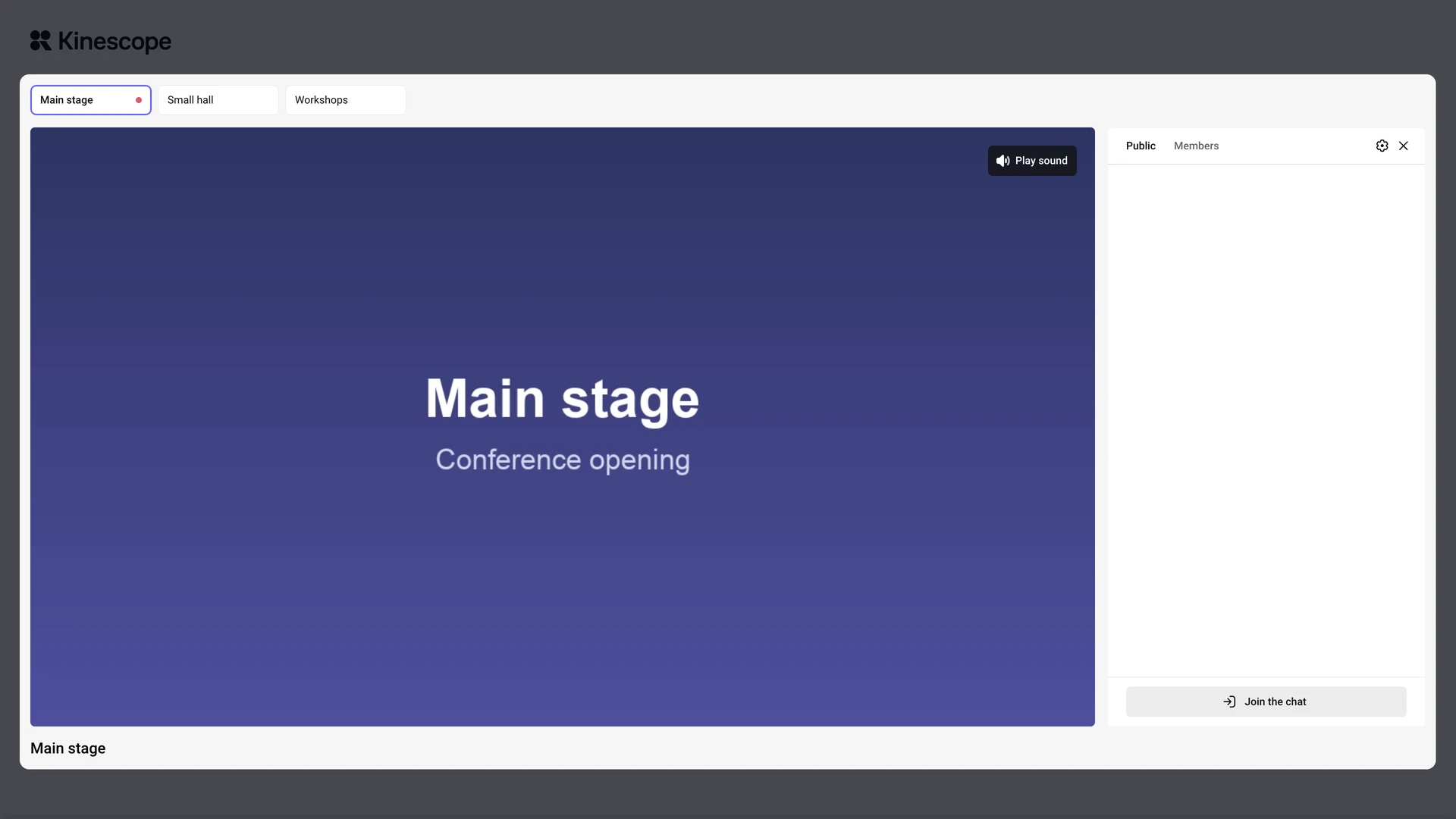
- By default, the first stage opens.
- When switching, the player loads the selected stage’s stream, and the chat switches to that stage. Only one stream loads at a time.
- The selected stage is remembered in the browser: after reloading the page, the viewer returns to the same stage.
- A stage whose broadcast hasn’t started shows the live stream poster, and if the start is scheduled, the start time.
- After a broadcast ends, the stage tab shows the recording if the live stream saves one. A stage with a recurring live stream waits for its next broadcast.
While the event has no stages, viewers see a message that the stream is unavailable instead of the player.
What’s next?
- Live stream guide — how to create a live stream and connect the signal
- Stream chat — chat settings and moderation in each stage
- Video Access Restrictions — password, unique codes, and email domain access
Still have questions? Write to the support chat within the Kinescope interface — our specialists will help!