
Replies in Threads
When a chat has hundreds of participants, a reply to a specific question quickly gets lost among new messages. That’s why you can reply to a message: the reply doesn’t go to the main feed — it’s collected in a thread under the original message, together with other replies to it.
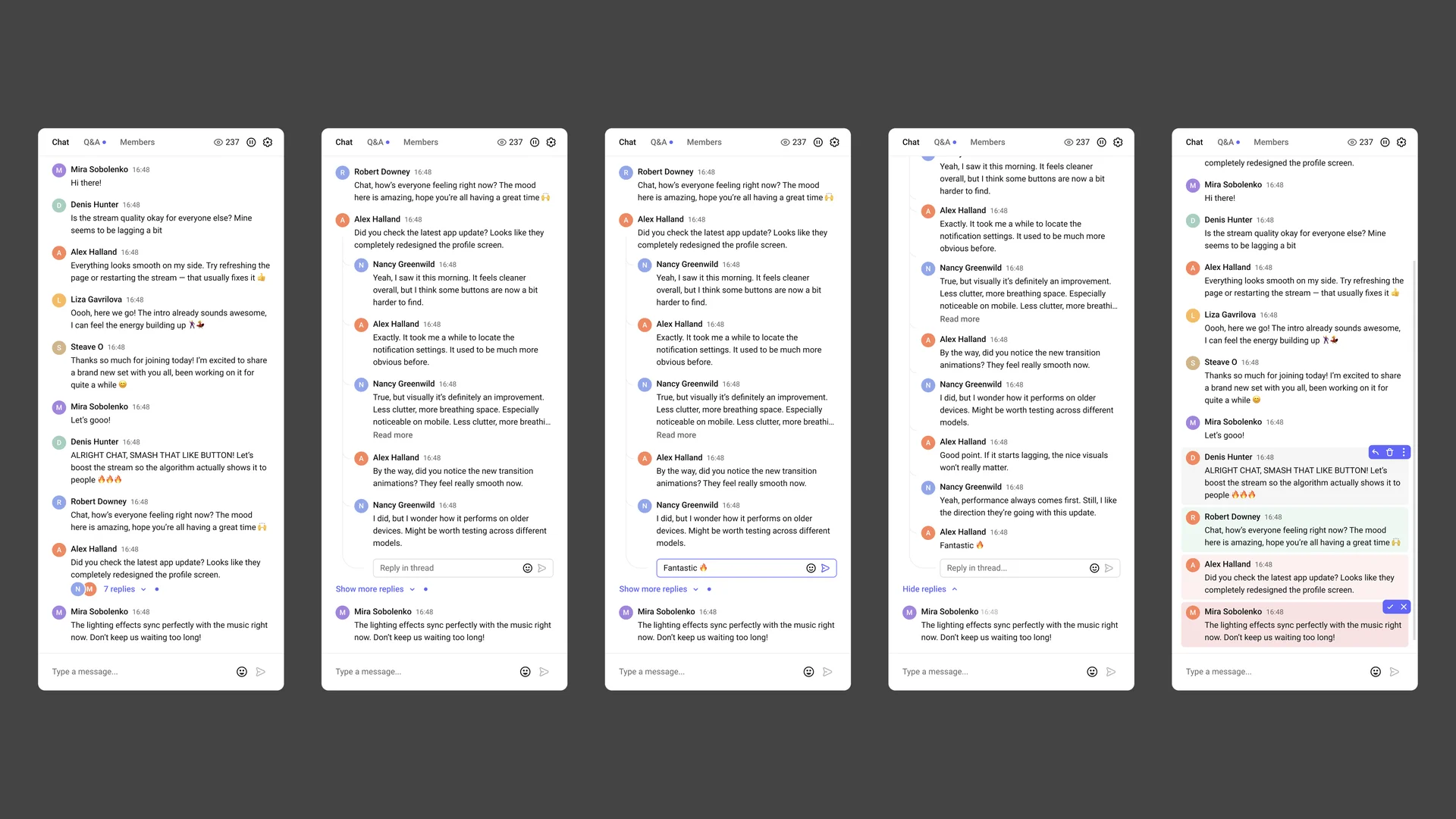
Threads are available in the chat of every stream, and you don’t need to turn them on: there’s no separate toggle in the settings. The Show threads collapsed setting only changes how viewers see threads when they open the chat.
Threads work wherever the chat is shown: in the stream link, in the chat embedded on a website next to the player, and in the Studio. On a phone, the mobile version of the same chat opens: threads work the same way there, only the interface is more compact.
How to reply to a message
- Hover over a message and click the arrow button — Reply.
- A quote with the author’s name and the beginning of their message appears above the input field, and the cursor moves to the input field.
- Type your reply and send it.
After you send it, the chat scrolls to your reply and expands the whole thread if needed.
The send button is active only if the message has at least one visible character: spaces and line breaks don’t count.
Click the quote above the input field to scroll the chat to the original message — it will be highlighted for a moment. If you change your mind, click the cross on the quote: the message will go to the main chat as a regular one.
You can reply to any message in the main chat, including your own. Threads have one level: you can’t reply to a reply inside a thread, but you can add to the same thread using the Reply in thread… field.
What a thread looks like
- Under the original message, there’s a counter — 1 reply, 5 replies — and avatars of up to three participants who replied.
- Click the counter to expand the thread. Replies appear in chronological order, indented and marked with a vertical line on the left, with the Reply in thread… field below them.
- If there are more than 10 replies, the first 10 are shown. The Show more replies button loads the next 10.
- The Hide replies button collapses the thread.
- If you have already opened a thread and new replies appear in it later, a dot appears next to the counter or the Show more replies button.
Deleting messages
- A moderator can delete any message — both the original one and a reply in a thread.
- A deleted reply disappears from the thread without a placeholder. The reply counter decreases.
- If all replies are deleted, the thread disappears, and the original message stays in the chat as a regular one.
- If the original message is deleted, all replies to it are deleted with it.
- If a moderator deletes all messages of a participant, their replies in threads disappear too.
How threads work with chat settings
- Show threads collapsed. When the setting is on, viewers see threads collapsed when they open the stream — only the reply counter. When it’s off, threads are expanded. The setting is on by default for new streams. The change applies when the page loads: viewers who are already watching will see it after they reload the page.
- Messages pre-moderation. Replies go through premoderation just like regular messages. The author sees their reply in the thread immediately, others see it only after it’s published. Until then, the reply isn’t counted. The moderator sees the pending reply in the thread of the original message. If the moderator deletes the reply before it’s published, only the author will see it.
- Participants see only their own messages. A viewer sees their own messages and replies, as well as the moderator’s messages. Other viewers’ threads are hidden from them. A moderator’s reply to a viewer’s message is visible only to that viewer. The moderator sees all messages and replies.
- Hide users links in chat. The restriction applies to replies too: a viewer can’t send a link to a thread.
- Slow mode. The interval is shared between messages and replies: right after sending a message, you can’t send a reply until the set time passes. Slow mode doesn’t apply to moderators.
Threads in the stream recording
If the stream is recorded, the chat with its threads is saved in sync with the video: replies appear in the thread at the moment of the recording when they were sent.
In the recording, threads are read-only. You can’t reply to a message, but you can expand a thread and load more replies with the Show more replies button.
Thread FAQ
Do I need to turn threads on?
Do threads work in the embedded chat?
Do threads work on a phone?
Are threads saved in the stream recording?
Why can't I reply to a message inside a thread?
Why wasn't my reply sent?
What’s next?
- Questions in the stream chat — threads under questions work the same way
- Chat moderation — moderator tools and message premoderation
- Stream chat — all chat settings
Still have questions? Write to the support chat within the Kinescope interface — our specialists will help!