
Stream Chat
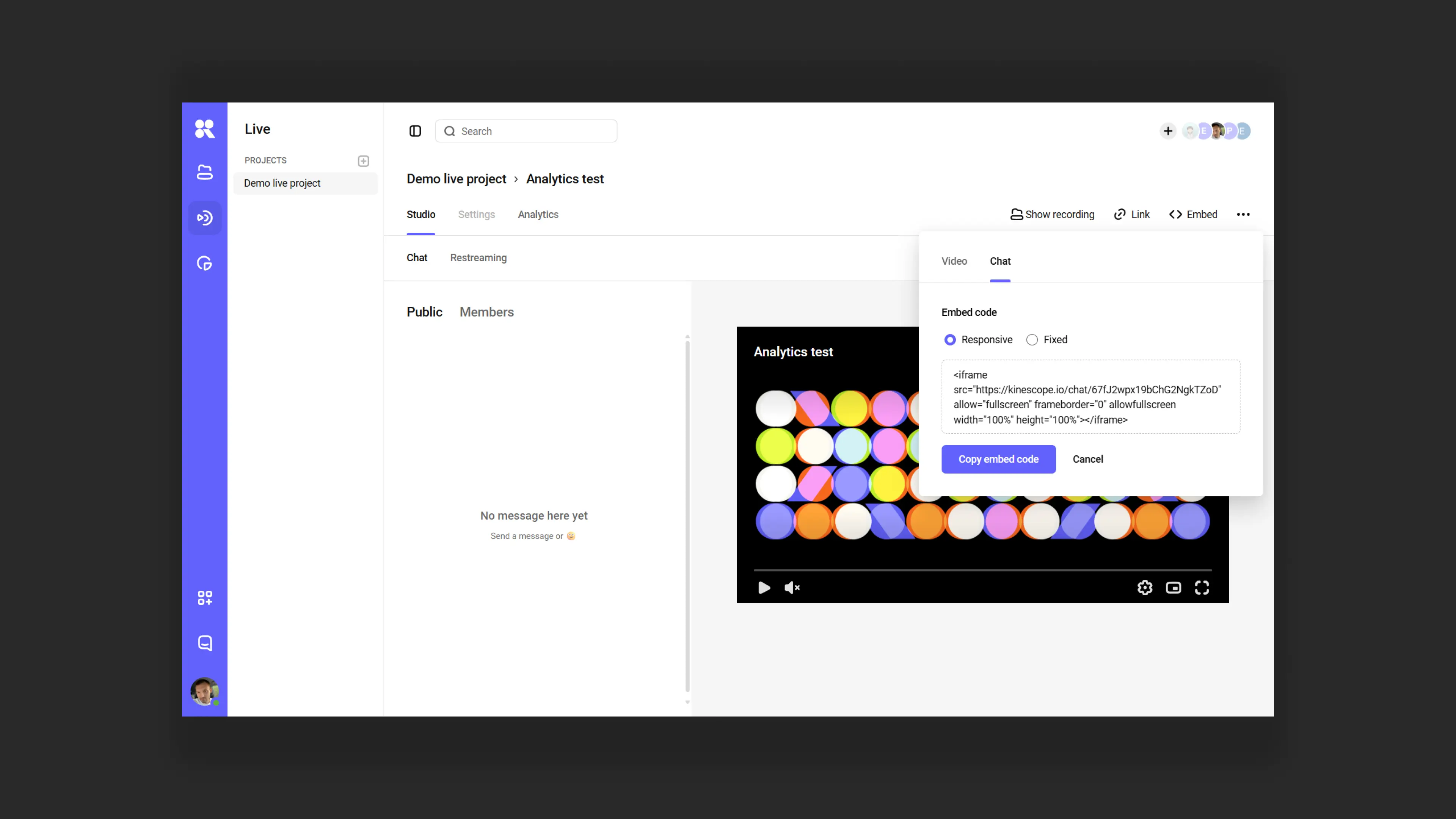
When a stream starts in Kinescope, a chat is automatically created.
- Chat can be embedded on a website alongside the stream player.
- If the stream is being recorded, the chat is saved synchronously with the video.
You can moderate the chat on the event’s Studio tab — see Chat moderation.
Chat settings
Chat settings are on the event’s Settings tab, in the Chat section. Changes take effect after you click Save.
Show chat in the player’s link — show chat when the video is opened via a link.
Chat inside the player:
Do not show — chat is not displayed in the player (default).
Show — chat is always visible next to the video.
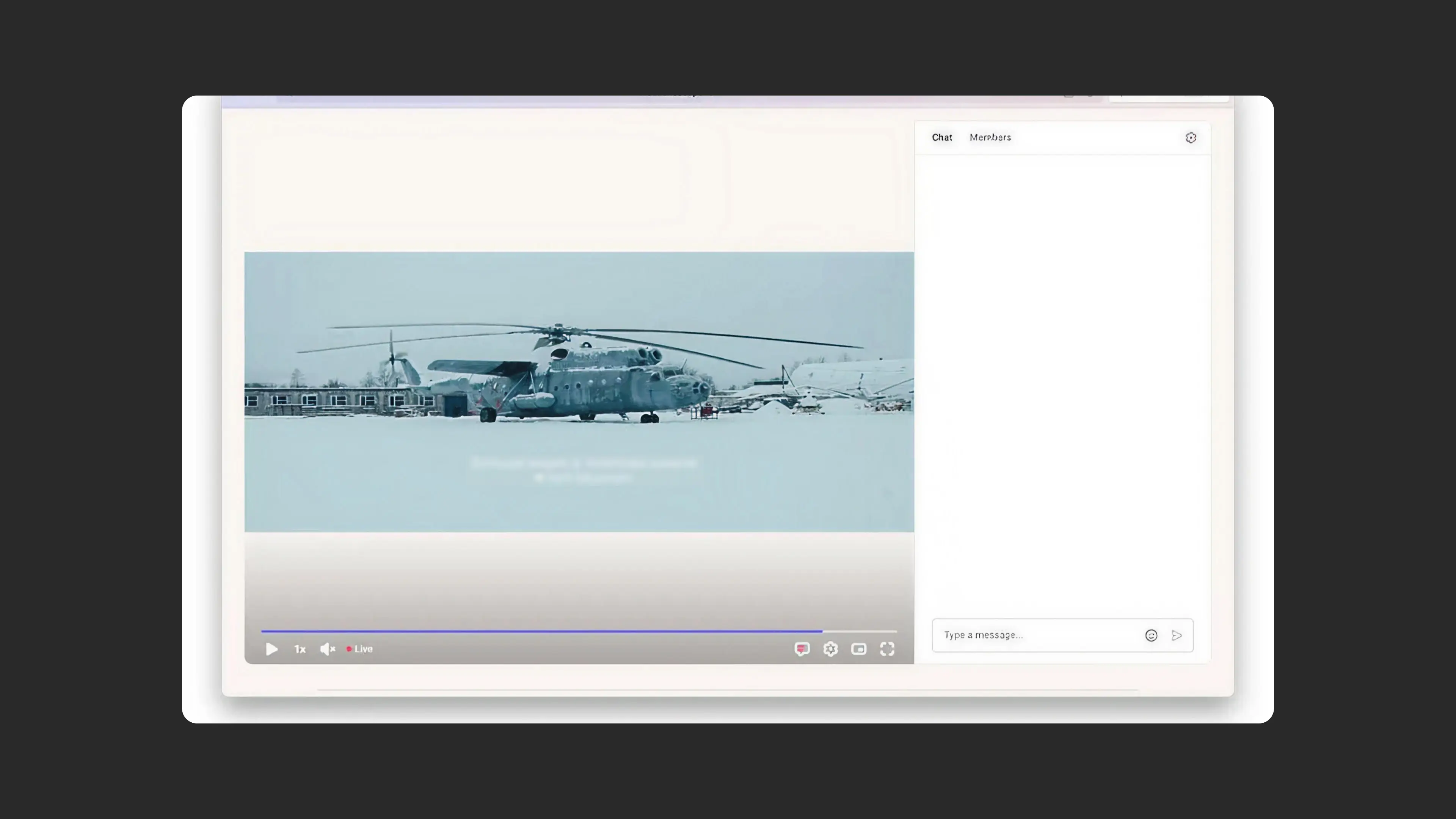
Show only in fullscreen — chat appears only when the player is in fullscreen.
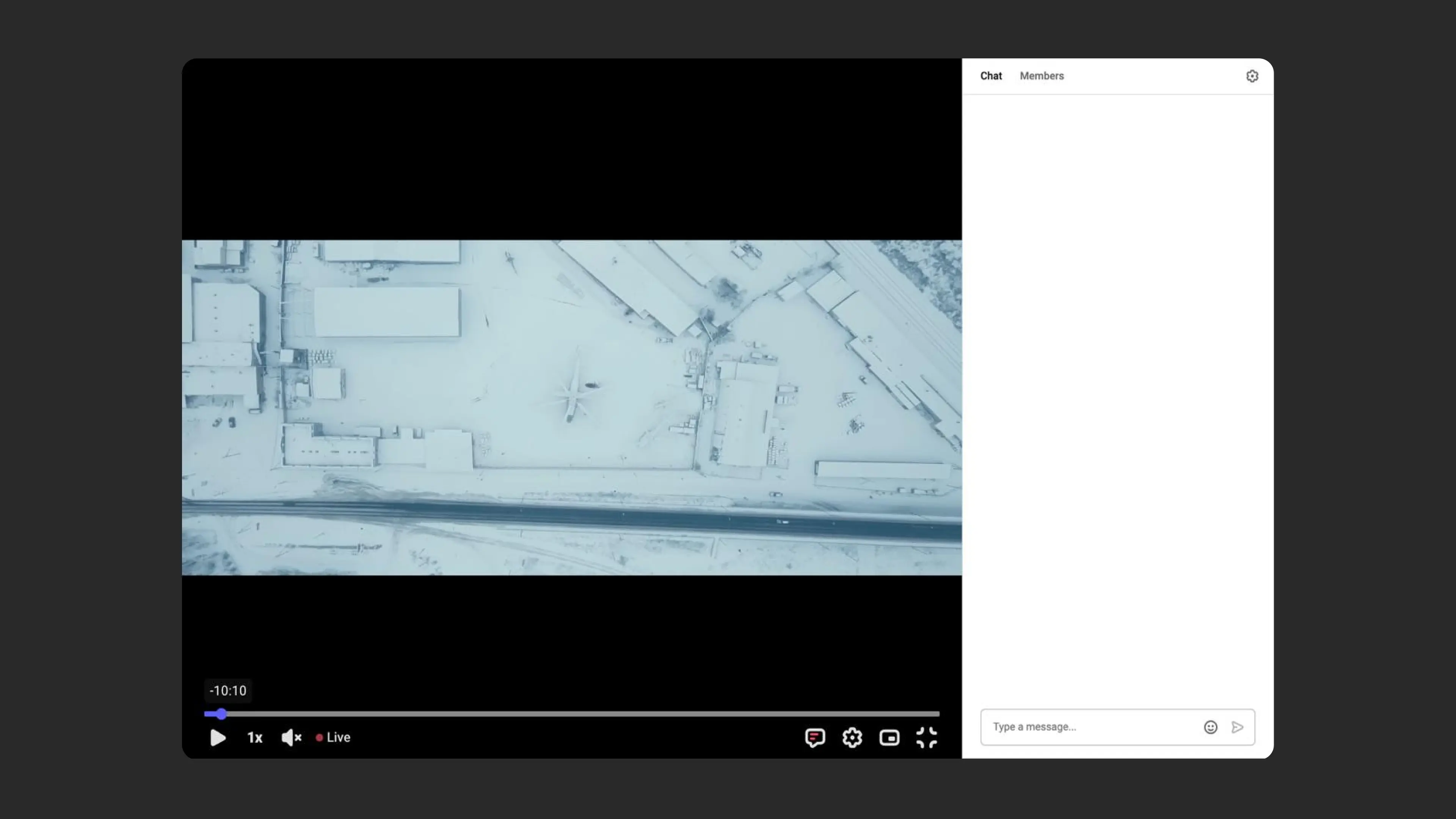
Expanded chat on load — chat opens immediately. The setting is unavailable when Chat inside the player is set to Do not show.
Hide users links in chat — protects chat from spam.
Participants see only their own messages — each viewer sees only their own messages.
Show members — see who is currently watching the stream.
Show questions — adds the Q&A tab to the chat, where viewers ask questions and vote for them. See Questions in the stream chat.
Allow replies to questions — participants can reply to questions in the Q&A tab. The organizer and moderators can always reply.
Unique usernames in the chat — prevents confusion with identical nicknames.
Messages pre-moderation — holds each new message before it appears for everyone. How it works is described in Chat moderation.
Slow mode — limits the interval between messages from 1 to 300 seconds.
Show threads collapsed — replies to messages stay hidden under a counter until the viewer expands the thread. See Replies in threads.
What’s next?
- Chat moderation — moderator tools and message premoderation
- Replies in threads — replies to chat messages
- Questions in the stream chat — the Q&A tab with viewer voting
Still have questions? Write to the support chat within the Kinescope interface — our specialists will help!