
Connecting the Stream
The video signal is sent to Kinescope over RTMP — from streaming software, a hardware encoder, or a mobile app. This article covers the ways to connect, the RTMP data in the event settings, and the signal reception servers.
Two ways to stream
Using streaming programs (video encoders)
For streaming, you can use OBS Studio, Vmix, a paid Zoom account (instructions), or hardware streamers.
Mobile apps
Use apps like Larix to stream from a mobile device.
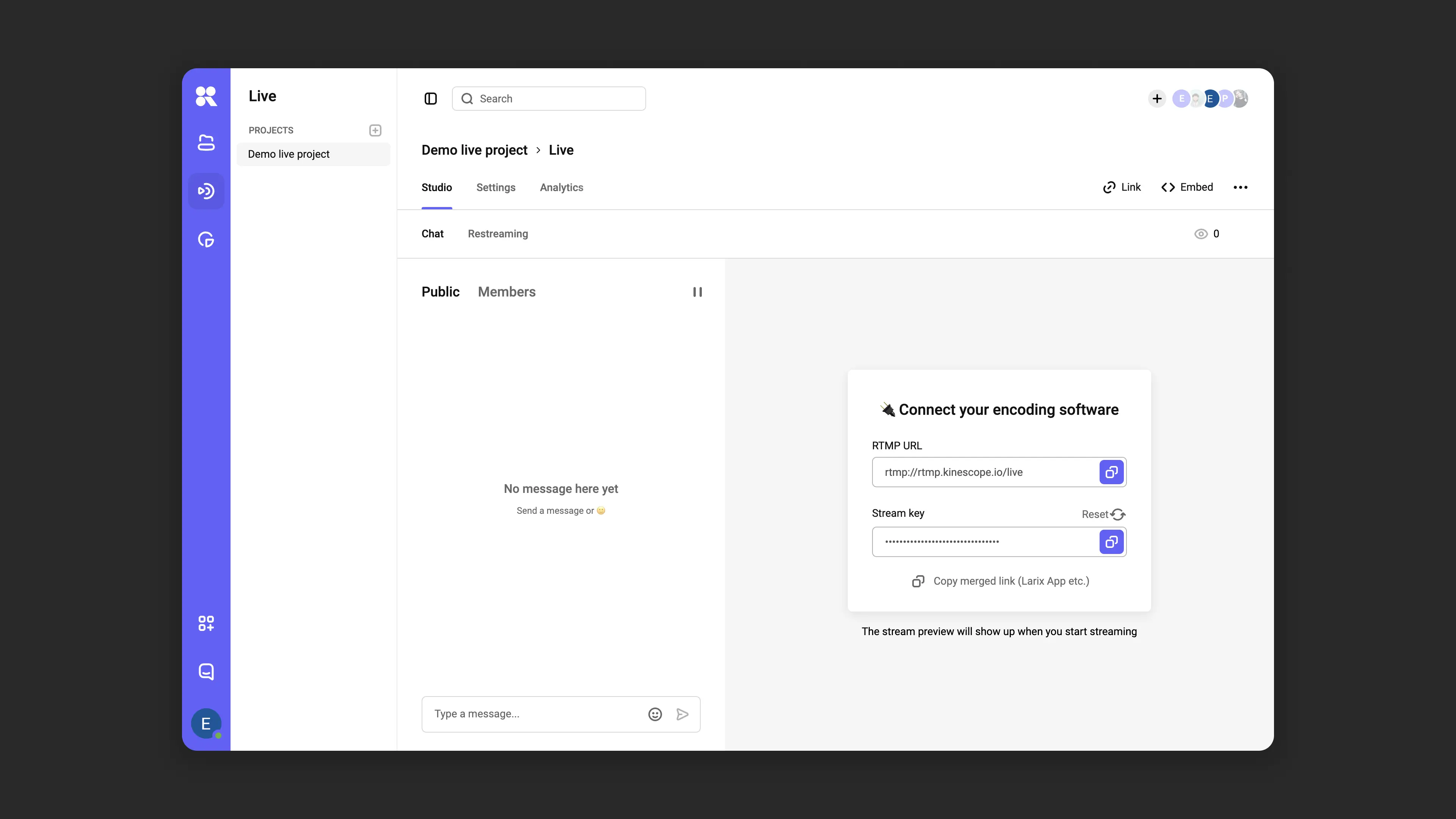
How to set up a stream: basic scenario
To set up a stream via OBS Studio:
- Download OBS Studio.
- Configure the RTMP parameters using the data from Kinescope.
- Follow the step-by-step OBS Studio and Zoom setup.
The process is similar for Vmix or Zoom.
Stream settings
On the event Settings tab:
- Streaming settings (RTMP) — RTMP URL, Stream key with a regenerate icon, and the Copy merged link (Larix App etc.) link. The same RTMP URL and Stream key also appear in Studio, in the Connect your encoding software card.
- Thumbnail — Upload an image.
- Storage settings — Save video after live stream and Records storage location with Choose.
- Additional — Autostart live broadcast and DVR.
The stream chat is configured on the same tab, in the Chat section — see Stream chat.
Fixed signal reception points
If you know where the streamer is located or if you are using a VPN, choose a server based on the region.
RTMP servers
- Russia
- rtmp://rtmp-ru.kinescope.io
- rtmp://rtmp-msk-2.kinescope.io
- rtmp://rtmp-nsib-1.kinescope.io
- rtmp://rtmp-kzn-1.kinescope.io
- rtmp://rtmp-spb-1.kinescope.io
- Kazakhstan: rtmp://rtmp-kz.kinescope.io
- Europe
- rtmp://rtmp-eu.kinescope.io
- rtmp://rtmp-nl-1.kinescope.io
- rtmp://rtmp-fr-1.kinescope.io
- North America: rtmp://rtmp-us-1.kinescope.io
- Brazil: rtmp://rtmp-br-1.kinescope.io
- Asia
- rtmp://rtmp-sg.kinescope.io
- rtmp://rtmp-sg-1.kinescope.io
RTMP over SSL servers
Use the rtmps protocol and port 1936.
- Russia
- rtmps://rtmp-ru.kinescope.io:1936
- rtmps://rtmp-msk-2.kinescope.io:1936
- rtmps://rtmp-nsib-1.kinescope.io:1936
- rtmps://rtmp-kzn-1.kinescope.io:1936
- rtmps://rtmp-spb-1.kinescope.io:1936
- Kazakhstan: rtmps://rtmp-kz.kinescope.io:1936
- Europe
- rtmps://rtmp-eu.kinescope.io:1936
- rtmps://rtmp-nl-1.kinescope.io:1936
- rtmps://rtmp-fr-1.kinescope.io:1936
- North America: rtmps://rtmp-us-1.kinescope.io:1936
- Brazil: rtmps://rtmp-br-1.kinescope.io:1936
- Asia
- rtmps://rtmp-sg.kinescope.io:1936
What’s next?
- OBS Studio and Zoom setup — step-by-step software setup and starting the broadcast
- Stream chat — chat settings for viewers
- Health Monitor — bitrate, FPS, and packet loss in real time
Still have questions? Write to the support chat within the Kinescope interface — our specialists will help!