
Live Stream Guide
This guide covers stream launch options, using chat, server configuration, and other aspects. You will learn how to set up a stream via OBS Studio, Vmix, Zoom, or mobile apps, how to use chat, and how to choose the optimal server for your region.
Two ways to stream
Using streaming programs (video encoders)
For streaming, you can use OBS Studio, Vmix, a paid Zoom account (instructions), or hardware streamers. Step-by-step instructions for setting up popular programs to launch streams and webinars through Kinescope ([find here]/live-streams/stream-setup-instructions/)
Mobile apps
Use apps like Larix to stream from a mobile device.
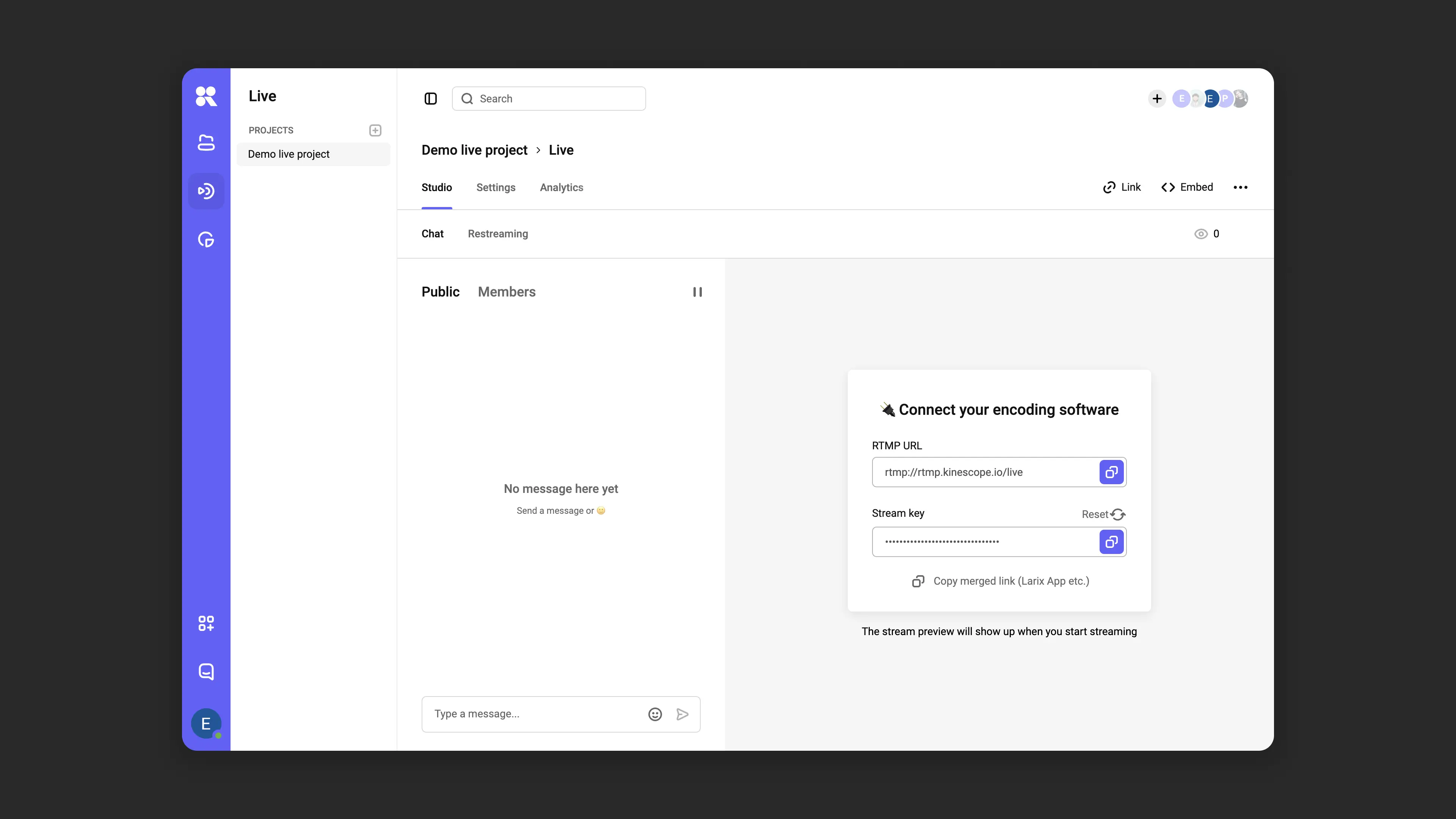
Stream chat
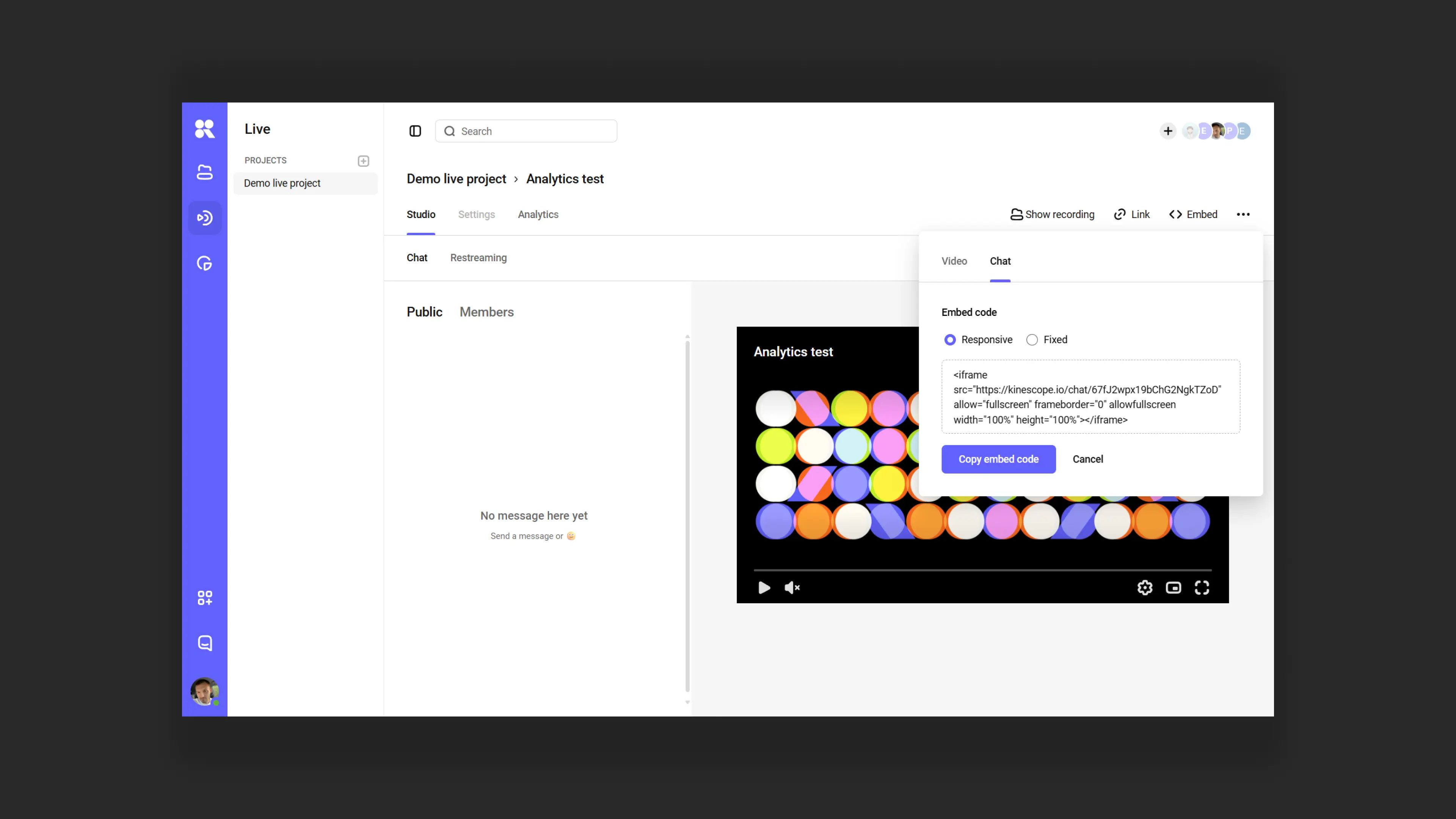
When a stream starts in Kinescope, a chat is automatically created.
- Chat can be embedded on a website alongside the stream player.
- If the stream is being recorded, the chat is saved synchronously with the video.
Chat moderation is available in the Studio section of the event settings.
Chat settings
Show chat in the player’s link — show chat when the video is opened via a link.
Chat inside the player:
Do not show — chat is not displayed in the player (default).
Show — chat is always visible next to the video.
Always show chat mode in Kinescope player Show only in fullscreen — chat appears only when the player is in fullscreen.
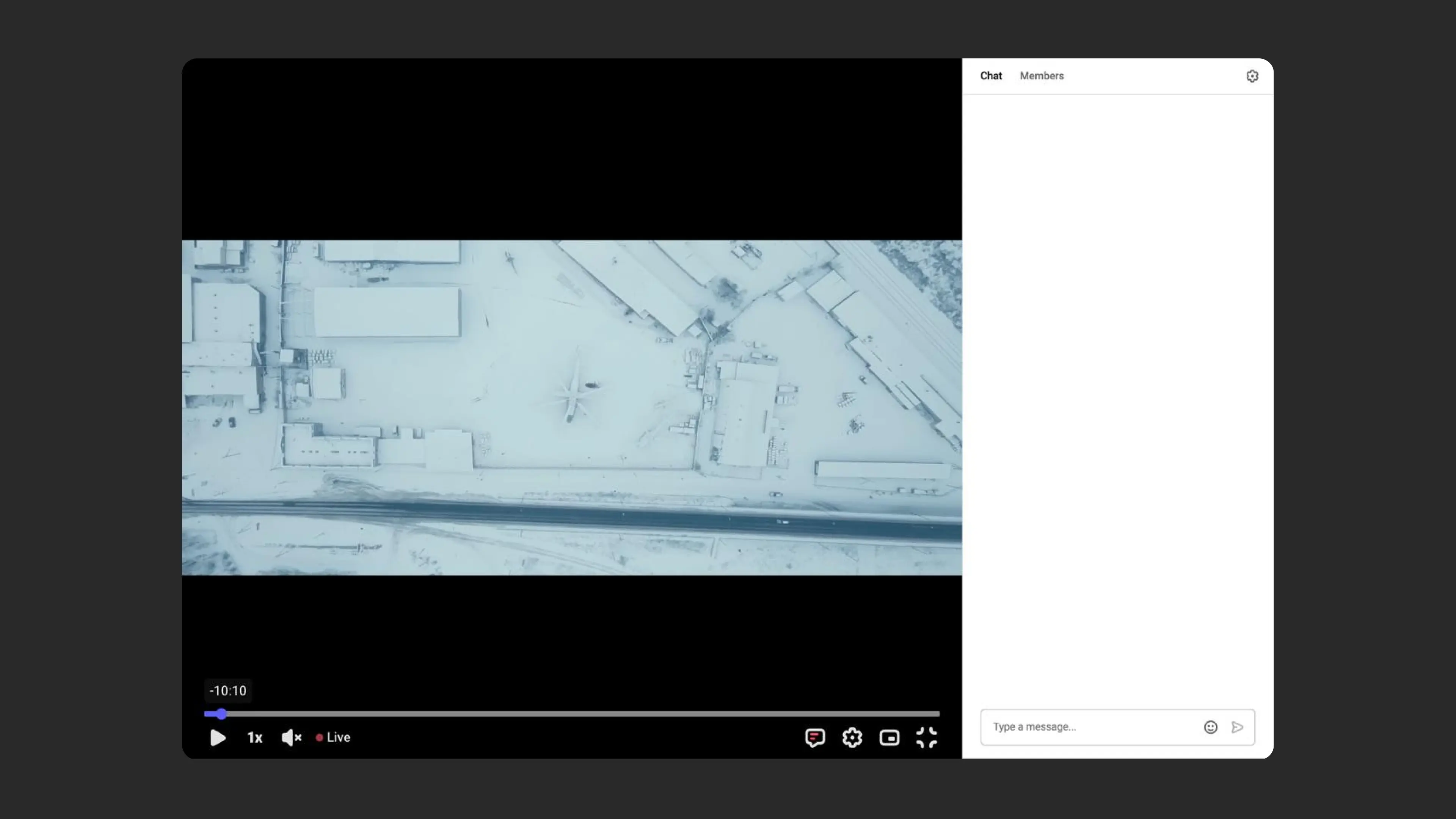
Fullscreen mode with chat in Kinescope player
Expanded chat on load — chat opens immediately. The setting is unavailable when Chat inside the player is set to Do not show.
Hide users links in chat — protects chat from spam.
Participants see only their own messages — each viewer sees only their own messages.
Show members — see who is currently watching the stream.
Unique usernames in the chat — prevents confusion with identical nicknames.
Messages pre-moderation — holds each new message before it appears for everyone. How it works is described below.
Slow mode — limits the interval between messages from 0 to 300 seconds.
Show threads collapsed — replies to messages stay hidden under a counter until the viewer expands the thread. See Replies in threads below.
Message premoderation
When there are hundreds of participants in a chat, spam and offensive messages can appear instantly. Premoderation holds each new message for a set amount of time, giving a moderator a chance to review it. If the moderator takes no action, the message is published automatically.
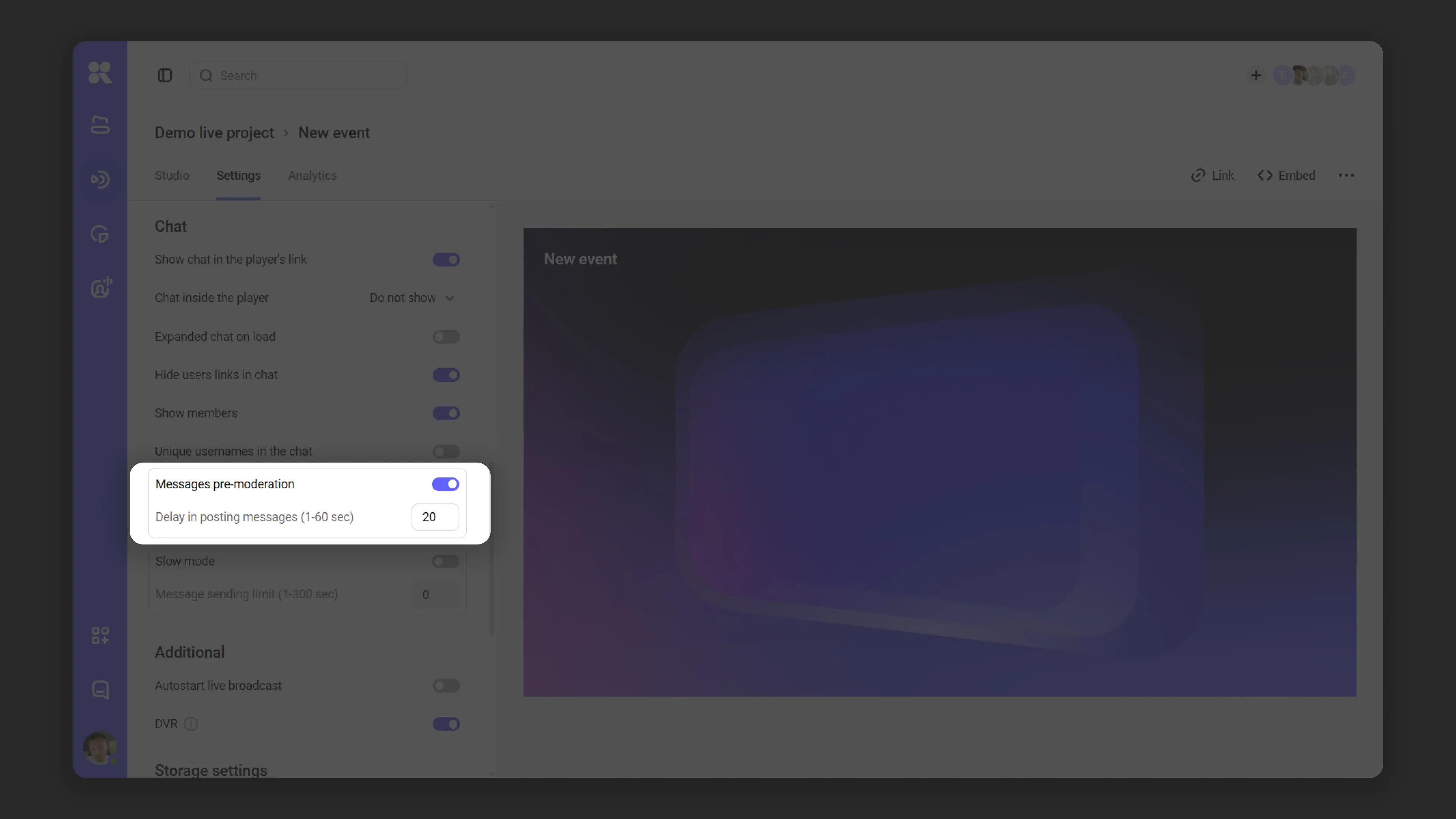
How to enable
Premoderation is enabled and configured by the event organizer.
- Open your Kinescope account and go to the stream you need.
- Open stream settings → Chat section.
- Enable the Messages pre-moderation toggle.
- Set the publication delay (1 to 60 seconds).
- Save the settings.
Premoderation can be turned on or off at any point during a live stream.
What happens to a message
The viewer sends a message and sees it in their own chat immediately — other viewers do not see it yet.
The moderator sees the message highlighted in red. During the delay, the moderator can:
- Delete the message — it will not appear in the public chat. The sender will still see their message, and the moderator will see it with a strikethrough.
- Block the author via the message menu — the message is removed from chat, and the user will not be able to rejoin the stream.
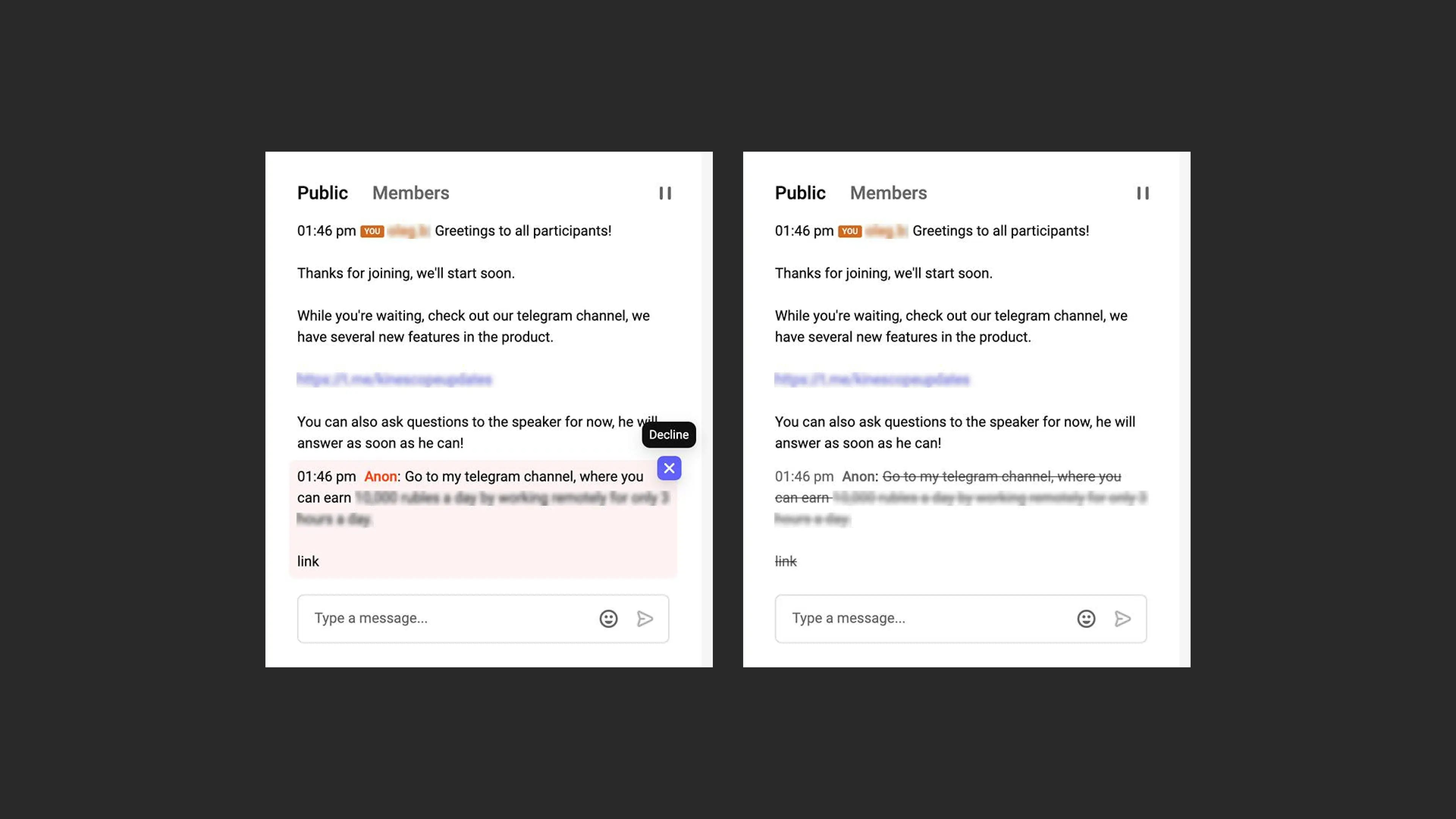
If the moderator takes no action, the message is published for everyone after the delay.
If premoderation is toggled during a live stream
- Already published and deleted messages are not affected.
- Messages that were still awaiting moderation are immediately published for everyone when premoderation is turned off.
Chat history
Only published messages appear in the chat history. If a moderator deleted a message before it was published, it will not appear in the chat.
Message order reflects the time of publication, not the time the message was sent.
FAQ
I sent a message but others can't see it — why?
I can see my message but my friend can't — why?
Replies in threads
When a chat has hundreds of participants, a reply to a specific question quickly gets lost among new messages. That’s why you can reply to a message: the reply doesn’t go to the main feed — it’s collected in a thread under the original message, together with other replies to it.
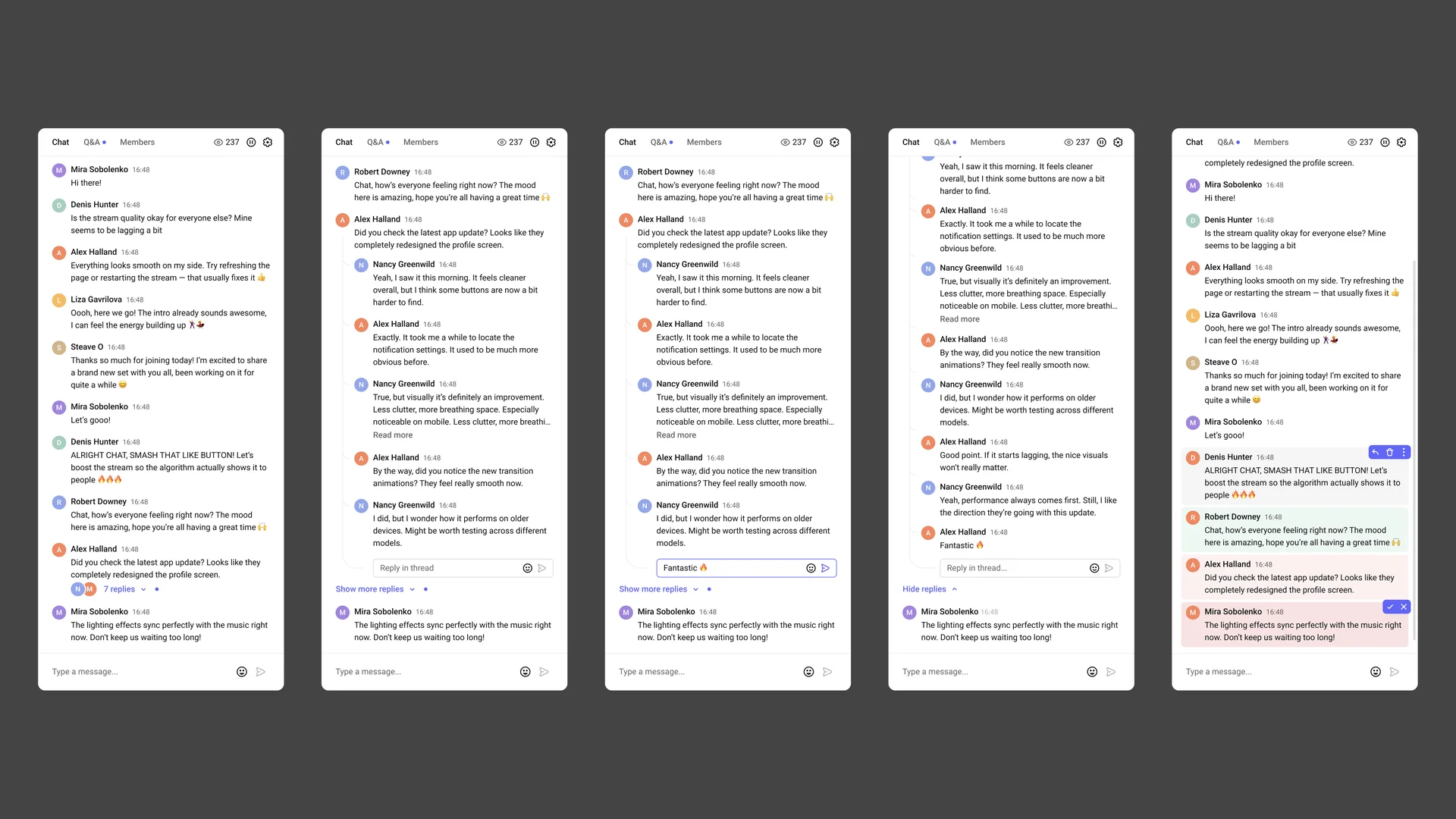
Threads are available in the chat of every stream, and you don’t need to turn them on: there’s no separate toggle in the settings. The Show threads collapsed setting only changes how viewers see threads when they open the chat.
Threads work wherever the chat is shown: in the stream link, in the chat embedded on a website next to the player, and in the Studio. On a phone, the mobile version of the same chat opens: threads work the same way there, only the interface is more compact.
How to reply to a message
- Hover over a message and click the arrow button — Reply.
- A quote with the author’s name and the beginning of their message appears above the input field, and the cursor moves to the input field.
- Type your reply and send it.
After you send it, the chat scrolls to your reply and expands the whole thread if needed.
The send button is active only if the message has at least one visible character: spaces and line breaks don’t count.
Click the quote above the input field to scroll the chat to the original message — it will be highlighted for a moment. If you change your mind, click the cross on the quote: the message will go to the main chat as a regular one.
You can reply to any message in the main chat, including your own. Threads have one level: you can’t reply to a reply inside a thread, but you can add to the same thread using the Reply in thread… field.
What a thread looks like
- Under the original message, there’s a counter — 1 reply, 5 replies — and avatars of up to three participants who replied.
- Click the counter to expand the thread. Replies appear in chronological order, indented and marked with a vertical line on the left, with the Reply in thread… field below them.
- If there are more than 10 replies, the first 10 are shown. The Show more replies button loads the next 10.
- The Hide replies button collapses the thread.
- If you have already opened a thread and new replies appear in it later, a dot appears next to the counter or the Show more replies button.
Deleting messages
- A moderator can delete any message — both the original one and a reply in a thread.
- A deleted reply disappears from the thread without a placeholder. The reply counter decreases.
- If all replies are deleted, the thread disappears, and the original message stays in the chat as a regular one.
- If the original message is deleted, all replies to it are deleted with it.
- If a moderator deletes all messages of a participant, their replies in threads disappear too.
How threads work with chat settings
- Show threads collapsed. When the setting is on, viewers see threads collapsed when they open the stream — only the reply counter. When it’s off, threads are expanded. The setting is on by default for new streams. The change applies when the page loads: viewers who are already watching will see it after they reload the page.
- Messages pre-moderation. Replies go through premoderation just like regular messages. The author sees their reply in the thread immediately, others see it only after it’s published. Until then, the reply isn’t counted. The moderator sees the pending reply in the thread of the original message. If the moderator deletes the reply before it’s published, only the author will see it.
- Participants see only their own messages. A viewer sees their own messages and replies, as well as the moderator’s messages. Other viewers’ threads are hidden from them. A moderator’s reply to a viewer’s message is visible only to that viewer. The moderator sees all messages and replies.
- Hide users links in chat. The restriction applies to replies too: a viewer can’t send a link to a thread.
- Slow mode. The interval is shared between messages and replies: right after sending a message, you can’t send a reply until the set time passes. Slow mode doesn’t apply to moderators.
Threads in the stream recording
If the stream is recorded, the chat with its threads is saved in sync with the video: replies appear in the thread at the moment of the recording when they were sent.
In the recording, threads are read-only. You can’t reply to a message, but you can expand a thread and load more replies with the Show more replies button.
Thread FAQ
Do I need to turn threads on?
Do threads work in the embedded chat?
Do threads work on a phone?
Are threads saved in the stream recording?
Why can't I reply to a message inside a thread?
Why wasn't my reply sent?
Banners over the player
Chat is not the only way to interact with viewers during a broadcast. In the stream Studio, on the Banners tab, you can show a clickable block with a link to registration, payment, or the speaker’s site. You can turn a banner on after the stream starts; banners are not shown in the recording after the broadcast.
Read more in Interactive banners in live streams.
Stream settings
On the event Settings tab:
- Streaming settings (RTMP) — RTMP URL, Stream key with a regenerate icon, and the Copy merged link (Larix App etc.) link. The same RTMP URL and Stream key also appear in Studio, in the Connect your encoding software card.
- Thumbnail — Upload an image.
- Storage settings — Save video after live stream and Records storage location with Choose.
- Additional — Autostart live broadcast and DVR.
Fixed signal reception points
If you know where the streamer is located or if you are using a VPN, choose a server based on the region.
RTMP servers
- Russia
- rtmp://rtmp-ru.kinescope.io
- rtmp://rtmp-msk-2.kinescope.io
- rtmp://rtmp-nsib-1.kinescope.io
- rtmp://rtmp-kzn-1.kinescope.io
- rtmp://rtmp-spb-1.kinescope.io
- Kazakhstan: rtmp://rtmp-kz.kinescope.io
- Europe
- rtmp://rtmp-eu.kinescope.io
- rtmp://rtmp-nl-1.kinescope.io
- rtmp://rtmp-fr-1.kinescope.io
- North America: rtmp://rtmp-us.kinescope.io
- Brazil: rtmp://rtmp-br-1.kinescope.io
- Asia
- rtmp://rtmp-sg.kinescope.io
- rtmp://rtmp-sg-1.kinescope.io
RTMP over SSL servers
Use the rtmps protocol and port 1936.
- Russia
- rtmps://rtmp-ru.kinescope.io:1936
- rtmps://rtmp-msk-2.kinescope.io:1936
- rtmps://rtmp-nsib-1.kinescope.io:1936
- rtmps://rtmp-kzn-1.kinescope.io:1936
- rtmps://rtmp-spb-1.kinescope.io:1936
- Kazakhstan: rtmps://rtmp-kz.kinescope.io:1936
- Europe
- rtmps://rtmp-eu.kinescope.io:1936
- rtmps://rtmp-nl-1.kinescope.io:1936
- rtmps://rtmp-fr-1.kinescope.io:1936
- North America: rtmps://rtmp-us.kinescope.io:1936
- Asia
- rtmps://rtmp-sg.kinescope.io:1936
What’s next?
After setting up the stream, we recommend:
- Configure restreaming — stream simultaneously on multiple platforms
- Review the setup instructions — detailed instructions for OBS Studio and Zoom
- Configure analytics — track viewer count and activity
Still have questions? Write to the support chat within the Kinescope interface — our specialists will help!