
Questions in the stream chat
When there are hundreds of participants in a chat, questions for the speaker get lost among comments and reactions. The Q&A tab collects them in a separate list: viewers ask questions and vote for the ones they care about, while the organizer and moderators reply to questions, keep an eye on the list, and remove anything inappropriate.
This article covers how to enable the tab, how viewers and moderators work with it, and how questions interact with chat settings.
How to enable the Q&A tab
The tab is enabled by the stream organizer. It is off by default.
- Open your Kinescope account and go to the stream you need.
- Open stream settings → Chat section.
- Turn on the Show questions toggle.
- Save the settings.
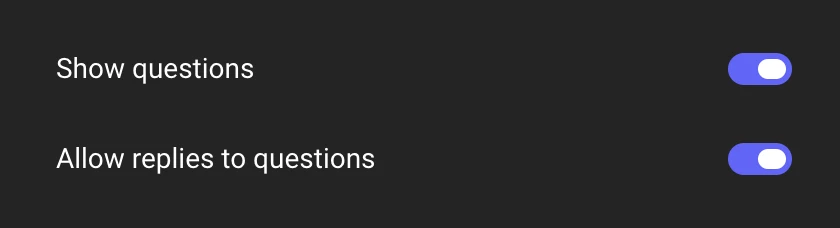
The Q&A tab appears in the chat next to the main chat tab, which is called Chat in the player and Public in the Studio. The tab is shown wherever the chat is shown: via the stream link, in the chat embedded on a website, and in the Studio. On a phone, the tab is available in the mobile version of the chat.
The Allow replies to questions toggle lets participants reply to questions. See Replies to questions below.
You can turn the tab on and off during a live stream: viewers will see it appear or disappear without reloading the page. While the tab is off, questions are hidden. When you turn it back on, they reappear, along with any questions a moderator approved in the meantime.
The tab is available on all plans.
How to ask a question
Only participants who have joined the chat can ask questions. If a viewer hasn’t joined, they see the list of questions and, at the bottom of the tab, the same join button as in the chat.
- Open the Q&A tab.
- Type your question in the Type a question… field.
- Send the question.
The question appears in the list right away, and the input field is cleared. If premoderation is off, all participants see the question immediately.
Limitations:
- Length — up to 250 characters. A character counter appears from the 200th character. The send button is disabled while the field is empty or the limit is exceeded.
- Links — participants can’t send links in questions, even if links are allowed in the chat. If a participant tries to send a question with a link, the Using links in messages is not allowed message appears above the field, and the text stays in it. The organizer and moderators can ask questions with links.
If a question fails to send, the text stays in the field and the reason is shown above it. Fix the text and send the question again.
Question list
Each question is shown as a card: author, time, and text, with an arrow and the number of votes on the right. When you hover over a card, action buttons appear — for example, Reply and delete.
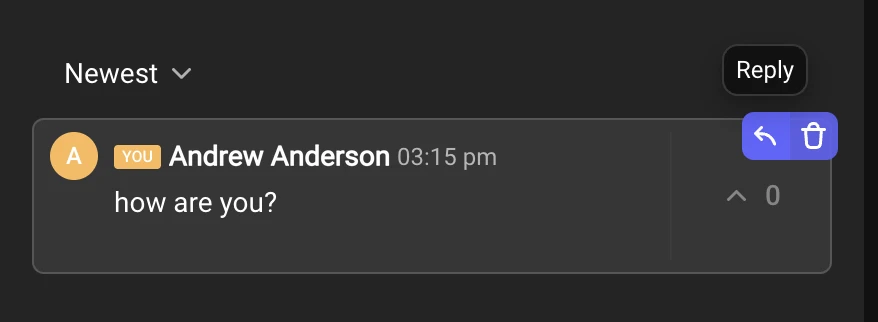
You can sort the list:
- Newest — the most recent questions on top. This is the default.
- Oldest — the earliest questions on top.
- Popular — by number of votes.
The sort order isn’t remembered: after you reload the page, Newest is selected again.
While there are no questions, sorting isn’t shown and the list says No questions here yet. A long list loads as you scroll.
If a new question is published while you’re on another chat tab, a dot appears on the Q&A tab. It disappears as soon as you open the tab.
Voting
Votes show the speaker which questions matter most to the audience.
- To vote, click the arrow on the question card. The counter goes up right away and the arrow is highlighted.
- To remove your vote, click the arrow again.
- You can vote for a question only once.
- You can’t vote for your own question.
- You can’t vote for a question that is still awaiting moderation.
- The organizer and moderators vote the same way as other participants.
When the list is sorted by Popular, a question moves in the list after its vote count changes.
Replies to questions
The organizer and moderators can always reply to questions. Participants can reply only if the Allow replies to questions toggle is on in the chat settings. It is off by default, and you can turn it on and off during a live stream.
To reply, hover over a question and click Reply. The reply appears in a thread under the question. Threads under questions work the same way as threads in the chat.
Replies follow the same rules as chat messages: premoderation, slow mode, and the Hide users links in chat setting. The link restriction for participants that ignores chat settings applies only to the questions themselves.
If a question is deleted, all replies to it are deleted too, including the organizer’s replies.
Moderating questions
Questions are moderated by the organizer and chat moderators. Moderators are created via the API — see Moderators in the API reference.
Premoderation
If message premoderation is enabled in the chat, questions go through it the same way messages do.
- The author sees their question right away, marked Pending moderation. Other participants see the question only after it is published.
- The moderator sees questions awaiting moderation in the main chat tab (Chat in the player, Public in the Studio), together with messages. Questions are marked with a Q&A label.
- A question is moderated the same way as a message. If the moderator deletes a question before it is published, other participants won’t see it, and the author will see Question deleted in its place. There is no separate “Rejected” status.
Once published, the question appears in the Q&A tab for all participants.
Deleting a question
A moderator can delete any question, and the author can delete their own.
- Hover over the question and click the trash icon.
- In the Delete question? window, click Delete.
The question text disappears for all participants, and the card is replaced with Question deleted. The votes for the question and the replies to it are deleted as well.
Blocking a participant
When a participant is blocked, their questions and votes are hidden, the same way as their chat messages. While blocked, the participant can’t ask questions or vote. Once unblocked, their questions and votes are restored.
If a moderator deletes all messages of a participant, the participant’s questions are deleted permanently too, and their votes are removed from other questions. Unblocking won’t bring them back.
A participant whom a moderator has prevented from writing in the chat can’t ask questions or vote either.
How to convert a chat message into a question
Sometimes a viewer asks a question in the main chat. The organizer or a moderator can move such a message to the Q&A tab so it doesn’t get lost.
- In the main chat tab (Chat in the player, Public in the Studio), open the message menu.
- Select Convert to question.
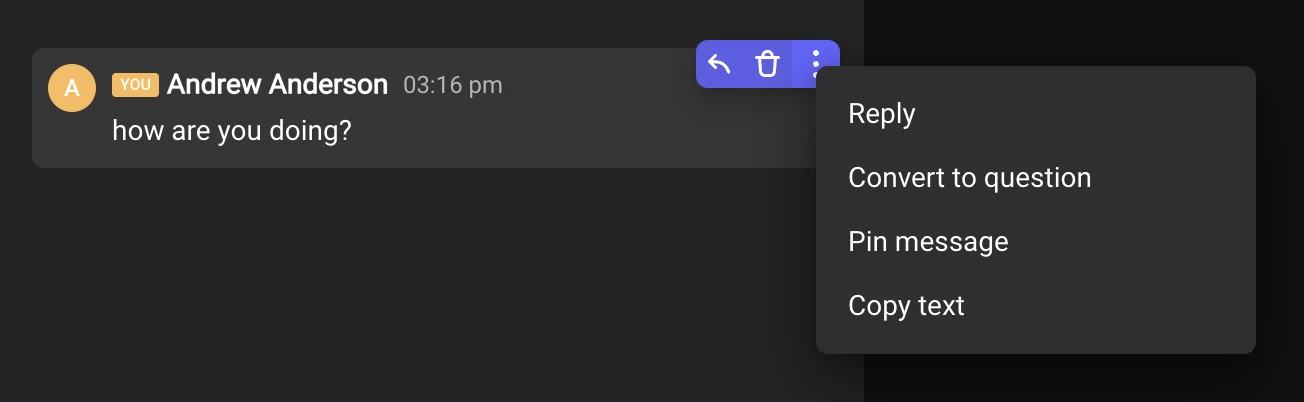
The message disappears from the chat and appears in the Q&A tab. A Message converted to a question notification appears.
- The question keeps the author of the message.
- The question time is the time of conversion, not the time of the original message.
- Votes start from zero.
- The full text is kept: the 250-character limit and the link restriction don’t apply to converted messages.
- If the message was pinned, it is unpinned.
If the message has replies in a thread, a Convert to a question? window appears with a warning that all replies in the thread will be deleted. Click Convert to continue or Cancel. The replies are deleted permanently.
The Convert to question option is available only when the Q&A tab is enabled. It isn’t available for replies in threads, messages awaiting premoderation, or deleted messages.
How questions work with chat settings
- Messages pre-moderation. Questions go through premoderation the same way as messages. See Premoderation above.
- Slow mode. Questions use the same interval as messages, but it is counted separately. After sending a message to the chat, you can ask a question right away, and vice versa. The next question can be asked only after the interval has passed.
- Hide users links in chat. This setting doesn’t affect the questions themselves: a participant can’t send a link in a question regardless of the setting, while the organizer and moderators can. For replies to questions, the setting works the same way as for chat messages.
- Participants see only their own messages. The Q&A tab stays visible, and the participant sees other people’s questions. Asking questions and voting aren’t available in this mode.
- Paused chat. While the chat is paused with the Pause chat button, you can’t ask questions or vote.
If the connection is lost
The question list stays on screen, and the input field is blocked with a No connection hint. A question sent at the moment the connection dropped isn’t published: the text stays in the field. Once the connection is restored, send the question again.
Questions in the stream recording
After the stream ends, the Q&A tab stays in the recording. You can view the questions with their votes and the replies to them, but you can’t ask questions, vote, reply, delete questions, or convert chat messages.
FAQ
Why don't viewers see the Q&A tab?
I asked a question, but others can't see it — why?
Why can't participants reply to a question?
Why can't I vote?
Why won't my question with a link send?
What’s next?
- Live stream guide — chat settings, premoderation, and replies in threads.
- Interactive banners — clickable banners over the player during a live stream.
- Analytics — views and peak viewer count.
Still have questions? Write to the support chat within the Kinescope interface — our specialists will help!