
Integration with Zoom
Zoom is a tool for online meetings, webinars, and conferences. Combined with Kinescope, you can stream broadcasts via RTMP, expand your audience, and collect view analytics.
Who this article is for
- Webinar hosts using Zoom — need to stream meetings via Kinescope to expand their audience
- Zoom Pro holders — need to automatically import meeting recordings into Kinescope
- Conference organizers — need to use a branded player and collect analytics
- Platform administrators — need to protect streams with access tokens or domain restrictions
Using Zoom with Kinescope, you can:
- Stream without overloading Zoom. Kinescope handles stream delivery to viewers.
- Expand your audience. Viewers can watch the broadcast in a browser, without installing Zoom.
- Use a branded player with your logo, colors, and the interface elements you need.
- Collect analytics on views and viewer engagement.
- Protect streams using access tokens or domain restrictions.
Zoom streaming
If you plan to livestream through Kinescope, you need to configure Zoom.
For scheduled meetings
- Sign in to the Zoom web portal.
- Click Meetings.
- Click Schedule a Meeting and enter the required information to schedule a meeting.
- Click Save to display a set of tabs with additional options.
- Go to the Live Streaming tab, then click Configure Custom Streaming Service.
- Copy the Stream URL and Stream Key from the Kinescope custom streaming tool and paste them into Zoom.
- In the Live Streaming Page URL field, copy the link where you want to direct viewers to watch your livestream (that is, the Kinescope livestream link).
- Optional: under Resolution, select Standard HD (720P) or Full HD (1080P).
- Click Save to save the streaming settings. The host will then be able to livestream the meeting without having to enter these settings after the meeting starts.
Setting up livestreaming during a meeting or webinar
Sign in to the Zoom web portal.
Click Settings.
Click In Meeting (Advanced) and enable Allow livestreaming of meetings.
Select Custom Live Streaming Service.
Click Save to save the meeting settings.
Start the livestream in Zoom.
Click More in the host controls, then select Livestream → Live on Custom Streaming Service.
Fill in all the fields in the form with the required information: Stream URL, Stream Key, and Live Streaming Page URL.
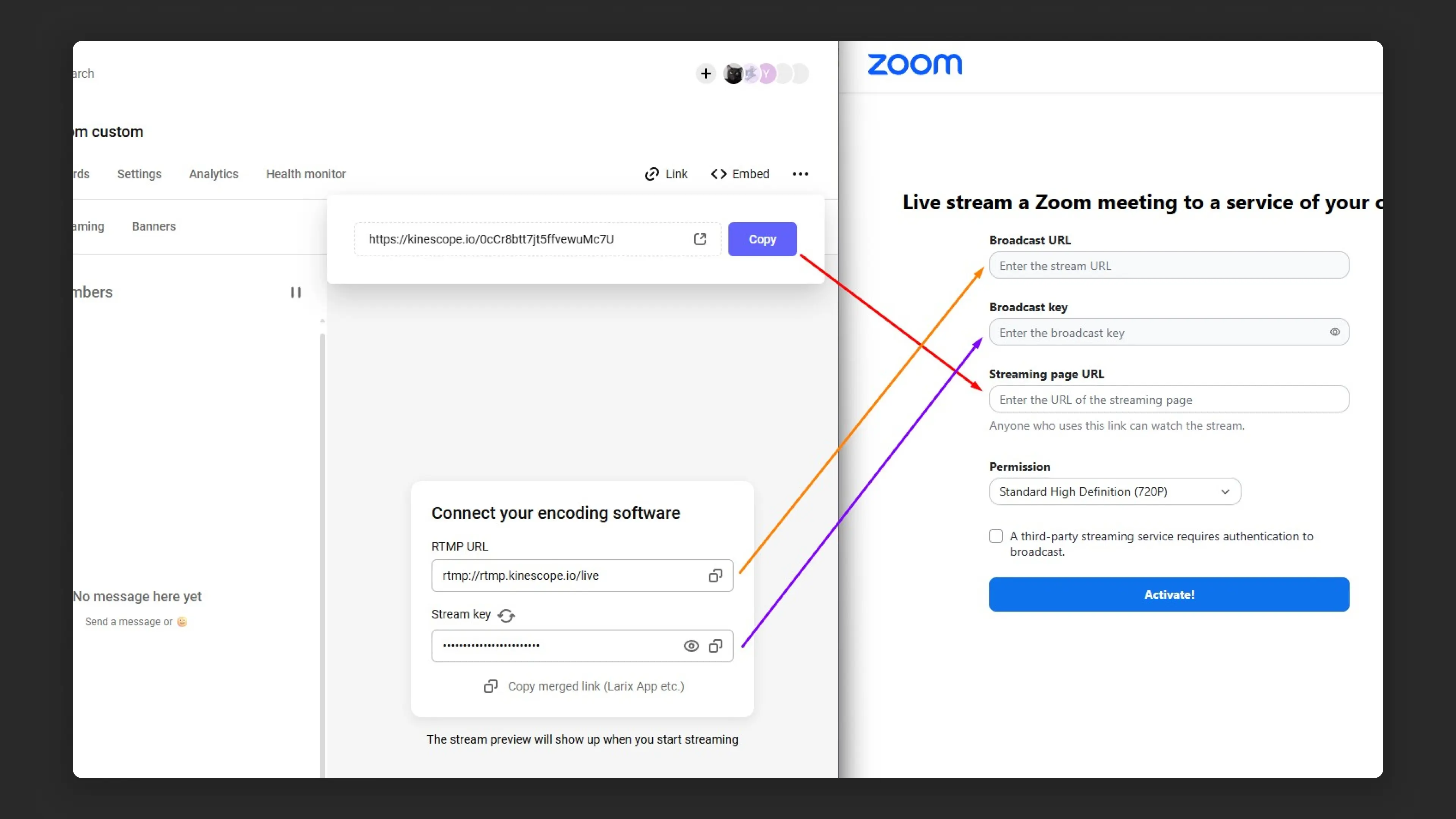
Copying the stream URL, key, and page link from Kinescope into the Zoom custom streaming form Kinescope now receives the stream from Zoom and delivers it to your viewers.
What’s next?
After setting up integration with Zoom, we recommend:
- Live streaming guide — configuring streams in Kinescope
- Set up analytics — track stream views and viewer engagement
- Set up content protection — restrict access to streams by domain or token
- Customize the player — adapt the player’s appearance to your brand
If you have any questions, write to the support chat within the Kinescope interface — our specialists will help!
Automatic recording import from Zoom
The integration works with Zoom Pro subscriptions with access to cloud recordings. Setup takes a couple of minutes — just authorization is needed.
- Log in to Zoom via Kinescope.
- Specify which project or folder call recordings should be saved to.
- Configure privacy, styling, and analytics.
- Share the video by link or embed the player on your site.
After setting up the Zoom integration and choosing a save location in Kinescope, all new videos from the Zoom cloud will be automatically uploaded to the service.
You can also import into Kinescope all videos that were uploaded to the Zoom cloud before the integration was set up.