
Integration with Vimeo
The Vimeo integration transfers your media library to Kinescope using an API key and lets you pull in new videos without repeated exports or manual downloads. Videos are saved to the folder you choose in the catalog, in their original quality.
What the integration gives you
The Vimeo card in the Integrations section opens on the About tab, which lists the main features:
- Choose where to save. Specify a Kinescope project or folder for your Vimeo videos — see «Organizing your media library».
- Security and access. Configure privacy settings: allowed domains and secure links, password protection, and — if needed — DRM encryption and dynamic watermarks.
- Analytics and marketing. Track views, viewer geography, and engagement — analytics data is useful for retargeting and content optimization.
- Player appearance. Upload your logo, choose a color scheme, and configure player controls to match your brand — see «Player customization».
Who this article is for
- Owners of Vimeo media libraries — need to move videos to Kinescope and work in one place
- Platform administrators — need to regularly pull new videos from a Vimeo account
- Course creators — need to transfer learning materials without losing access to videos on the site
- Developers — need an ID mapping table to replace links on a site or in an application
What you’ll need
- A Vimeo account with API access (Pro or higher)
- A Vimeo access token with read access to videos
- A project or folder in the Kinescope catalog to save videos to
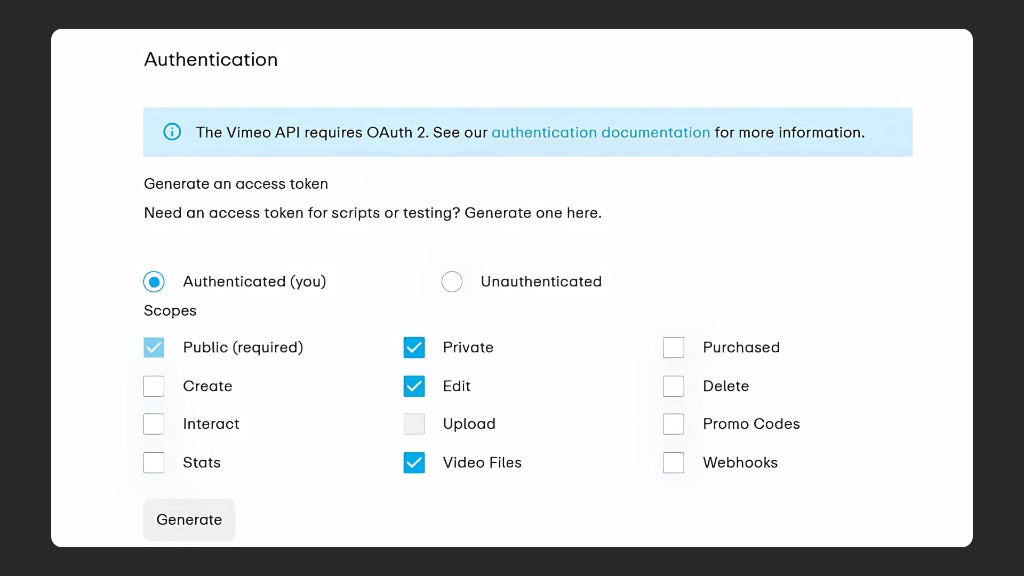
Step 1. Create an access token in Vimeo
- Sign in to the Vimeo Developer portal.
- Create an app and generate a personal access token.
- In the token scopes, keep at least read access to videos — Public and Private for the Videos scope.
- Copy the token — Vimeo shows it only once.
Step 2. Connect the integration in Kinescope
- Open the Integrations section in the Kinescope dashboard and select Vimeo — the integration is in the “Social media” category.
- Click Connect or go to the Settings tab — all the fields you need are in the Connection block.
- In the Vimeo API key field, paste the access token from your Vimeo app settings.
- In the Where to save videos in Kinescope? block, click Select and choose a project or folder for the uploaded files.
- Click Save.
The Save button becomes active only when both fields are filled in — the key and the folder. After saving, Kinescope validates the key and its scopes: if the key is valid, you’ll see how many videos will be downloaded and the library transfer starts. If the key was revoked, expired, or lacks scopes, the integration reports an invalid token — reissue it in Vimeo and save it again.
Step 3. Sync new videos
The Synchronize button pulls in only the videos that appeared in the Vimeo account after the last sync. Videos deleted in Vimeo stay in Kinescope — syncing never removes content.
- Open the Vimeo integration settings in the Integrations section.
- Click Synchronize. The button is available only when a valid key is saved.
- Track the progress: next to the button, a counter shows
5 of 1005, where5is how many new videos have been uploaded and1005is how many new videos were found in Vimeo.
Sync statuses
| Status | What it means |
|---|---|
| Sync not started | The integration is set up, the Synchronize button is active |
Syncing, {N} of {Total} | N new videos uploaded out of Total found |
| Success | Sync finished, all new videos uploaded |
Synchronized {N} of {Total} | Sync finished, some videos failed to upload |
| Error | A problem with the key, access, or the Vimeo API — the error text is in the tooltip |
If some videos failed to upload (for example, because of network errors, Vimeo API limits, or problems with a specific file), click Synchronize again — the missing videos will be picked up on the next run. No duplicates are created: videos are matched by their Vimeo ID.
What happens to videos after the transfer
- Videos are saved to the folder you chose in the catalog and uploaded in their original quality.
- Each video shows Vimeo as its source.
- Video metadata is transferred the same way as in other integrations.
- Once the upload finishes, you can download an ID mapping table (Vimeo ID ↔ Kinescope ID) — a convenient way to replace video links on your site or in your application automatically, without losing access.
FAQ
The key stopped working — what should I do?
Will videos that were in Vimeo before I connected the integration be uploaded?
What happens if I run the sync twice?
What if my Vimeo plan is below Pro?
What’s next?
After transferring videos from Vimeo we recommend:
- Organizing your media library — arrange the transferred videos into projects and folders
- Setting up content protection — enable DRM encryption, watermarks, and domain restrictions
- Setting up analytics — track views and viewer engagement
- Customizing the player — adjust the player’s appearance to match your brand
- Migrating from other platforms — if you also need to move videos from YouTube, Wistia, and other services
Still have questions? Write to the support chat within the Kinescope interface — our specialists will help!