
Migrating from Other Platforms to Kinescope
Switching to Kinescope from Vimeo, YouTube, Wistia, JW Player, Dacast, Boomstream, or cloud storage providers like Amazon AWS, Azure, and other platforms helps you transfer your media library and preserve access to your content. Below we’ll cover the migration options and what to prepare in advance.
To start transferring your media library, write to the support chat within the Kinescope interface and briefly describe your situation — they’ll suggest options and help organize the process.
Who this article is for
- Owners of video libraries on other platforms — need to transfer content to Kinescope
- Platform administrators — need to migrate large video libraries
- Course creators — need to move learning materials from other platforms
- Content owners — want to improve video protection and analytics
Preparation
Audit your media library: determine the number of videos, their formats, metadata, and archive status.
Create a content map: categorize content by topic, priority, and importance.
Migration options: step-by-step guide
During migration, you provide credentials with read access: your content remains on the current host and a copy is created in your new Kinescope account.
Migrating from YouTube
Full channel migration
For automatic migration of an entire channel, contact the support chat within the Kinescope interface.
We’ll need the channel URL or a list of individual video links. Videos must be publicly accessible at the time of transfer (or accessible via link).
Technical notes
YouTube does not provide a Business API, so the full list of channel videos is retrieved and downloaded in the best available quality.
Some videos may not be transferred due to YouTube restrictions. In that case, a list of untransferred videos will be provided after migration is complete.
Self-migration
First, set up the YouTube integration:
- Go to “Settings” → “Integrations”
- Select YouTube and click “Connect”
- Click “Sign in with Google”
- Select the Google account linked to the YouTube channel you want to migrate.
Then choose one of two options:
- Automatically transfer all videos from the channel to a folder in your Kinescope catalog.
- Upload only videos accessible via link (for private content).
Content will be downloaded to the selected folder in your Kinescope catalog in the background.
Partial migration
You can upload individual videos to your account using a direct link. Learn more about file uploads in the article Advanced file upload.
Migrating from Vimeo
You can transfer the library yourself through the integration — see «Integration with Vimeo». Below is the transfer handled by support.
API migration is only available for Vimeo accounts on the Pro plan or higher. You can check your current Vimeo plan in the profile editing section. If you’re on a different plan, you can request a list of download links from support. Links are typically valid for a limited time, so share them as soon as possible.
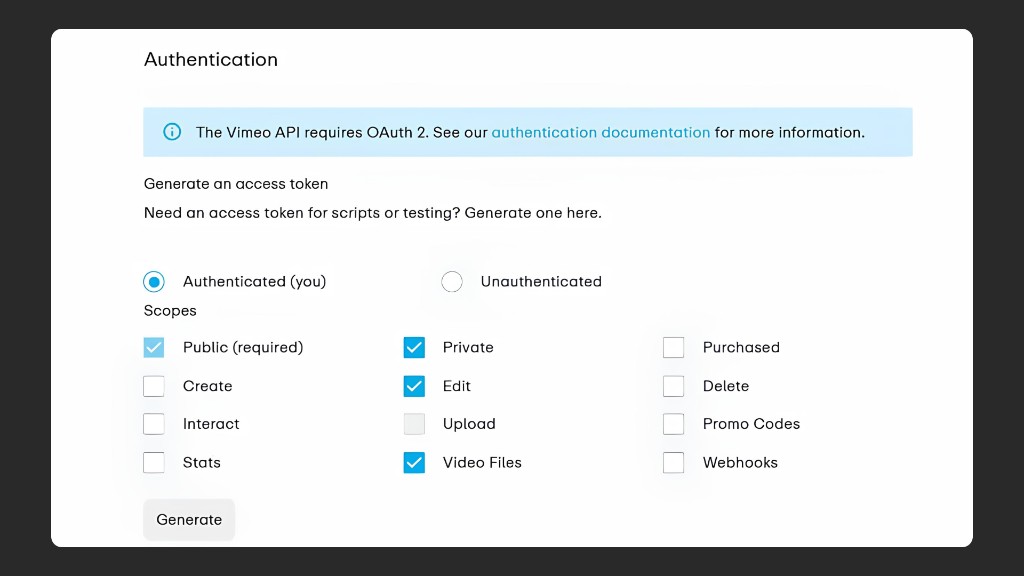
- Sign in to the Vimeo Developer portal and create a key with read access (see the video guide) to pass to support.
- After receiving the key, the number of videos will be verified and you’ll receive information — sometimes the actual count is less than displayed in Vimeo, since videos with errors are also counted.
- After your confirmation, the copy process will begin. It usually takes from a few hours to 2–3 days. A full copy of the Vimeo media library is created, including folders, posters, video names, and subtitles. Files aren’t just downloaded — they’re re-encoded with optimal settings.
- When migration is complete, you’ll receive a JSON/CSV spreadsheet with a link mapping table (vimeo id ↔ kinescope id). You can use it to automatically or manually replace videos on your site or in your app without temporarily losing access to video.
Migrating from Wistia
To transfer videos from Wistia, simply create and share an API token with read access. To do this:
- Log in to your Wistia account.
- Go to Account > Settings > API Access.
- Create a new token [New token] with any name and check ✓ Read all data. Click [Create token], copy [Copy] the token, and share it with Kinescope support.
Migrating from VdoCipher
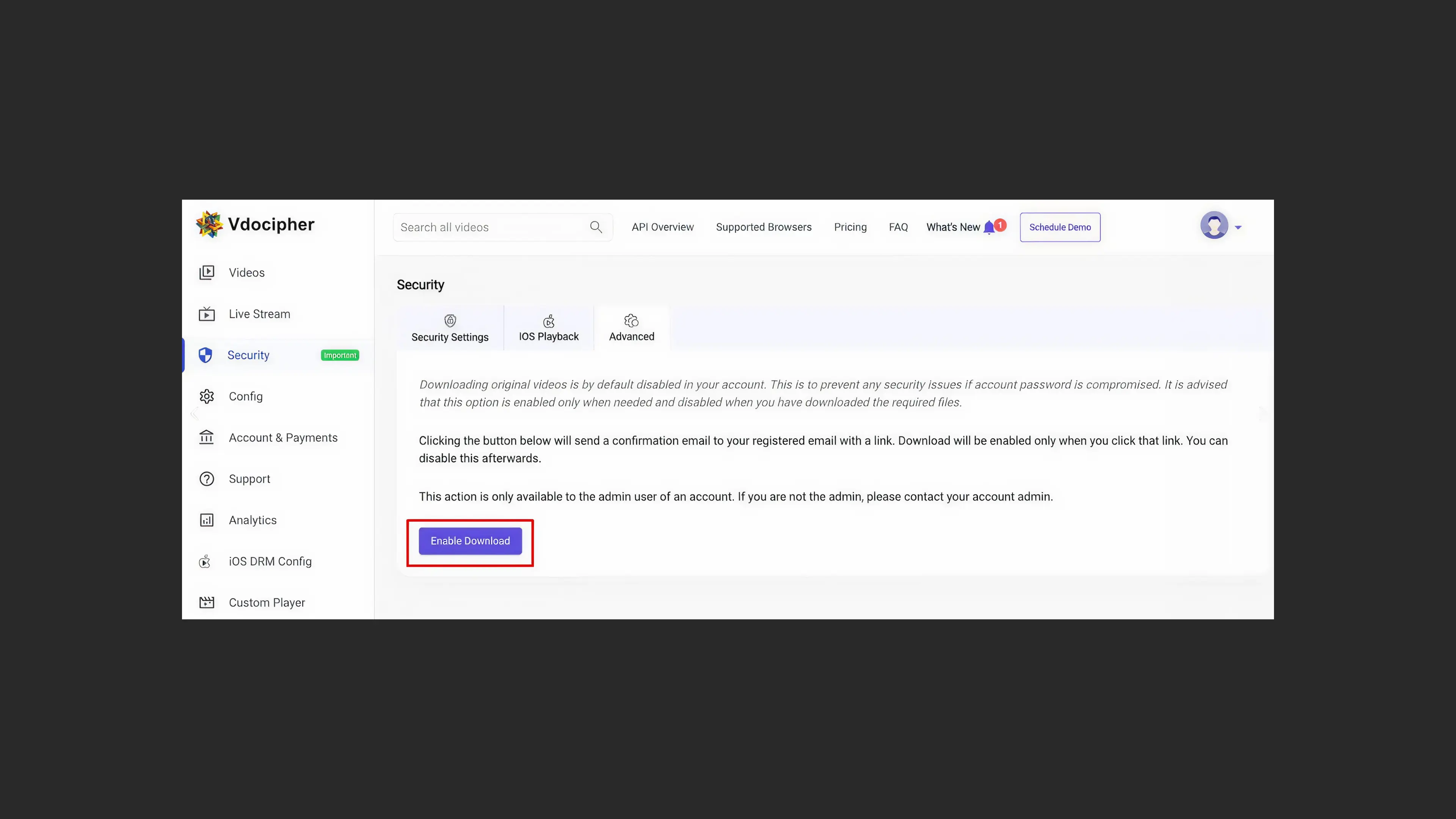
- To migrate from VdoCipher, enable original video downloading in your account settings. This option is disabled by default. Click the Enable Download button:
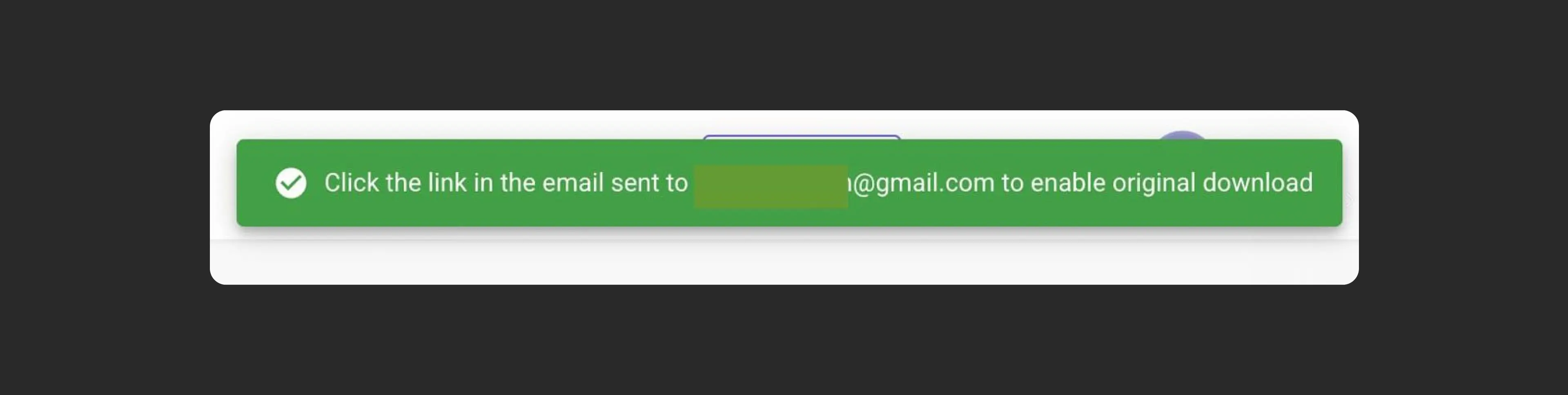
- You’ll receive a confirmation email at your registered address. Follow the link in the email to activate this option.
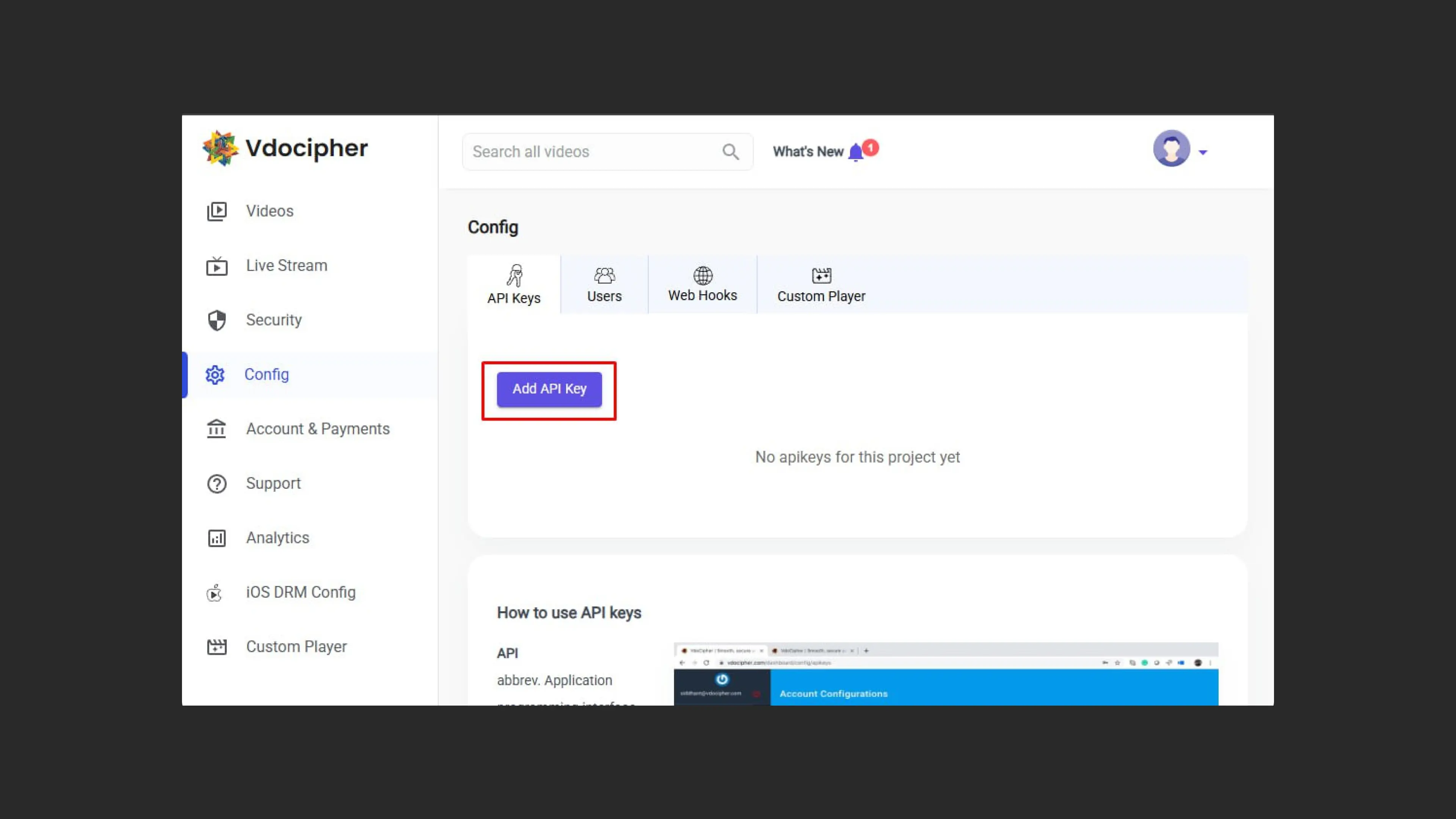
- Then create an API Key and share it with our the support chat within the Kinescope interface.
Migrating from HTML5
- Export the video files from your servers.
- Upload them to Kinescope using the dashboard or API.
- Organize the videos into projects and folders.
- Replace the videos on your site or in your app using the API or manually.
Migrating from other platforms
If you’re unsure how to proceed, contact the support chat within the Kinescope interface — specialists will find the right approach and help you move over.
- Use manual upload to Kinescope for a limited number of videos.
- For large libraries, set up automated processes via the Kinescope API to save time.
- If your videos are stored on Google Drive or Dropbox, you can connect them directly in your Kinescope account. Learn more in the article Advanced file upload.
After migrating your videos to Kinescope
- Check the quality of the uploaded videos, make sure all videos are present, and that metadata — including names, descriptions, and categories — has been transferred correctly.
- Set up URL redirects from your previous platforms to Kinescope.
- Explore Kinescope’s capabilities, add members to your team.
- Customize the player: add a logo and set up brand colors. Create animated previews (“live covers”) to capture attention.
What’s next?
After migrating to Kinescope, we recommend:
- Organize your media library — create projects and folders to structure your content
- Advanced file upload — uploading videos from cloud storage
- Set up content protection — enable DRM encryption and watermarks to protect your video
- Set up analytics — track views and viewer engagement
- Customize the player — adapt the player’s appearance to your brand
If you have any questions, write to the support chat within the Kinescope interface — they’ll help you with migration and setup.