
DRM File Encryption
Kinescope has built-in DRM file encryption (MPEG-CENC, Apple FairPlay, Google Widevine) to protect video from unauthorized downloading. Encrypted video cannot be downloaded or played even after saving. DRM blocks downloading via browser plugins and screen recording on mobile devices.
Who this article is for
Course creators — need to protect educational materials from downloading and screen recording
Premium content owners — need maximum video protection against piracy
Developers — need to integrate DRM with an authorization backend for access control
Super plan users — need to enable DRM encryption for projects
Downloading via browser plugins (e.g., SaveFrom) and separate programs (VLC, ffmpeg) is blocked.
On iOS and Android, as well as in browsers for macOS and Windows, it is impossible to take a screenshot or record the screen when playing a video.
Important about encryption
Encryption is included in the Super plan and is available in project settings (the feature is disabled by default). After enabling:
- Encryption applies to all existing and new media files in the project (including videos inside playlists). Playlists are video catalogs — no need to enable them separately.
- Project encryption takes time, usually less than a day. During the process, files remain accessible to viewers.
DRM and access control
DRM encryption protects the file technically: it blocks downloading and screen recording. But if you need to control who can watch video based on your system’s rules (courses, subscriptions, roles), use an authorization backend.
How they work together:
- DRM protects the file from unauthorized downloading and screen recording
- Authorization backend checks access rights: allows or denies viewing based on your rules (course purchased, subscription active, appropriate role exists)
When a user tries to watch a video with DRM and an authorization backend:
- Your site passes the user identifier to the player via the
drmauthtokenparameter - Kinescope contacts your backend to check access
- Your backend checks the rules (course, subscription, role) and responds: 200 (allow) or 403 (deny)
- If access is granted, DRM issues a decryption key and the video plays
When you need an authorization backend: If you want to restrict video access by courses, subscriptions, roles, or other rules in your system. See the Authorization Backend for Video Access Control documentation for setup details.
DRM compatibility
- Supported: Modern browsers with Encrypted Media Extensions (EME).
- Not supported:
- Desktop: Firefox ESR — videos do not play.
- Android: UC Browser (notifies about the issue), Firefox and Firefox Focus (show no notifications).
- Incognito mode in Chrome for Android: From Chrome version 62, Widevine support in incognito mode is disabled (more from Google via this link). The Kinescope player, like any other MSE/EME-based player, will not be able to play DRM-protected streams.
Step-by-step instructions
In the catalog, hover over a project name and select Project Settings from the context menu.
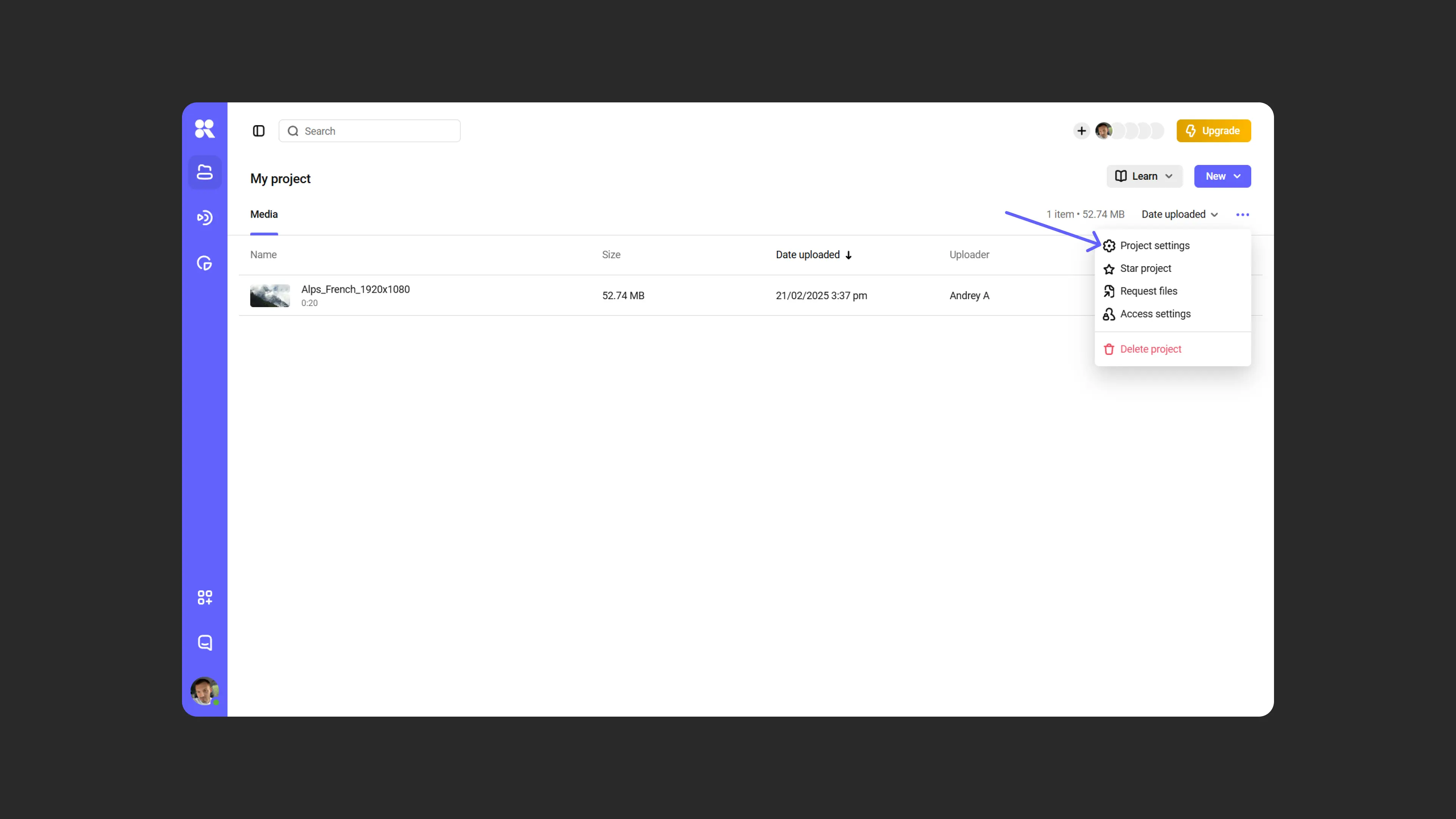
Opening project settings to enable DRM In settings, click Enable Encryption, review the warnings, and confirm the action.
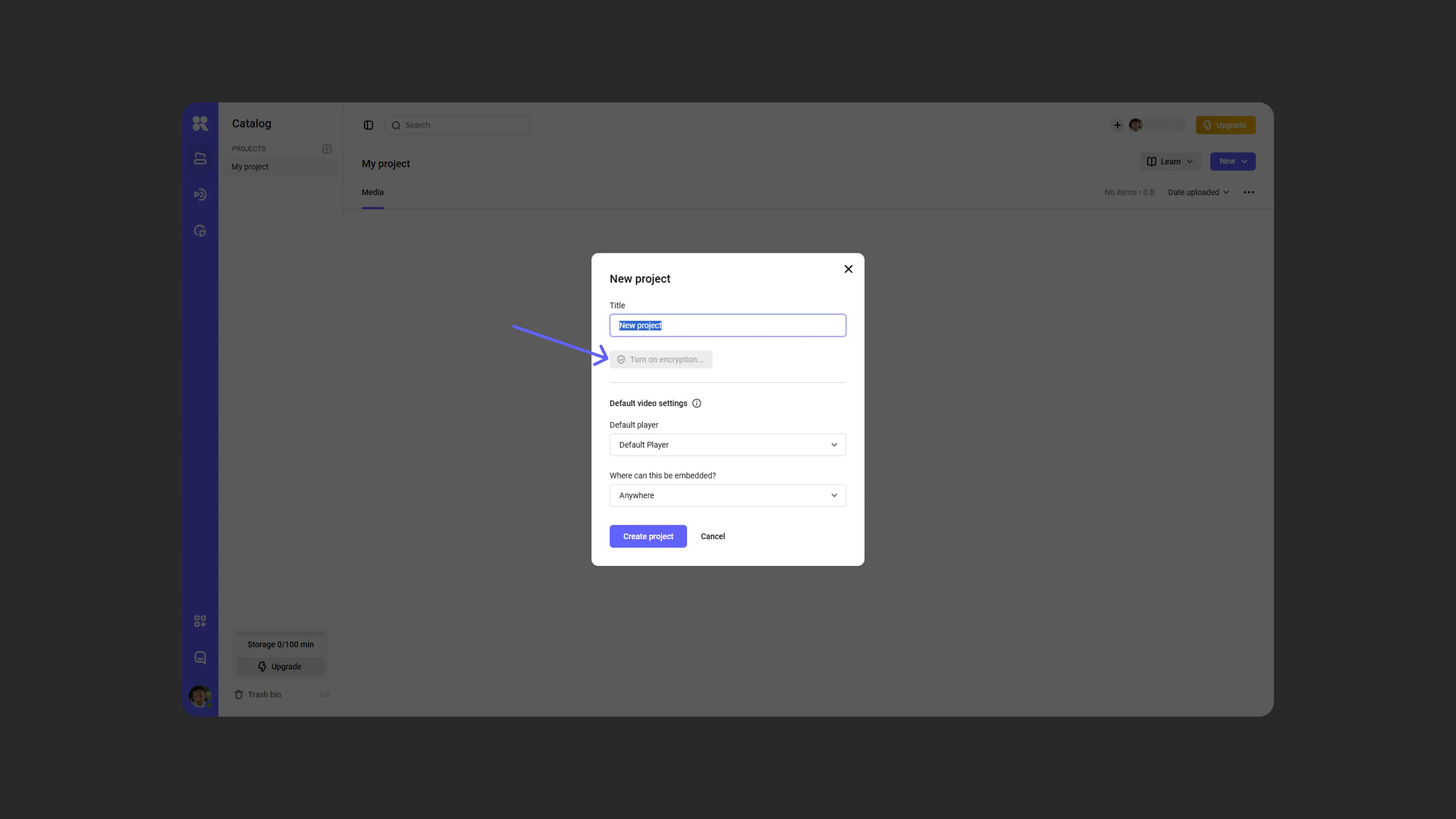
Enabling encryption in project settings Wait for the process to complete. Progress can be tracked in project settings.
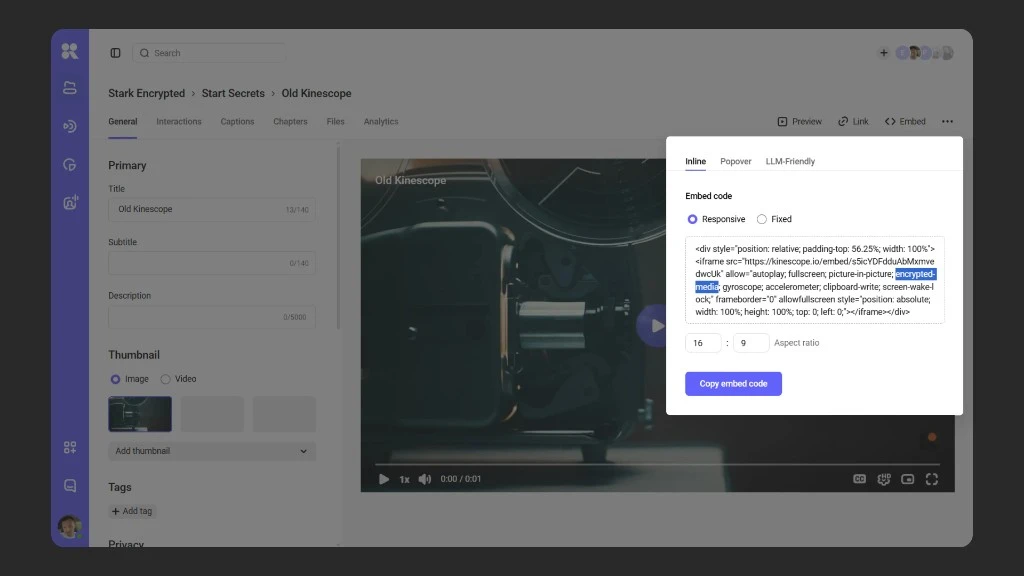
Check embed settings and SSL. Make sure:
- The embed code contains the encrypted-media parameter and is copied from Kinescope. If you use a CMS with a built-in editor, check the code on the page after publishing, not in the editor itself.
- The site uses the secure HTTPS protocol (with an SSL certificate and TLS). If you use an LMS or website builder, ask them for HTTPS setup instructions or search their knowledge base.
Sample embed code for a player with DRM
Basic variant (DRM only):
<iframe
  src="https://kinescope.io/embed/pcFNnQGsD59CMKte2SQQaz"
  width="640"
  height="360"
  frameborder="0"
  allow="autoplay; fullscreen; picture-in-picture; encrypted-media;"
></iframe>
With authorization backend (DRM + access control):
If you use an authorization backend for access control, pass the user identifier via the drmauthtoken parameter:
<iframe
  src="https://kinescope.io/embed/pcFNnQGsD59CMKte2SQQaz?drmauthtoken=${user_id}"
  width="640"
  height="360"
  frameborder="0"
  allow="autoplay; fullscreen; picture-in-picture; encrypted-media;"
></iframe>
You can use user_id, a JWT token, or any other identifier your backend can verify as the token. See the Authorization Backend for Video Access Control documentation for setup details.
If embedded videos do not play
Check:
- The embed code is correct — use the original code from the Kinescope dashboard.
- An SSL certificate exists — it is required for DRM to work.
- HTTPS is present on the site — check your hosting or website builder’s settings for SSL/HTTPS setup.
- The viewer’s browser (Chrome is recommended).
If something doesn’t work, the support chat within the Kinescope interface.
Frequently asked questions
If I enable DRM on all current projects, will I need to re-embed everything on my site or change the player code?
Playlists and encryption: do I need to enable anything separately?
What’s next?
- Media file settings — configuring privacy and access
- Restrict access by domain — allow embedding only on certain sites
- Set up authorization backend — control video access by your rules (courses, subscriptions, roles)
- Add watermarks — additionally protect content from leaks
Still have questions? Write to the support chat within the Kinescope interface — our specialists will help!