
Share a Folder or Project
You can share a folder or project with a public link. In Kinescope, this is also called link sharing. Recipients can watch videos and open subfolders without a Kinescope account or access to your workspace.
Use it to send footage to a client, give students access to a course, or share a structured set of videos with a partner.
What is available through the link
The link opens videos and subfolders in the selected folder or project. Recipients can browse folders, watch videos, and view video descriptions and chapters.
Playlists inside a shared folder or project are not displayed. To share a playlist, use its separate public link.
Who can share a folder or project
Link sharing is available on paid plans. Workspace members with the admin, editor+, editor, or manager role can create and manage links.
If the Sharing folder or Sharing project command is unavailable, ask a workspace administrator for access.
Create a link
- Open Catalog and find the folder or project.
- Hover over it, select the three-dot menu, then choose Sharing folder or Sharing project.
- In the sharing dialog, select Create link.
- Copy the link and send it to the recipient.
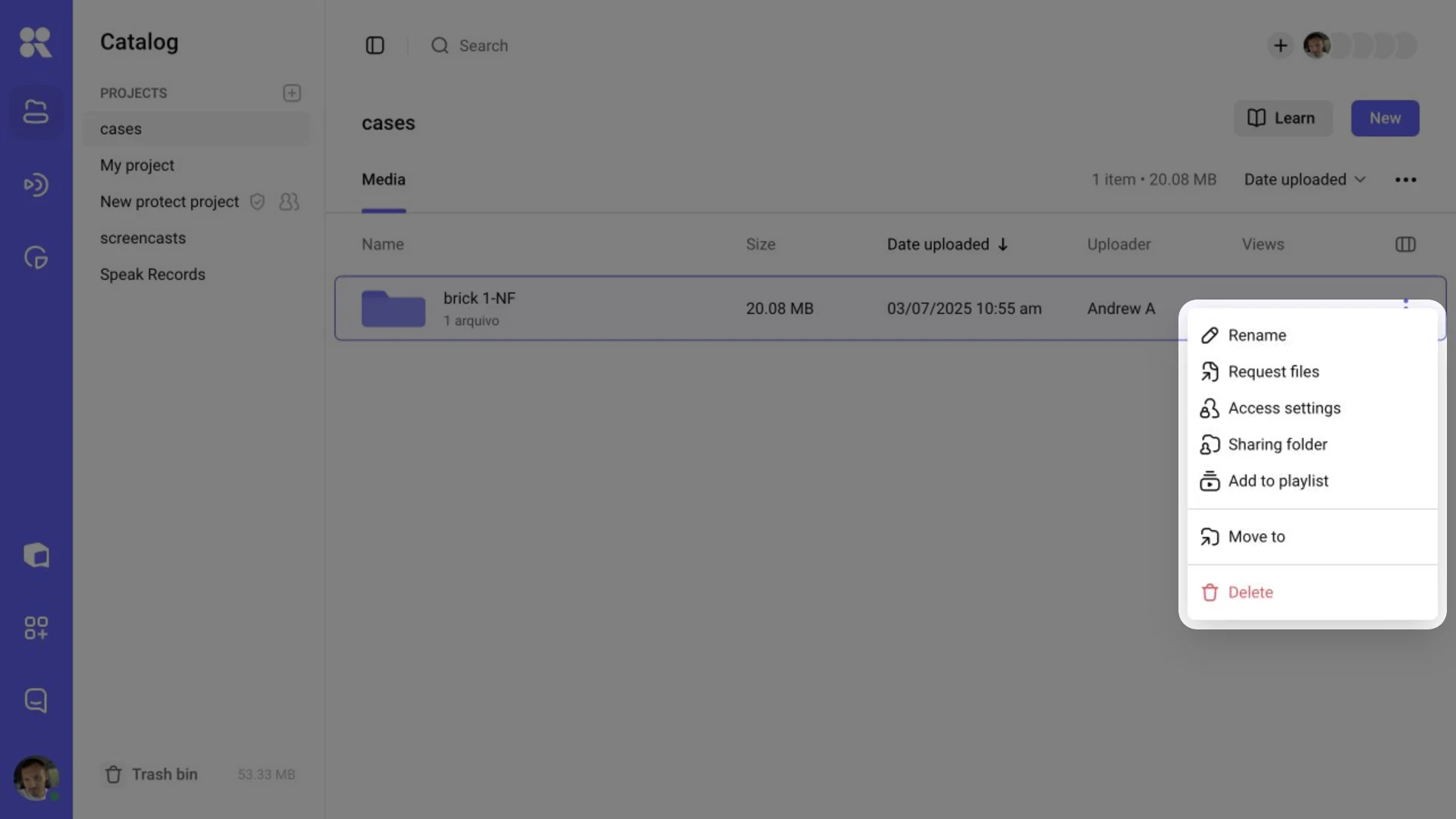
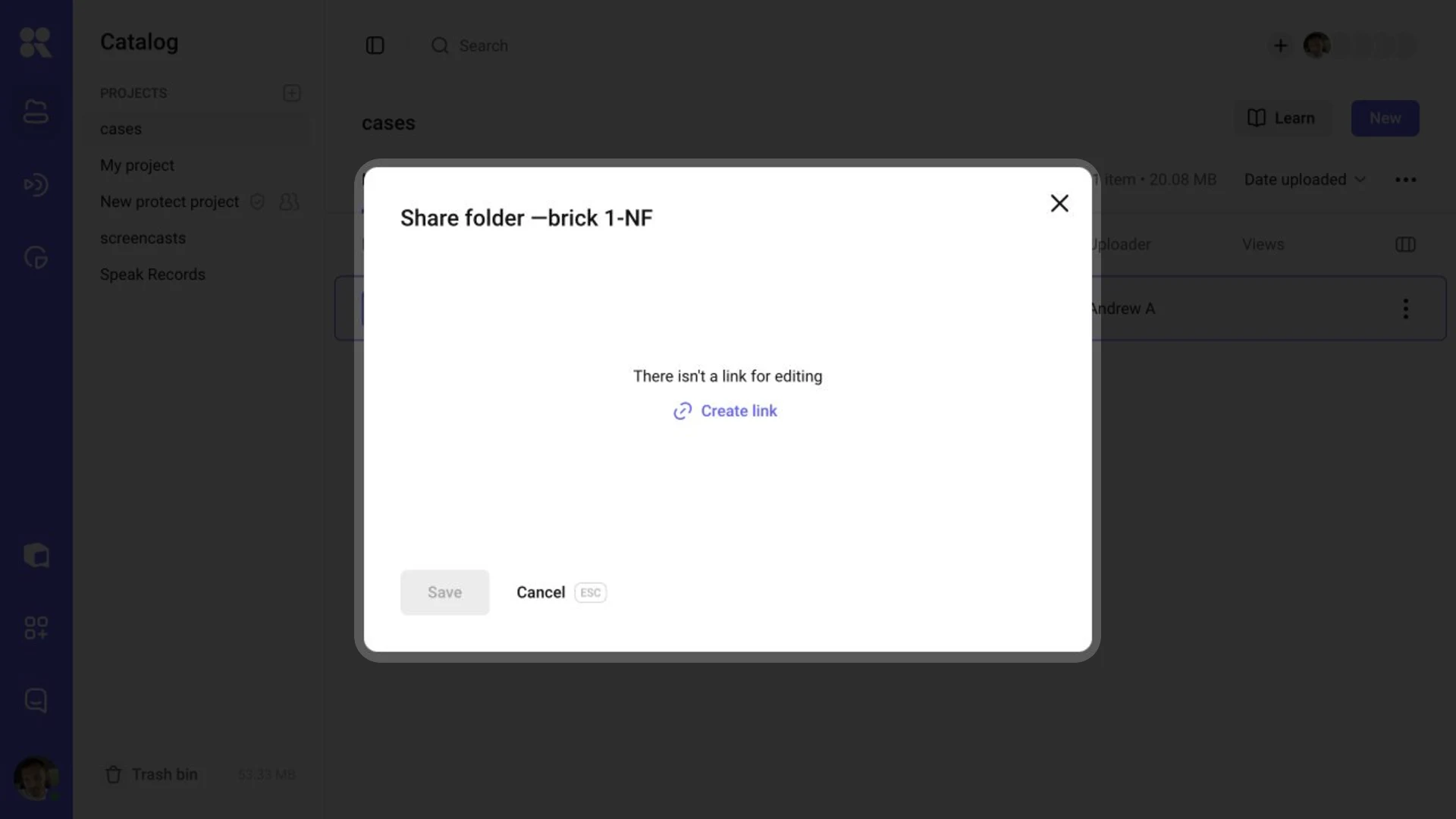
Before you create a link, the dialog shows that there isn’t a link for editing.
The link is created only after you select Create link. Closing the dialog does not open access.
After creation, the folder or project card shows a badge. The people icon means the item has a shared link; the shield icon means that the link is password-protected. The badge appears in both grid and list views.
Manage access
Open Sharing folder or Sharing project again to change the settings. You can:
- copy the link;
- set or remove a password;
- set an expiry date;
- allow or prevent video downloads;
- reset the link;
- revoke access.
Password and expiry date
Choose the password option under Access and enter a password. The API contract requires at least four characters. Recipients enter it before they can open the catalog. When you change or remove a password, recipients need to sign in again.
An expiry date limits access by time. When it passes, the link stops working. You can remove the limit or choose another date in the sharing settings.
Download permission
Turn on Allow video downloads if recipients should be able to download videos from the link. This setting applies only to this shared link.
Reset or revoke a link
The circular-arrows button to the right of the link field creates a new address and retains the other settings. The old address stops working immediately, so send the new link to recipients.
Revoke access to folder or Revoke access to project closes access permanently. To share the same item again, create a new link.
What recipients see
Recipients open a link in the form kinescope.io/sh/.... If you set a password, they enter it first. Then they see the catalog with the shared videos and subfolders.
With the link, recipients can:
- switch catalog view and sorting;
- navigate subfolders using breadcrumbs;
- open videos in the player;
- view descriptions and chapters when they are available;
- open other available videos from the list.
Changes to a folder are visible to recipients after they refresh the page. DRM-protected videos play through the link as usual.
When a link does not open
Recipients see an unavailable-link message if you revoked or reset the link, its expiry date passed, or the item was deleted.
Each folder or project can have only one active link. Open its sharing settings to copy or change it.
What’s next?
- Organizing Your Media Library in Kinescope — create a clear structure of projects and folders.
- Playlists — share video collections with a separate link.
- Team management — configure workspace member roles.