
Recycle Bin
The recycle bin helps you avoid losing media files. Deleted files and folders go to the bin and are kept for 30 days by default. This period can be changed. After the period expires, files are deleted automatically, but you can also empty the bin fully or selectively at any time.
Who this article is for
- Project administrators — need to restore accidentally deleted files
- Content managers — need to configure the file retention period in the bin
- Account owners — need to control storage costs for files in the bin
Emptying or restoring
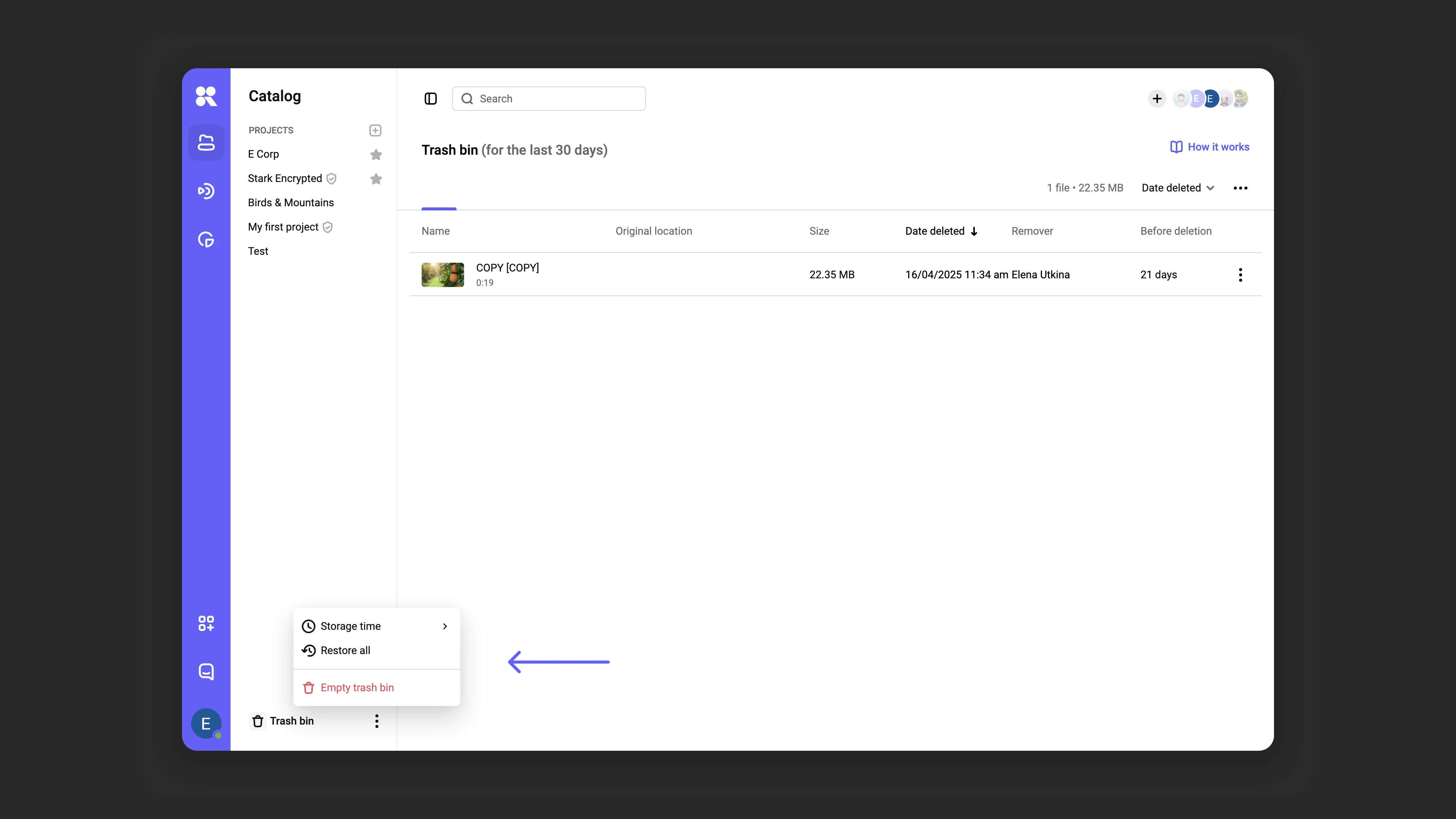
Full empty or restore
- Hover over the bin icon in the lower-left corner.
- In the menu (⁝), select “Empty bin” or “Restore all”.
Selective empty or restore
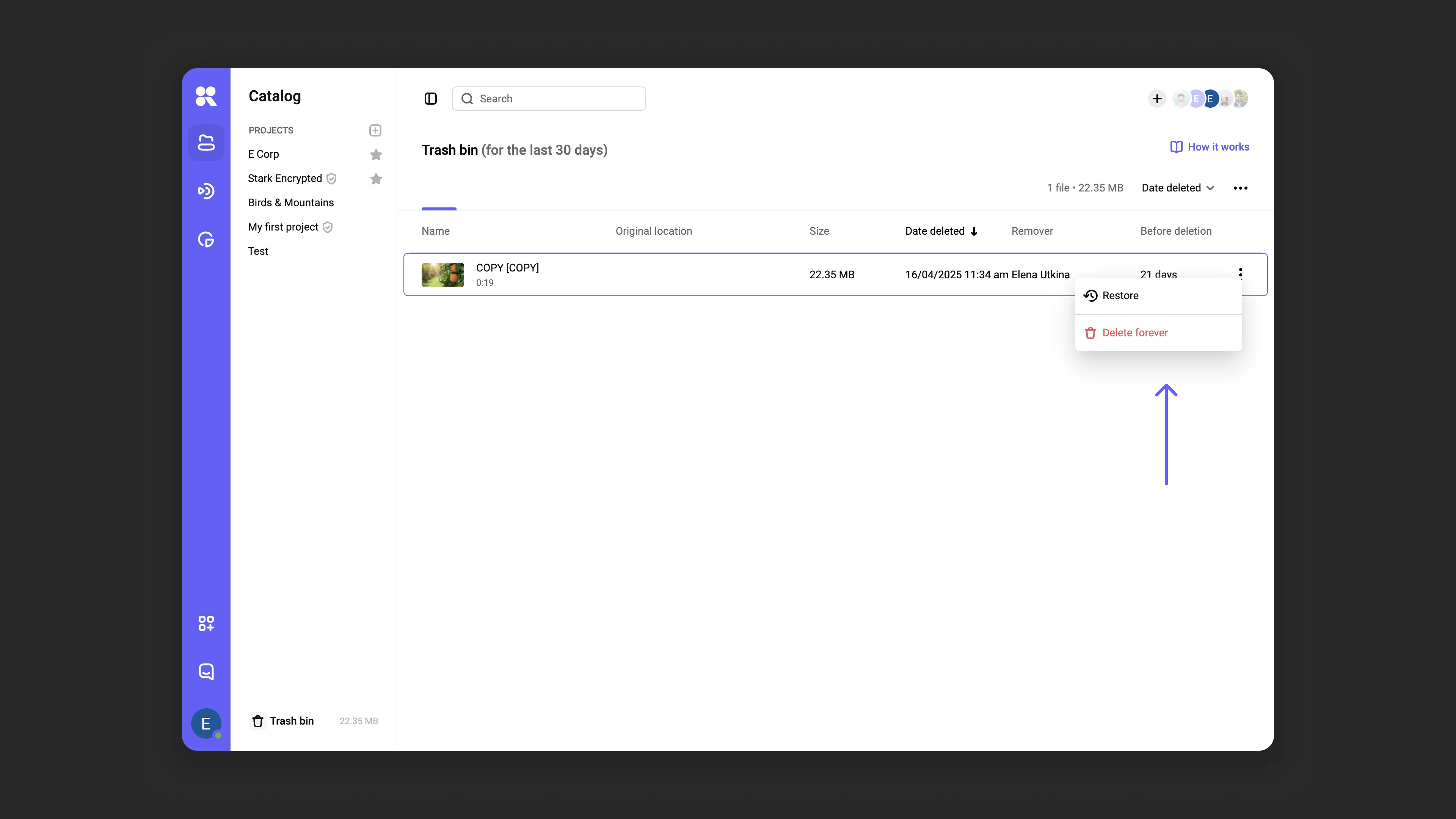
- Open the bin by clicking the icon in the lower-left corner of the interface.
- Select one or more items using Ctrl/Cmd + click or Shift + arrow keys.
- In the menu (⁝) for any selected item, choose “Delete permanently” or “Restore”.
Retention period
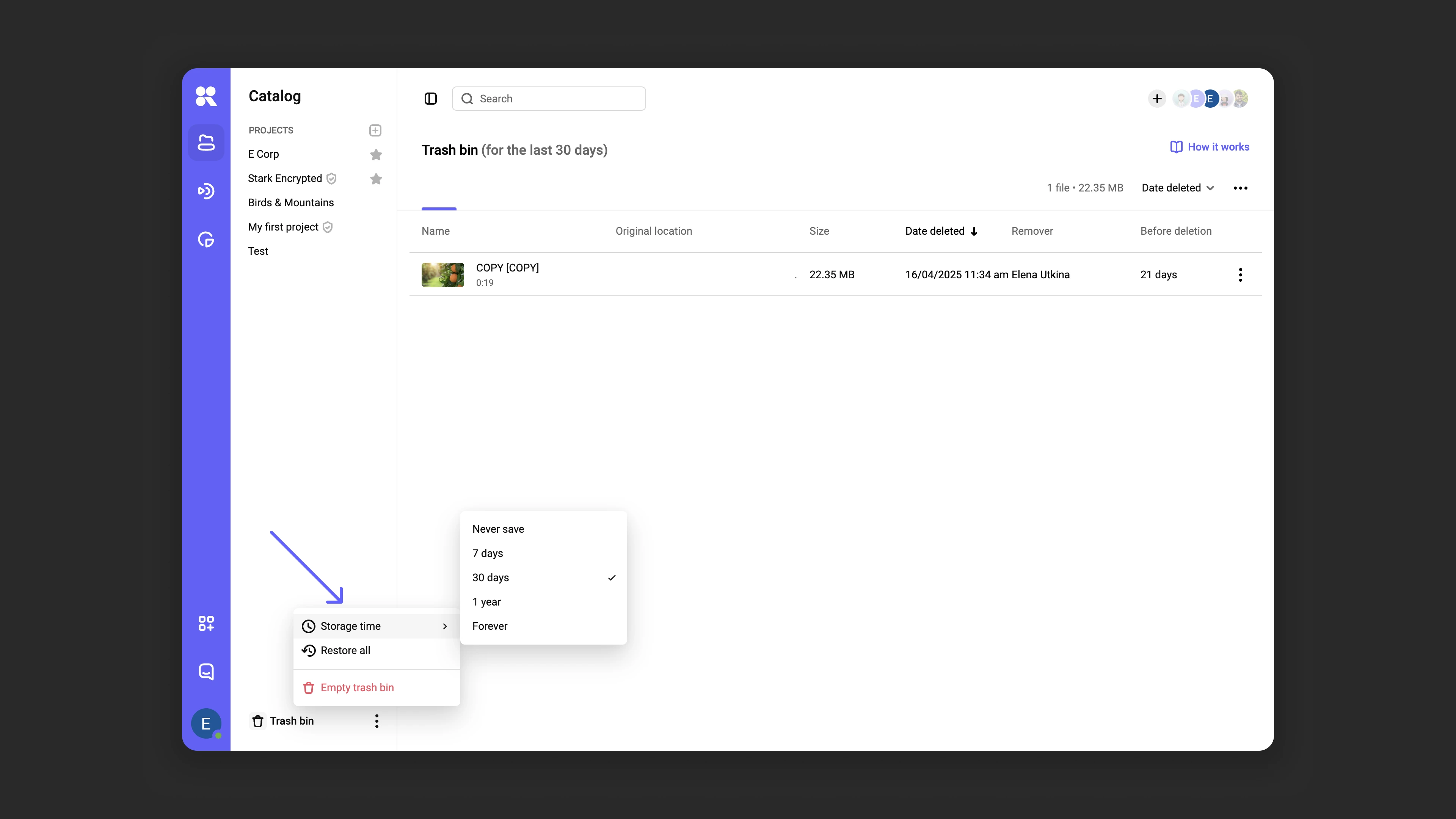
Deleted files are available in the bin for the configured period. You can adjust the period via the menu (⁝) next to the bin icon → “Retention period”. Available options:
- Don’t keep: files are deleted immediately.
- 7 days.
- 30 days: the default period.
- 1 year.
- Indefinitely: the bin is never emptied automatically.
Storage pricing
Storing files in the bin is billed according to your chosen plan: learn more here. To avoid extra charges, regularly empty the bin or change the retention period for files in it.
Recycle bin access rights
Only users with the roles “Editor”, “Editor+”, and “Administrator” have access to empty or restore from the bin. Learn more about roles in the Team management section.
Sorting and searching files
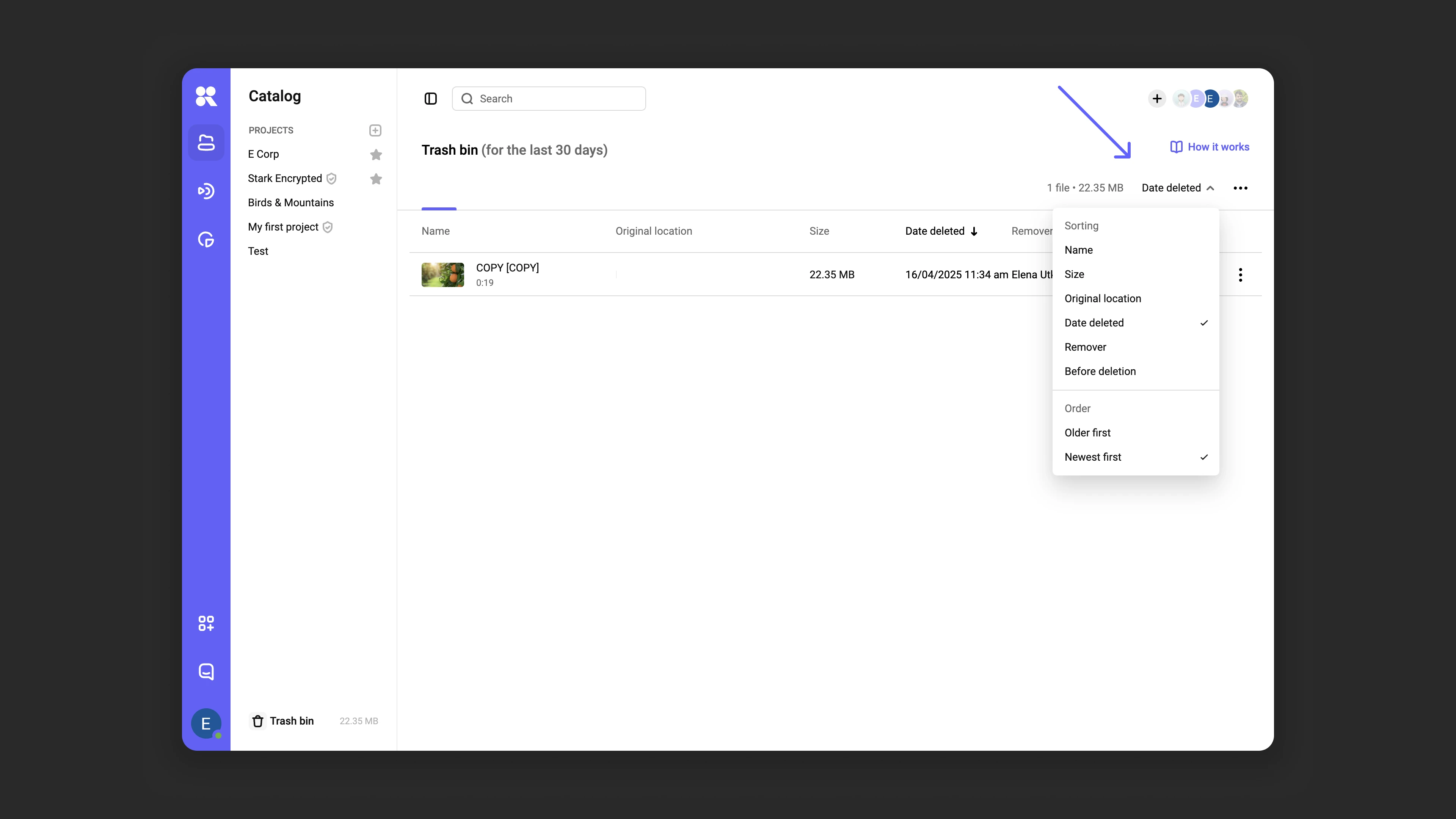
The list of deleted items is available in the bin for the configured retention period. The upper-right corner shows the total number of files and their combined size. Sorting options by date, size, and other parameters are also located there.
What’s next?
After working with the recycle bin, we recommend:
- Organize your media library — use projects and folders to structure your content
- Configure access rights — restrict bin access for team members
- Review pricing plans — learn how bin storage affects costs
Still have questions? Write to the support chat within the Kinescope interface — our specialists will help!