
Catalog Search
Can’t remember which project or folder a media file is in? Kinescope has a convenient search bar that helps you quickly find content regardless of its location. Search supports filters by various parameters and result sorting.
Who this article is for
- Content managers — need to quickly find files in a large media library
- Project administrators — need to find files by author or tags
- Teams — need to find content uploaded by a specific member
To access the search panel, simply click the bar at the top of the project workspace.
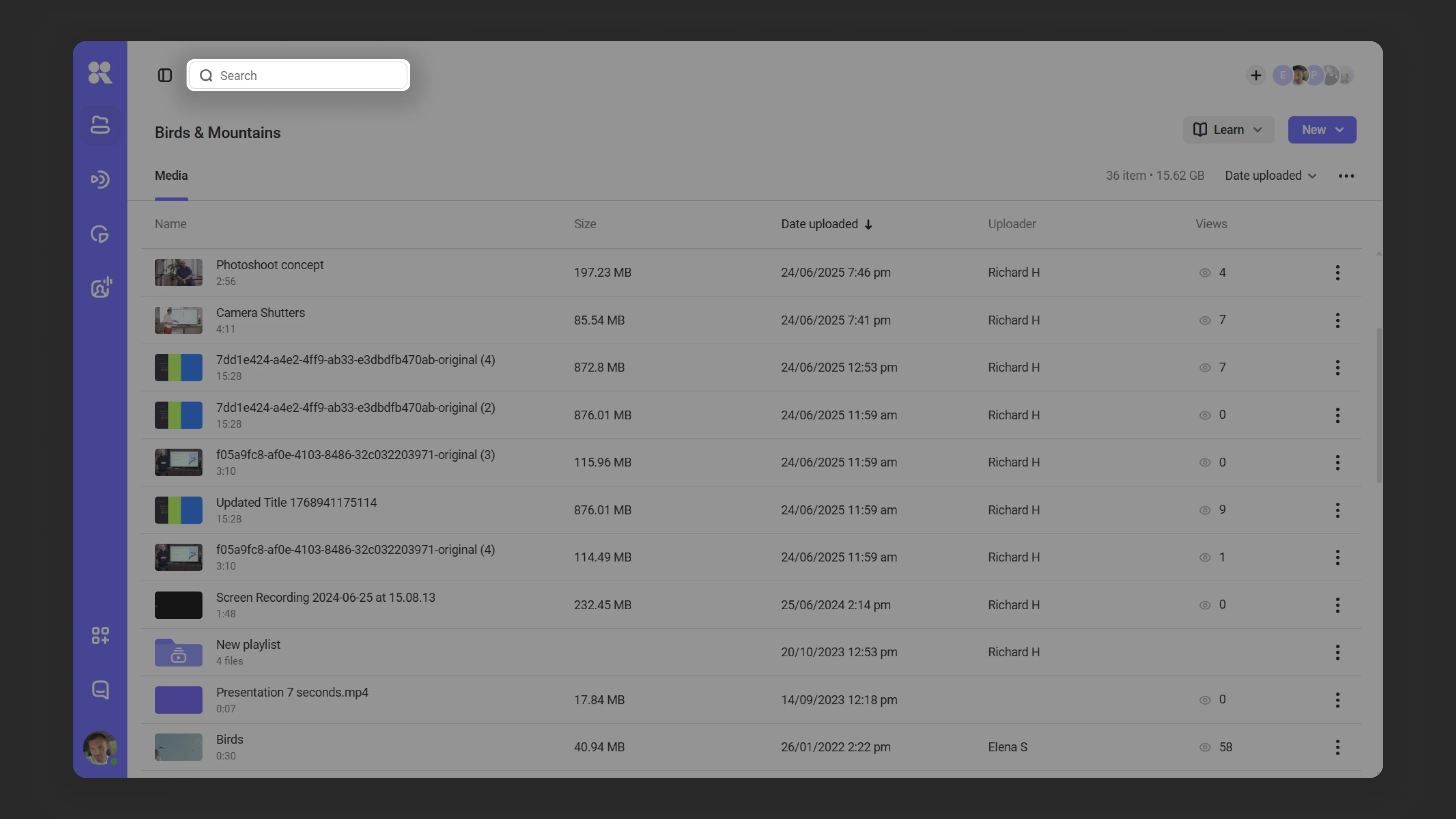
Search by name
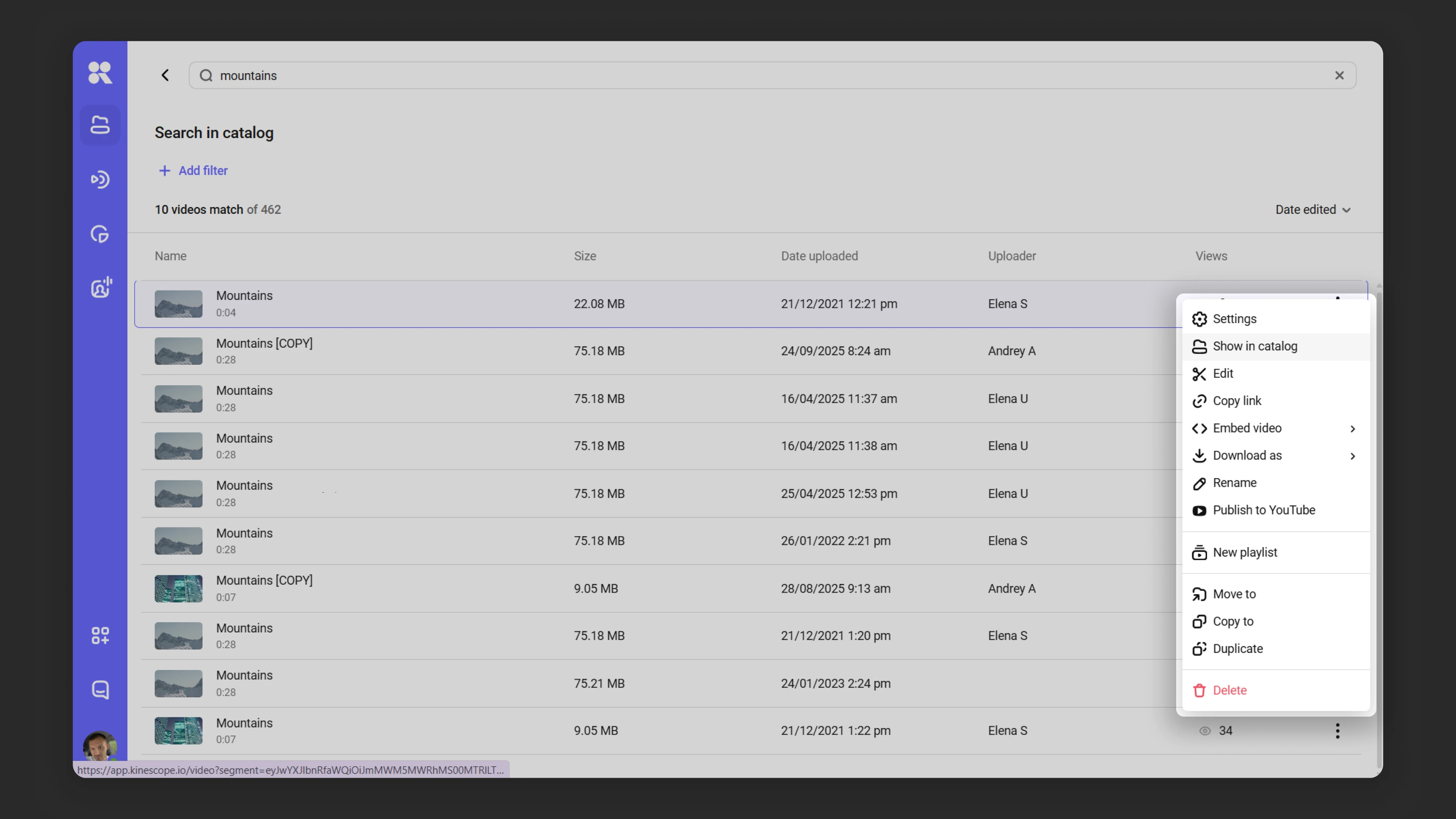
If you know the media file name, enter it in the search bar. Kinescope will display all matches from your catalog as a list.
- Go to folder: click the three dots to the right of the result and select “Show in catalog”.
- Go to settings: double-click the media file to open its settings.
Filters for advanced search
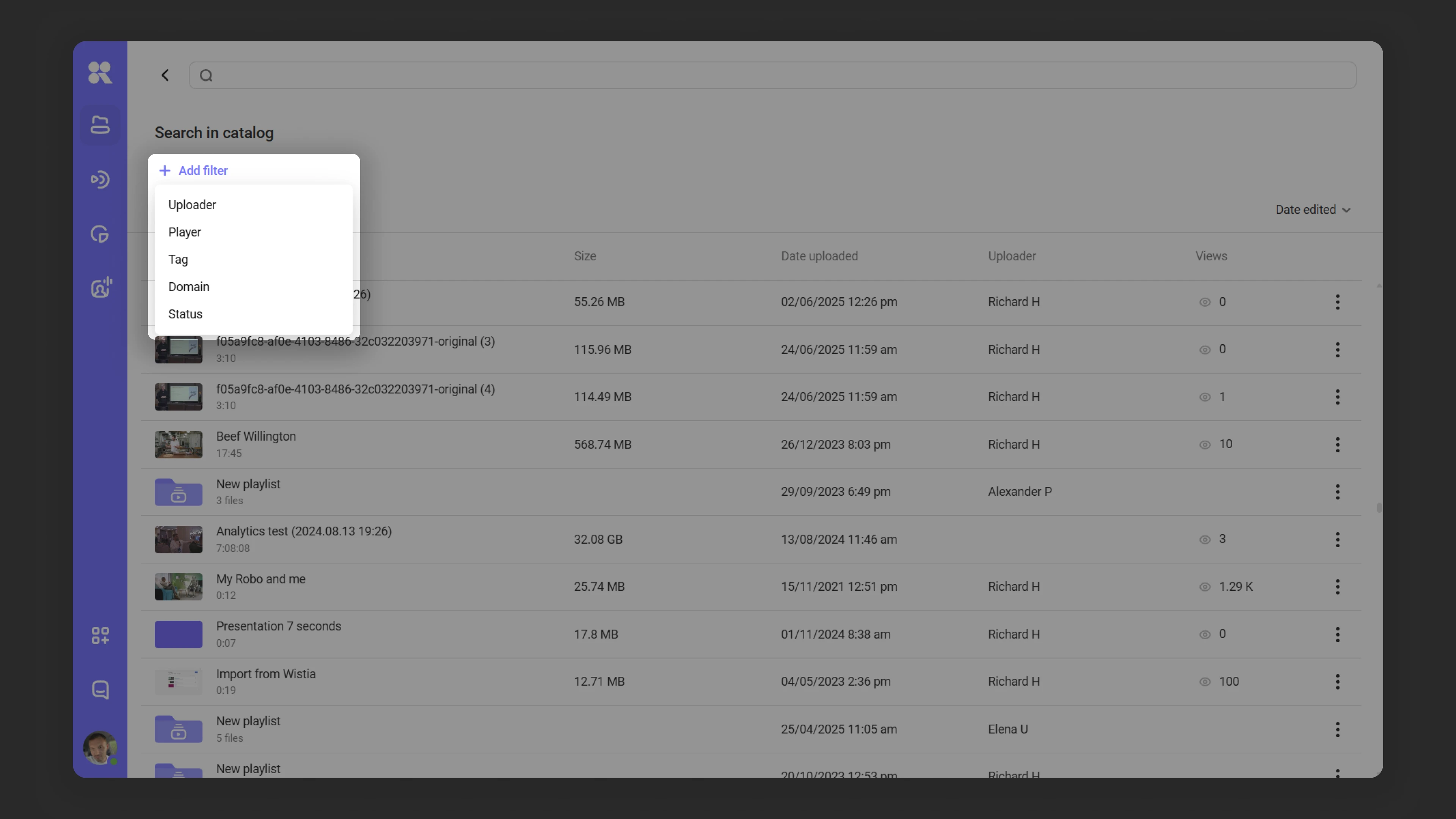
If you don’t know the exact name or need a detailed search, use filters. Kinescope supports the following categories:
- Author: the user who uploaded the media file.
- Player: the player used for video playback.
- Tag: a label assigned to the media file.
- Domain: the domain where the video is used.
- Upload status:
- Queued: waiting to upload.
- Uploading: file is uploading.
- Preparing: transcoding, or converting the file to multiple resolutions.
- Ready: file is uploaded.
- Upload error: upload was interrupted due to an error.
Adding filters
To use filters:
- Click “Add filter”.
- Select the desired parameter and specify it in the window that appears.
- Click “Done”.
You can combine multiple filters. Results update as each new filter is added.
Filters work in two modes: include and exclude. For example, you’re looking for a file and you (don’t) know who uploaded it:
- In the “Author” filter, enter the username in the “is” field to show only their files.
- Enter “is not” to exclude files uploaded by that user.
Sorting matches
If there are many matches, use result sorting. Available options:
- Name (default): sort by name A to Z, A to Z or reverse.
- Size: from smallest to largest or reverse.
- Type: sort by content type (folder or video).
- Upload date: from oldest to newest or reverse.
- Edit date: by time of last changes: oldest first or newest first.
- Duration: from shortest to longest videos or reverse.
What’s next?
After configuring search, we recommend:
- Organize your media library — use projects, folders, and tags for easy navigation
- Media file settings — add tags and descriptions to improve search
- Set up analytics — track the popularity of found files
Still have questions? Write to the support chat within the Kinescope interface — our specialists will help!